
Review product stock and channel availability
The product editor’s Advanced tab brings together stock tracking, product classification and sales-channel availability. Check these as separate decisions: an item’s quantity and the channels where it is offered are not the same setting.
Review stock tracking
- Open the product from Product Management and choose Advanced.
- Under Stock and fulfilment, inspect Track stock?.
- Where variants are present, inspect Track stock on. Check whether the selected tracking level is Product or the intended variant group, such as Variant: Size.
- Review Stock total, Low stock level, Stock Location and Pre-Order for the intended item.
- If you only needed to check the setup, use Cancel. Plan any change in tracking level before saving, particularly when stock already exists at variant level.
To set a recorded quantity at an outlet, use Correct a recorded stock holding. Keep that quantity correction separate from the product’s shelf/bin reference and its sales-channel choices.
Set up stock tracking deliberately
- Identify the exact product and review its existing quantities and option groups before changing tracking.
- If individual sizes or colours need separate holdings, prepare the appropriate variants first. Compare the actual option labels and SKUs.
- In Advanced → Stock and fulfilment, select the intended Track stock? choice.
- When enabling tracking, choose the intended Track stock on value where offered: Product or the appropriate variant group. Do not choose a group merely because it appears first.
- If you are changing an established tracking level, agree how existing quantities will be reconciled before saving. Do not assume switching the choice distributes a product total among its options, combines their quantities or transfers stock between outlets.
- Review the complete product form and use Save changes or Save changes & close for the intended update. Use Cancel if you are only inspecting the setup.
- Reopen the same product and compare Track stock? and Track stock on with the intended choices.
- Check the corresponding product or variant holdings at the intended outlet. Follow the separate receiving, correction or audit procedure for any quantity changes; saving a tracking choice is not a delivery record.
- Arrange a controlled check of the intended selling channel before relying on stock deductions or out-of-stock restrictions. Review website stock and purchase settings separately.
Example: one total or separate sizes?
A bag offered in Small and Large might have seven Small and five Large units at one branch. Keep those separate physical counts with their exact options when planning variant tracking. Do not enter twelve against each size or assume selecting a tracking group splits an existing total of twelve into seven and five. Reconcile the intended quantities and outlet before staff resume selling against the new setup.
If the tracking choice or result is unexpected
Check that you reopened the intended product and that its variant group exists. Record the previous and saved tracking choices, product/option SKUs, outlet and quantities. Ask support to establish the correct reconciliation if the holdings differ; repeatedly switching between Product and Variant is not a quantity-repair procedure.
Review where a product is available
- In Advanced, find Sales channels and availability.
- Review Hide Add-to-basket button and ePOS/In Store Only alongside the channel you are checking.
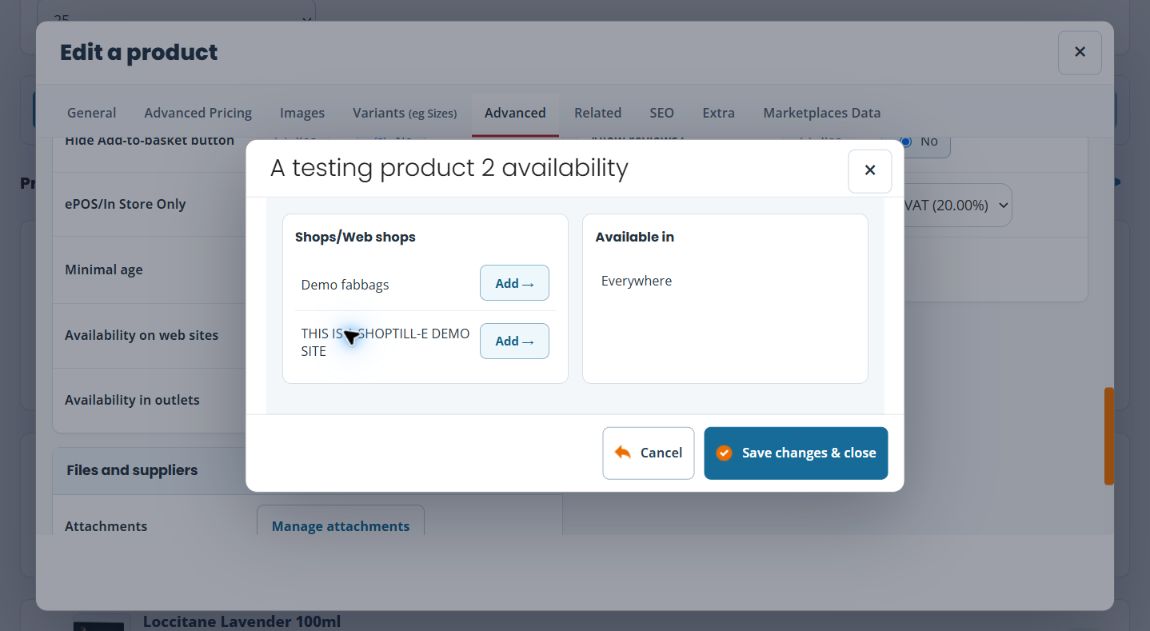
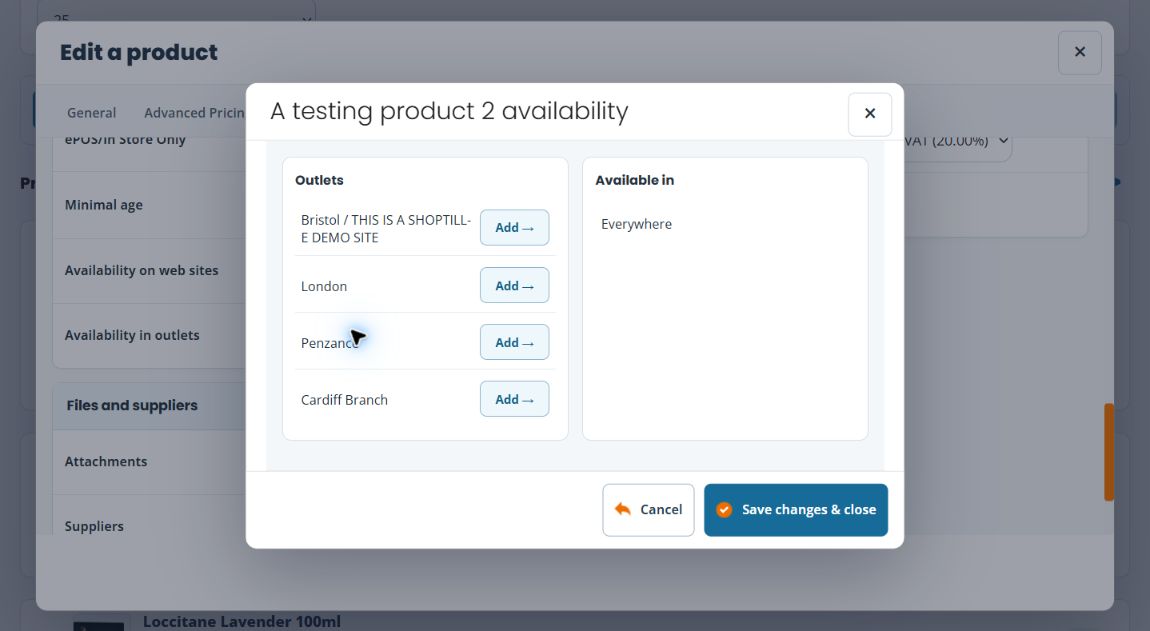
- Select Manage web availability for website choices, or Manage outlet availability for outlet choices.
- Read both the available choices and the Available in area. The sample account shows Everywhere before a restriction is selected.
- Review Everywhere carefully. Removing the last specific choice can return the selection to Everywhere; this is not a hide-everywhere method.
- For an intended change, use Add beside the target website or outlet and check that it appears under Available in. Use Remove only for a location you intend to take out of the selection.
- Choose the availability dialog’s Save changes & close. Reopen the same dialog and compare the saved list, then test the intended selling channel. If you only inspected the list, use Cancel.
These dialogs save independently of the main form. A later main-form Cancel does not reverse their saved changes. Choosing locations does not move stock or set quantities there.
Example: an in-store range
If a product is intended for shop-floor sales, first check its in-store-only setting, then its outlet availability. Review stock separately for each location. Do not assume that making an item available in a branch also sets a stock quantity there.
Prepare a product for pre-orders
Agree what customers can order and when you expect to fulfil it before changing the product’s Pre-Order choice. Keep the customer message, actual stock and staff process consistent.
- Find the intended product by name and SKU, then open Advanced → Stock and fulfilment.
- Record the existing Pre-Order, tracking and availability choices. Review the current quantity separately; an expected delivery is not stock already received.
- Prepare accurate product wording, including any confirmed availability estimate and how customers will be kept informed. Do not promise a date the supplier has not confirmed.
- For an intended update, choose the appropriate Pre-Order value, review the whole form and use the main product save control. Reopen the same product to check the stored choice.
- Check the actual product page, option selection and basket/checkout behaviour for the intended storefront before advertising the offer. Review what a customer sees when the current quantity is zero as well as any applicable purchase restrictions.
- Arrange a suitable order-flow check and review the resulting order identification and customer message before relying on them. Use automatic email templates to find the relevant notification; do not assume the flag supplies the wording or guarantees a different confirmation.
- Agree how staff will identify outstanding pre-orders, receive the incoming stock and fulfil each order. Review the flag and product wording again when ordinary availability resumes.
For example, a new bag range may be awaiting its first delivery. Keep the expected shipment separate from quantities physically received, and explain the agreed customer promise on the actual product page. Use the normal receiving workflow when goods arrive; changing Pre-Order is not a stock receipt.
If the pre-order journey differs
Keep the product/SKU, selected option, storefront, current quantity, saved flag, displayed message and resulting order reference together. Check website stock and purchase restrictions separately before changing them. Avoid entering fictitious stock or repeatedly submitting an order to force the expected message.
Other controls in Advanced
This tab also contains Brand, URL, GTIN, Collection/kit, product type, weight, files, attachments, supplier selection, review settings, cost and tax class. Change one area at a time so you can identify the effect. Use the relevant detailed workflow before changing a kit, digital product or tax setup.
When an item does not appear
Check the product’s Live setting in General, then its channel and outlet restrictions. Also check the location and visibility filters used to find it. Record the exact product, channel and location when asking support to investigate.
Inspect variant stock · Review the main product details.
Link a product to its suppliers.
Detailed tasks
- Record a product’s weight
- Record a product’s stock location
- Record a product’s brand and GTIN
- Select an available product-page template
- Choose the files included with a digital product
- Manage a product’s attachments
More stock checks
- Review WebShop stock and availability settings
- Choose a stock holding, replenishment or tracking report
- Find the right setting in a product’s Advanced tab
Choose the full setting label before Yes or No
| Setting | Decision to review |
|---|---|
| Track stock? | Whether the product uses stock tracking; review the tracking level and actual quantities separately. |
| Pre-Order | Whether the product is marked for the intended pre-order journey. Check the storefront message and order-handling process before advertising it. |
| Collection/kit | Whether this is a kit setup. Review components, quantities and the intended stock-tracking level together. |
| Hide Add-to-basket button | The product's storefront buy-button choice; review channel availability separately. |
| ePOS/In Store Only | The intended in-store sales scope, together with outlet and website availability. |
| Allow reviews? | The product's review setting, separately from approving individual reviews and displaying them in the theme. |
- Find the exact product and full setting label.
- Choose the intended value and review any related fields that appear, such as Track stock on.
- For an intended main-product update, review the whole product form before Save changes or Save changes & close.
- Reopen the product and check the saved choices, then inspect the intended selling channel and stock context.
For example, a pre-order flag does not supply a delivery promise to customers by itself. Keep the message, expected fulfilment and staff process consistent with the product you intend to offer.
