
Edit a product’s main details
The General tab in the product editor holds the main information used to identify and describe a product. Begin with the correct existing record, particularly when two products have similar names.
Before you start
Have the intended product name, category, identifier and selling price ready. If your catalogue uses variants or customer-group pricing, review those settings as well before expecting one base price to describe every sale.
Open and edit the record
- Open Catalogue & Stock → Product Management and find the product.
- On its row, select Edit. Check that the editor is for the intended item.
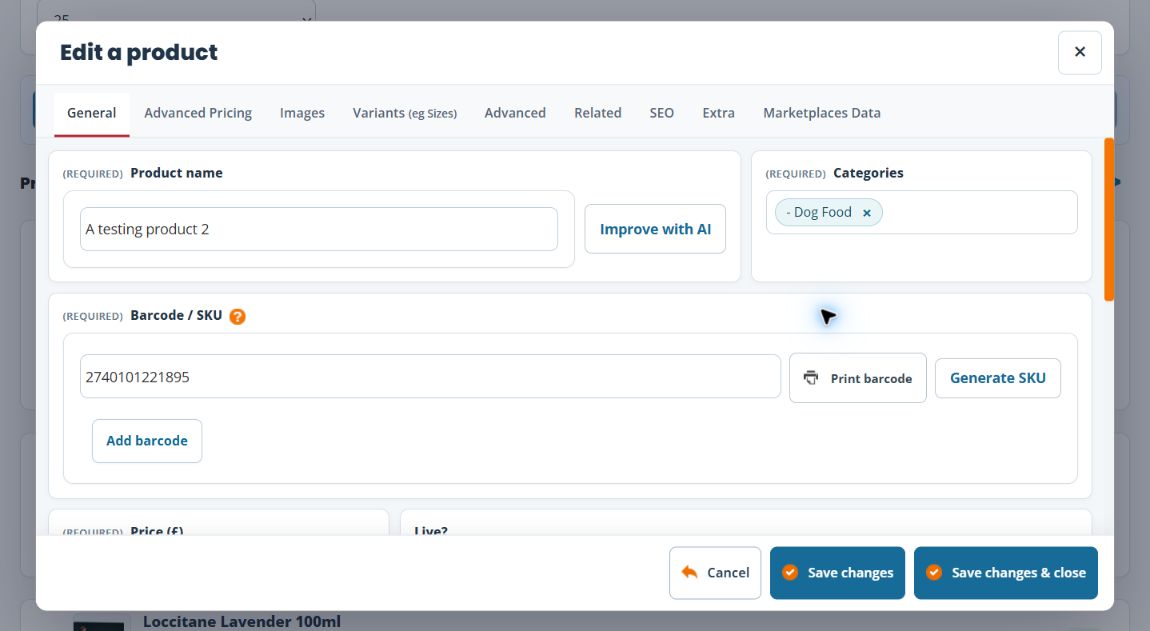
- Choose General. Review Product name and the selected Categories.
- Check Barcode / SKU. Do not replace a working identifier simply to change the product’s name.
- Enter the intended Price in the currency shown on your account. Review Live? separately from the wording or price change.
- Edit the product description. Use the formatting controls for readable paragraphs and lists, then check the result for accuracy.
- Select Save changes & close when finished. Reopen the record and confirm the saved values. Use Cancel if you intended only to inspect it.
Choose the product’s categories
- Check the product name and Barcode / SKU before changing its assignments.
- In General → Categories, review the existing selected category names. Open the field to browse the available categories.
- Check the hierarchy as well as the name. Indented categories belong beneath a parent; two similarly named categories can belong in different branches.
- Select the intended category. A product can have more than one selected category, so review the complete set rather than assuming a new choice replaces the old one.
- To remove an unwanted assignment, use the × beside that selected category name. Check the remaining assignments before saving; this removes the product’s assignment, rather than deleting the category itself.
- Use the main Save changes or Save changes & close only when the whole product form is ready. Reopen the same SKU and check the selected categories. Use Cancel when you only wanted to inspect the picker.
For example, a backpack might belong in Bags → Backpacks and a separate seasonal range. Select the intended categories deliberately; choosing a subcategory does not by itself confirm how every parent or menu displays the product.
If you cannot find the intended category
Check its parent branch and spelling. If you type into the picker, inspect the actual matching list before choosing an item. Do not remove a working assignment just to diagnose a search problem. Create the category first if it does not exist, then return to the product. Categories is a required field; check the final selection before saving.
After saving, check the relevant till category and webshop destination separately. A category assignment, product availability and a webshop menu link are different settings; review product availability if the item is still missing.
Example: improve a vague product name
A record named “Bag blue” may be difficult to distinguish from other bags. A clearer name such as “Canvas tote bag — blue” can help staff identify it. Keep the existing SKU when the record still represents the same item, and check that the description matches its material and colour.
AI writing controls
The editor includes Improve with AI and Generate Product Description with AI. Check any suggested text against the actual product before saving, especially measurements, materials and claims. These controls do not replace checking your source information.
If the saved result looks wrong
Reopen the same SKU and compare the fields. If a price differs for a particular customer or variant, inspect Advanced Pricing rather than repeatedly changing the base price. If the product is absent from a channel, review availability as a separate task.
Know what each save applies
Save changes saves the product form and reloads the editor; Save changes & close saves and closes it. Switching tabs does not save. Separate dialogs or list actions for variants, availability, stock, barcode aliases and uploads can have their own commit action. Cancel on the main form does not reverse those completed actions.
Extra fields
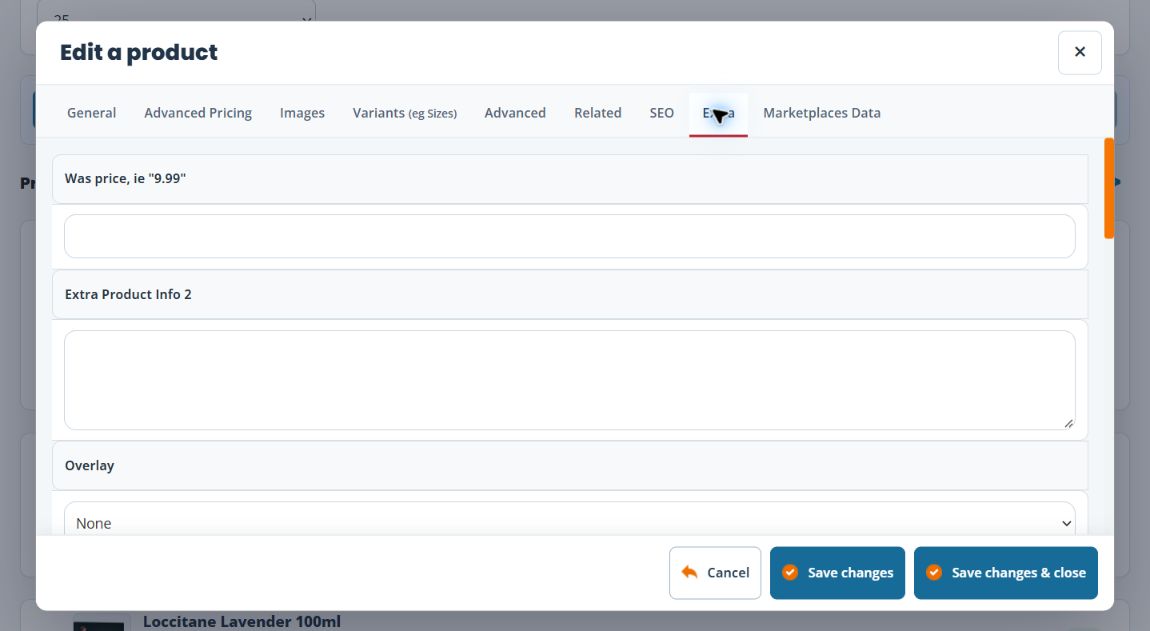
Open Extra and review the field labels and any help your theme provides. These can include Extra Product Info fields, text areas or configured choices. Use the field intended for that information and check its actual storefront location after saving. Do not assume every theme uses the same labels or displays every field.
SKUs and extra barcodes · Description formatting · Marketplaces Data
Related help
Review advanced product pricing · Review product variants · Stock and availability.
