Find automatic email notification templates
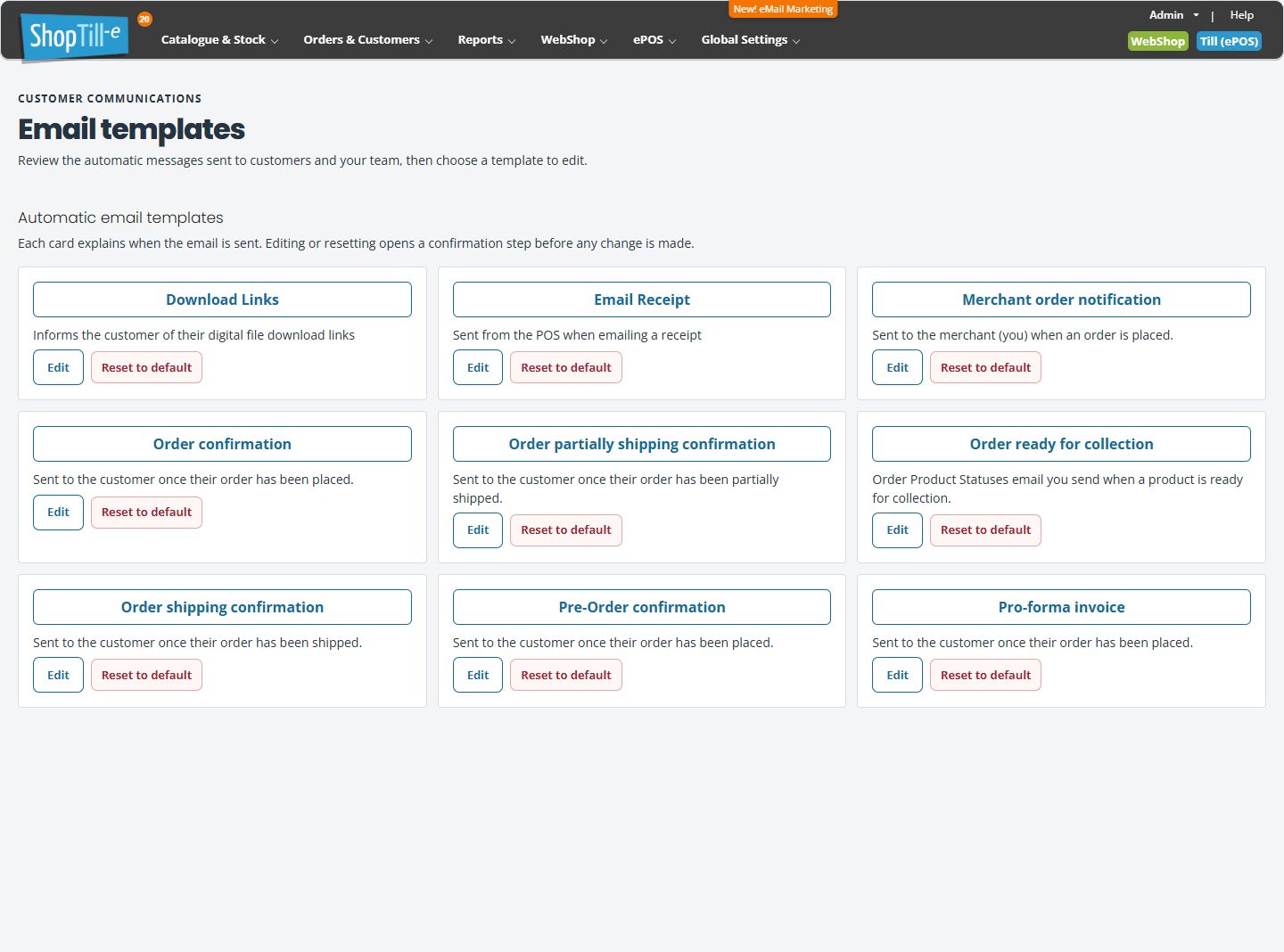
The Email templates page groups automatic messages by purpose. Find the template for the event you intend to change rather than editing another message with similar wording.
Find the template
- Open Global Settings → Edit Email Notifications.
- Read each card’s title and description.
- For a POS emailed receipt, find Email Receipt. For a new order message, distinguish Order confirmation from Merchant order notification.
- For fulfilment messages, distinguish Order partially shipping confirmation, Order shipping confirmation and Order ready for collection.
- Choose the intended Edit control and check the Title in the editor. Opening the editor does not itself save a change; use Cancel to inspect without saving.
Other template purposes
The list also includes Download Links, Pre-Order confirmation and Pro-forma invoice. Their card descriptions provide context for the type of message. Confirm the actual triggering workflow when investigating why a message was sent or not sent.
Example: change dispatch wording
If you need wording for an order sent in separate batches, review the partial-shipping template rather than assuming the fully shipped message is used for every dispatch. Check the variables and a representative message before publishing an edit.
Reset is a separate action
Each template has Reset to default. Use that only when you intend to replace a custom version, and retain a copy of the current text first. It is not required simply to open or inspect a template.
If delivery is the problem
Template content and email delivery are separate checks. Keep the message type, intended recipient, order/event reference and time when asking support to investigate. Editing text alone does not establish that sending or delivery has been repaired.