
Review product variants and their stock
Variants represent options such as sizes or colours within a product. The Variants (eg Sizes) tab shows the option groups and the values available for the product.
Inspect an existing variant group
- Find the product in Product Management and select Edit.
- Open Variants (eg Sizes).
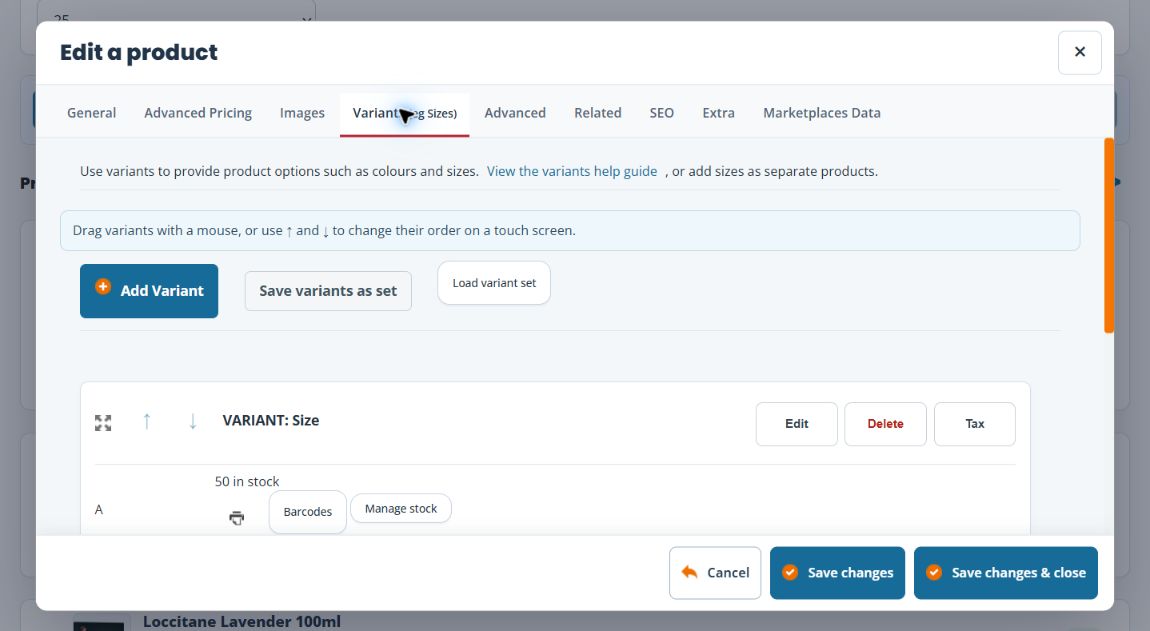
- Check the variant group’s name and values. The example below uses a Size group with values A, B and C.
- Use the group’s Edit control when you need to inspect its definition. Treat Delete and Tax as separate changes, rather than part of a simple stock check.
- To change the order of groups, use the drag handle with a mouse or the ↑ and ↓ controls. An unavailable arrow may be disabled.
- Group moves submit immediately. Wait for the result and reopen the list to check it.
Inspect stock for one option
- In the variant list, find the intended value, such as size A.
- Select Manage stock beside that value.
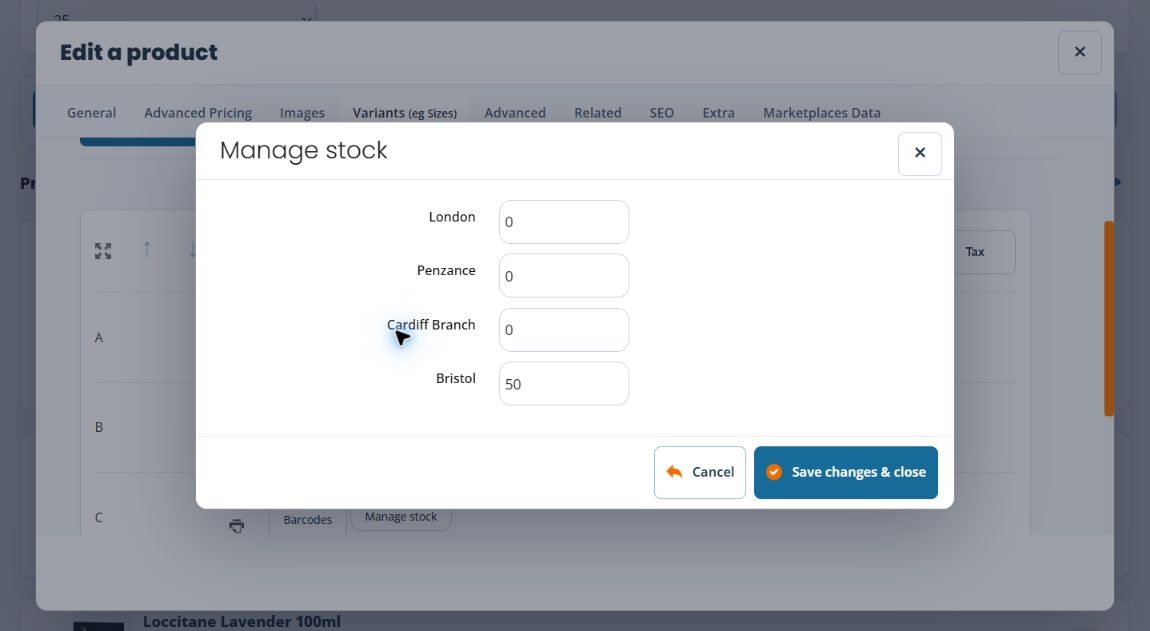
- Review the quantities shown for each outlet. Check both the option and the outlet before changing a quantity.
- If you are only checking stock, close with Cancel. If you have an authorised stock correction to make, enter the intended quantities and use the dialog’s Save changes & close, then verify the result.
For example, finding no size A stock in London does not mean size B is unavailable or that another branch has none. Check the exact value and outlet. A physical transfer or receipt of stock should follow the appropriate stock workflow rather than an unexplained quantity overwrite.
Inspect additional barcodes
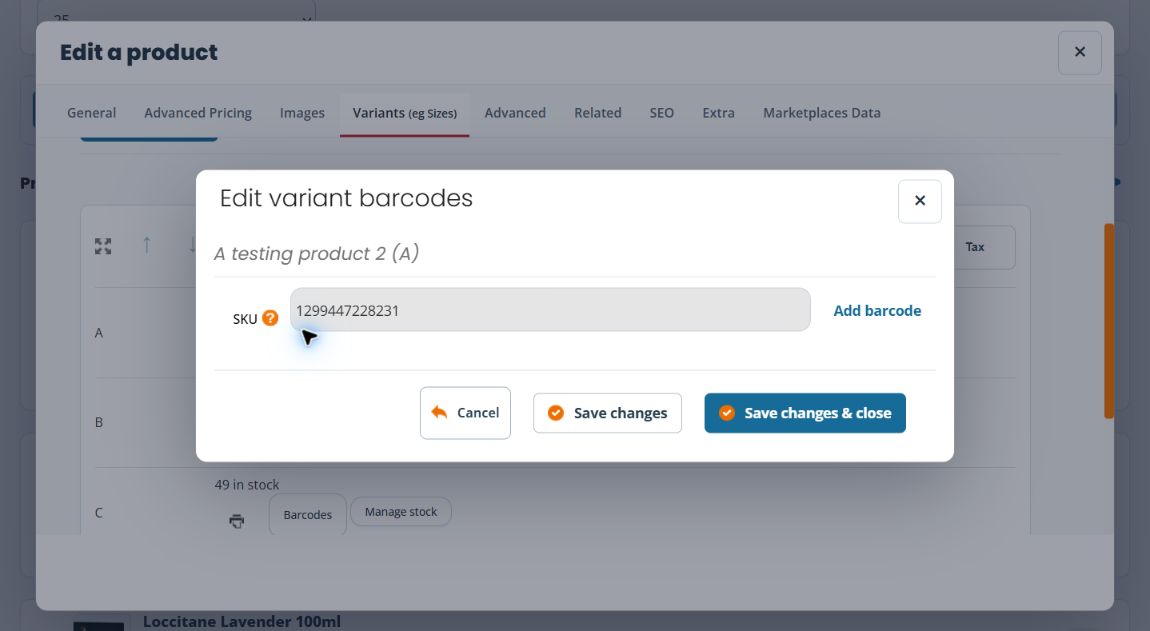
Select Barcodes for the intended value. The barcode dialog shows an SKU and an Add barcode control. Confirm that you opened the right option before adding an identifier; the base product and its variants are different identification levels.
Reusable variant sets
Use Save and reuse a product variant set when products share an option structure. Check the target’s existing groups, identifiers, prices and quantities before applying it; the set action is independent of the outer product save.
Variant and kit tasks
- Choose a product variant type
- Add a dropdown product variant
- Prepare a combination or matrix variant
- Add a text-entry option for a product
- Review a kit and its component products
Separate actions and their save boundaries
Moving variant groups with arrows or drag submits their order immediately. Wait for the result and reopen to check it; a later Cancel on the main product form does not undo that move. A variant editor’s Save changes & close also commits its own changes. Option order inside that editor and the order of whole groups are separate tasks.
Use Save and reuse a variant set for reusable structures, and the identifier guide for option barcode aliases. Record existing stock before loading a set into a product that already has variants.
Related help
Review prices for variants and customer groups · Check which stock level is tracked.
Troubleshoot a variant or option
| What you see | What to check next |
|---|---|
| An option has No SKU after loading a set | Match the product and option label, then assign that product’s own identifiers in the variant editor. Follow the reusable-set steps; matching labels do not establish that identifiers were copied. |
| A change remains after cancelling the main product editor | Check which action was saved. A variant dialog and a reusable-set action have their own save boundaries. Reopen the product and inspect the saved result before repeating the operation. |
| The order of choices is unexpected | Distinguish the order of whole groups from the option rows within one group. Use the dropdown guide for option movement and sorting, then reopen and compare each label with its SKU. |
| The stock shown differs from another size or branch | Compare the exact product, option and outlet. Review the stock-tracking level and use the appropriate stock workflow before changing quantities. |
| A barcode is attached to an unexpected choice | Review the selected option’s SKU and additional barcode entries separately. Follow the identifier guide; test the intended lookup before relying on it at the till. |
If the saved result is still unexpected, retain the product SKU, group name, option label, outlet and steps taken. Include the relevant screen in a support request, and avoid repeating a set load while its earlier result is uncertain.
Size and colour combinations
Use a Combination/Matrix variant when the customer chooses across two sets of options. Match each SKU and quantity to its row and column, then review stock tracking and prices separately before offering the product.
