
Link a product to its suppliers
Product supplier links help organise purchasing. Check both the supplier record and the product association when a product is absent from a supplier-based purchase-order list.
Review and assign suppliers
- Find the intended product in Catalogue & Stock → Product Management and select Edit.
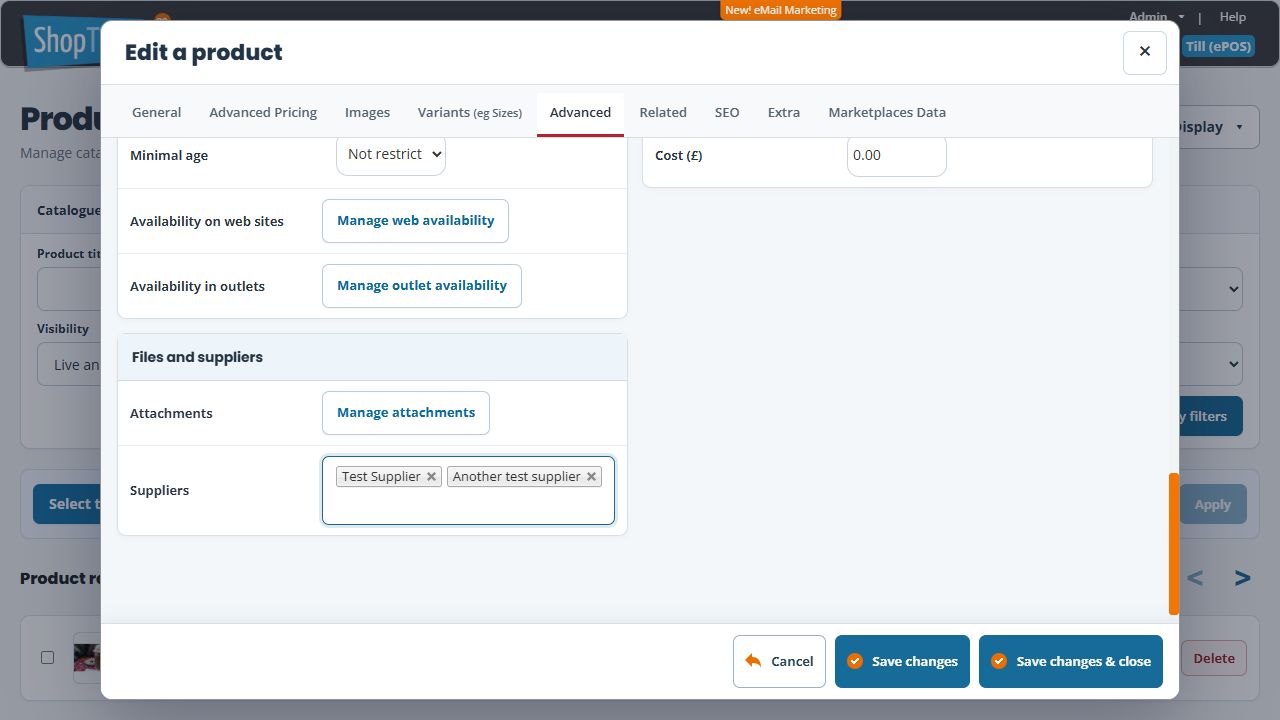
- Choose Advanced and find Files and suppliers.
- Review the current Suppliers selection.
- Open the Suppliers field and select the intended supplier from the displayed list. Repeat for another supplier if needed. Each selected supplier appears as a separate named entry; review those names and keep any other valid associations that should remain.
- Review the product and selected suppliers, then use Save changes & close for the intended update.
- Reopen the same product and confirm the saved selection.
- When preparing a purchase order for that supplier, review the proposed products and the selected prefill mode.
Remove a supplier link
- Open the same product’s Advanced → Files and suppliers → Suppliers selection.
- Use the × beside the supplier entry you intend to remove.
- Check every remaining selected name. If no supplier should remain linked, check that the field is empty.
- Choose Save changes & close, reopen the same product and confirm the intended remaining selection.
Use Cancel when you want to discard the current unsaved selection. Reopen the product to check its stored links before continuing.
Example: one product from two suppliers
If the same catalogue product can be sourced from two suppliers, review both associations. Confirm which company the current purchase order is for and verify its actual order quantity and unit price; a supplier link does not by itself establish the price agreed for a particular order.
If a supplier is not shown in the picker
Clear any search text and review the displayed list. Check the existing supplier record and the currently selected names before adding a duplicate supplier. Keep the exact query and result if the expected record still cannot be found.
If the product is not proposed
Check the saved association, product live state, selected supplier, outlet and purchase-order prefill mode. A low-stock or threshold selection can produce a different starting list from a blank or all-products route.
