
Prepare a useful support request
Keep a clear description of the task, what you expected and what actually happened. Use the shop’s support route for the issue and retain any existing request reference.
Gather the details
- Identify the shop and the screen or device involved.
- Describe the task and the exact step where the result differed.
- Record the time, exact error and relevant order, product/SKU, till or other record reference.
- State whether the issue affects one record/device or several, and whether it is ongoing or intermittent.
- Prepare a useful screenshot where appropriate, checking it does not expose passwords, API keys, full card details or unrelated customer information. If no attachment option is shown in the form, keep the file and ask support how to share it with your request reference.
Open the support request
- Use the support request form linked from ShopTill-e’s contact-support page.
- Complete Email, Subject and Details, which are marked required. Add the relevant Name, Phone and Company information, then review Category and Priority before submitting.
- Keep the actual confirmation or request reference after submission.
- Use that reference for follow-up so earlier evidence stays with the same investigation.
Arrange a conversation
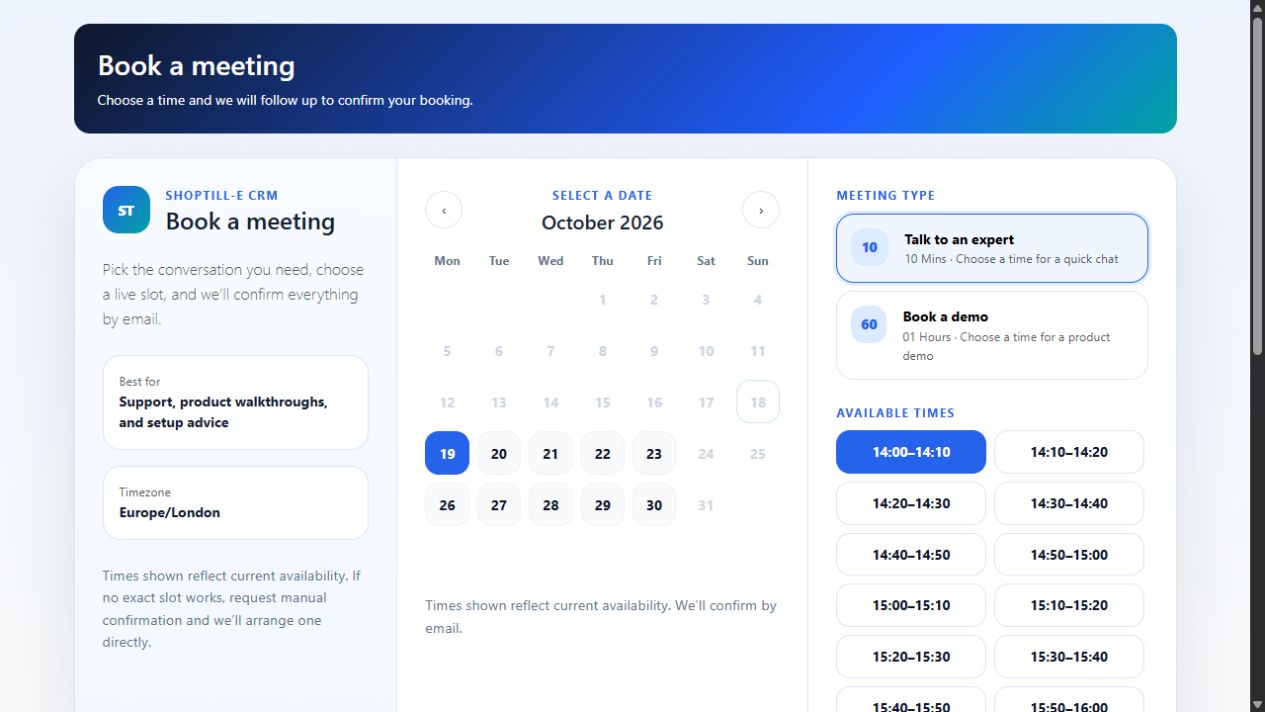
- Open the ShopTill-e booking page.
- Review Meeting type: Talk to an expert is offered for a quick chat, while Book a demo is offered for a product demonstration. Check the duration currently shown for your choice.
- Review the displayed timezone, date and time, including any preselected values. Choose the intended available date and time before continuing; do not assume a highlighted default is the appointment you want.
- Enter your Full name and Email. Add useful Company, Business type, Phone and Background / requirements details. Explain the shop, topic and any existing support-request reference.
- Review the details before choosing Request booking. The page says the booking will be confirmed by email; keep the actual acknowledgement and confirmation rather than treating the selected slot as a confirmed appointment.
If no suitable time is available or the outcome is unclear, use the support-request route above and keep any reference already received. Include the topic, timezone and useful availability; check the earlier request before submitting it again.
Example: a payment result needs review
Give the order/till/terminal reference, time and exact reported state. State whether a receipt or provider confirmation exists. Preserve the existing evidence and resolve the result before taking another payment.
If the form does not open or confirm
Record the address and exact error, then check the current ShopTill-e contact page for alternative contact details. The published support email is support@shoptill-e.com; the UK telephone number is 0345 617 17 17. Include any existing request reference when following up.
Keep the original details and any acknowledgement. If submission was interrupted, explain that before sending the same enquiry again, so support can check for an existing request. Use the current contact and booking information rather than assuming older published hours or a priority selection promises an immediate response.
Payment-review guidance · Preserve local order evidence.
Complete the current form
| Field | What to include |
|---|---|
| Email * | The address support should use to reply. Check it carefully. |
| Name, Phone, Company | Useful contact and business details for the enquiry. |
| Subject * | A short description identifying the task and symptom, such as “Receipt not printing on Till 2”. |
| Category | Choose General, Billing, Technical or Account to match the enquiry. General is the initial choice. |
| Priority | Review Low, Normal, High or Urgent. Normal is initially selected. Explain the actual trading impact in Details; a priority choice is not a response-time guarantee. |
| Details * | Include the shop, exact steps, expected and actual result, time, error wording and relevant references. |
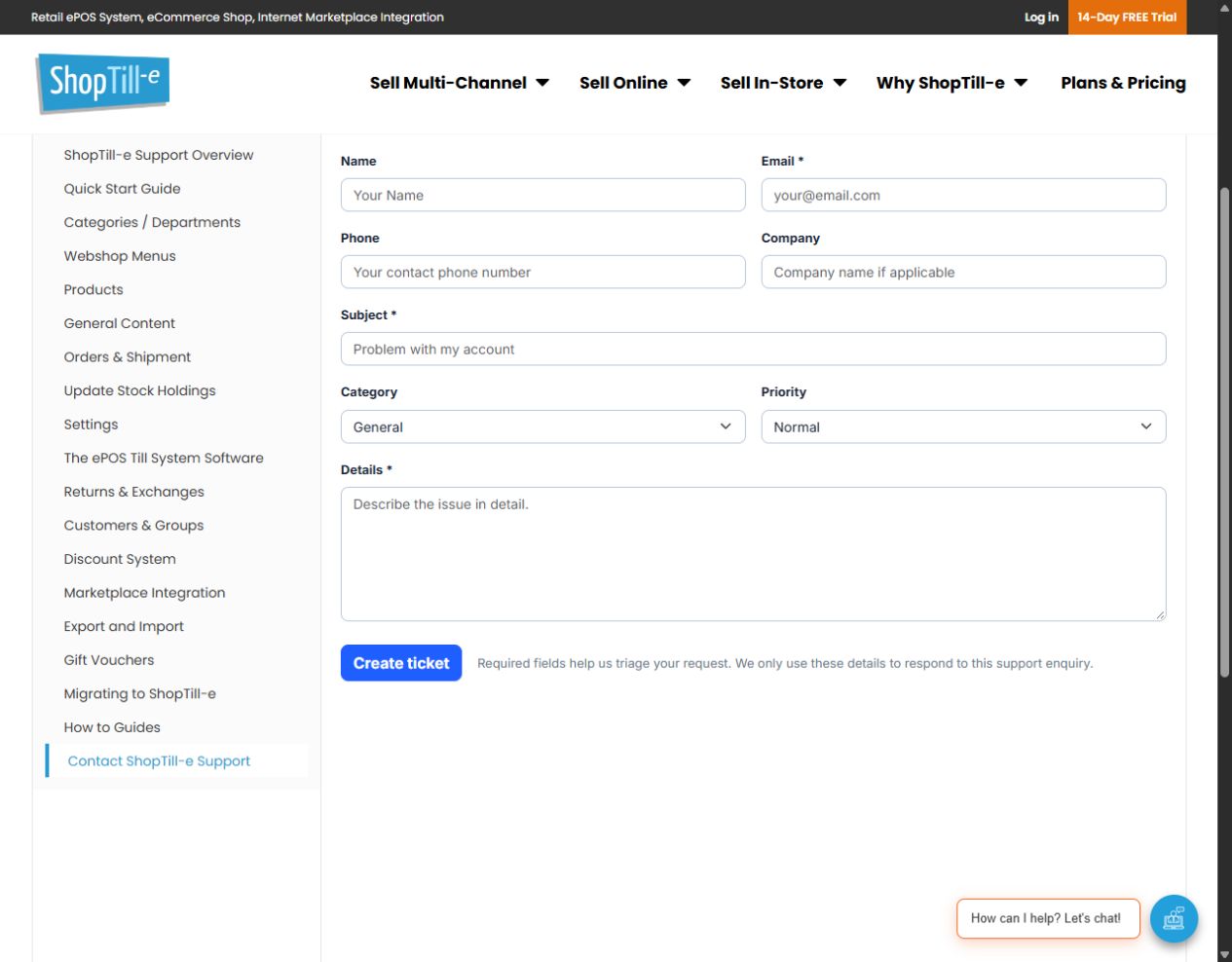
Review before Create ticket
For example, describe which till and printer were in use, whether the order is already saved, what action you selected and the exact result. State the impact, such as one printer affected while another checkout still works. Review the details, then choose Create ticket only when you intend to send the enquiry. Keep the actual confirmation and reference; do not assume the request was received merely because the form closed or a button was selected.
