
Find a product on the till
Use the till’s product search when you know part of an item’s name, or enter an exact SKU to look up its item. Browse categories when you know where the range belongs. Check the full product name before choosing an item, especially where similar products or options exist.
Find an item by name
- Open Till (ePOS) from Builder.
- Select search for a product. In the desktop layout below, it is above the basket on the left.
- Type part of the product name. Suggestions appear beneath the field.
- Read the matching names and scroll the suggestion list if needed. Add more of the name to narrow a broad search.
- Identify the exact item before selecting it. If several entries look the same, check the product record or ask a colleague to confirm the intended item rather than choosing by position.
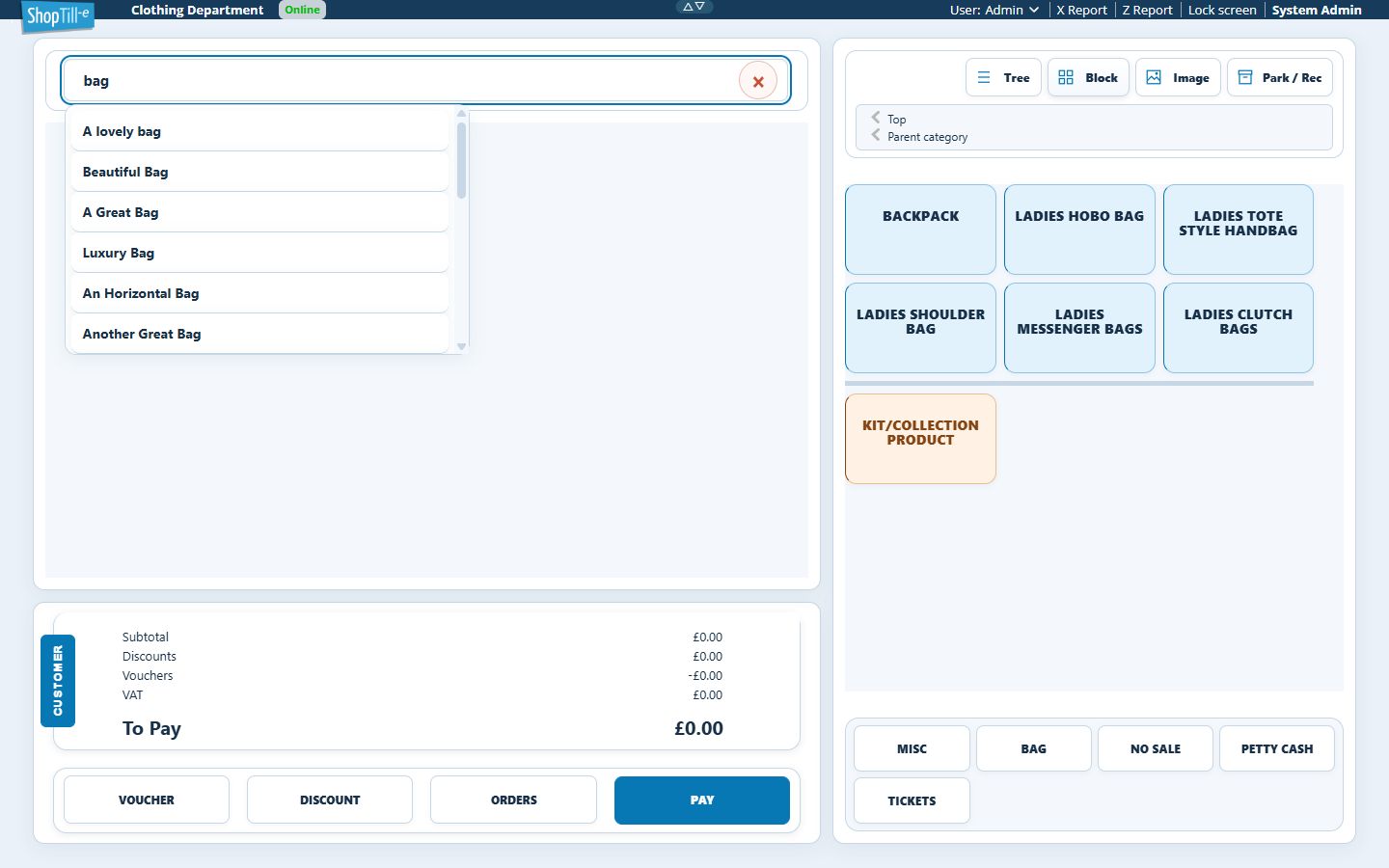
Example: finding a particular bag
Typing bag can return names such as A lovely bag, Beautiful Bag and Messenger Bag Style Leather Briefcase. If the customer wants the briefcase, use a more distinctive part of that name. A familiar word can also match unrelated names, so compare the result with the item in front of you.
Add an item by its exact SKU
- Confirm the intended code in the product and barcode record. Check the specific option when working with variant codes.
- Select search for a product and enter the exact SKU.
- Press Enter. A matching code can add a line directly to the basket; review any option prompt that appears.
- Check the resulting item name, quantity, selected option where applicable and amount before continuing. Check the existing basket before repeating an unclear entry.
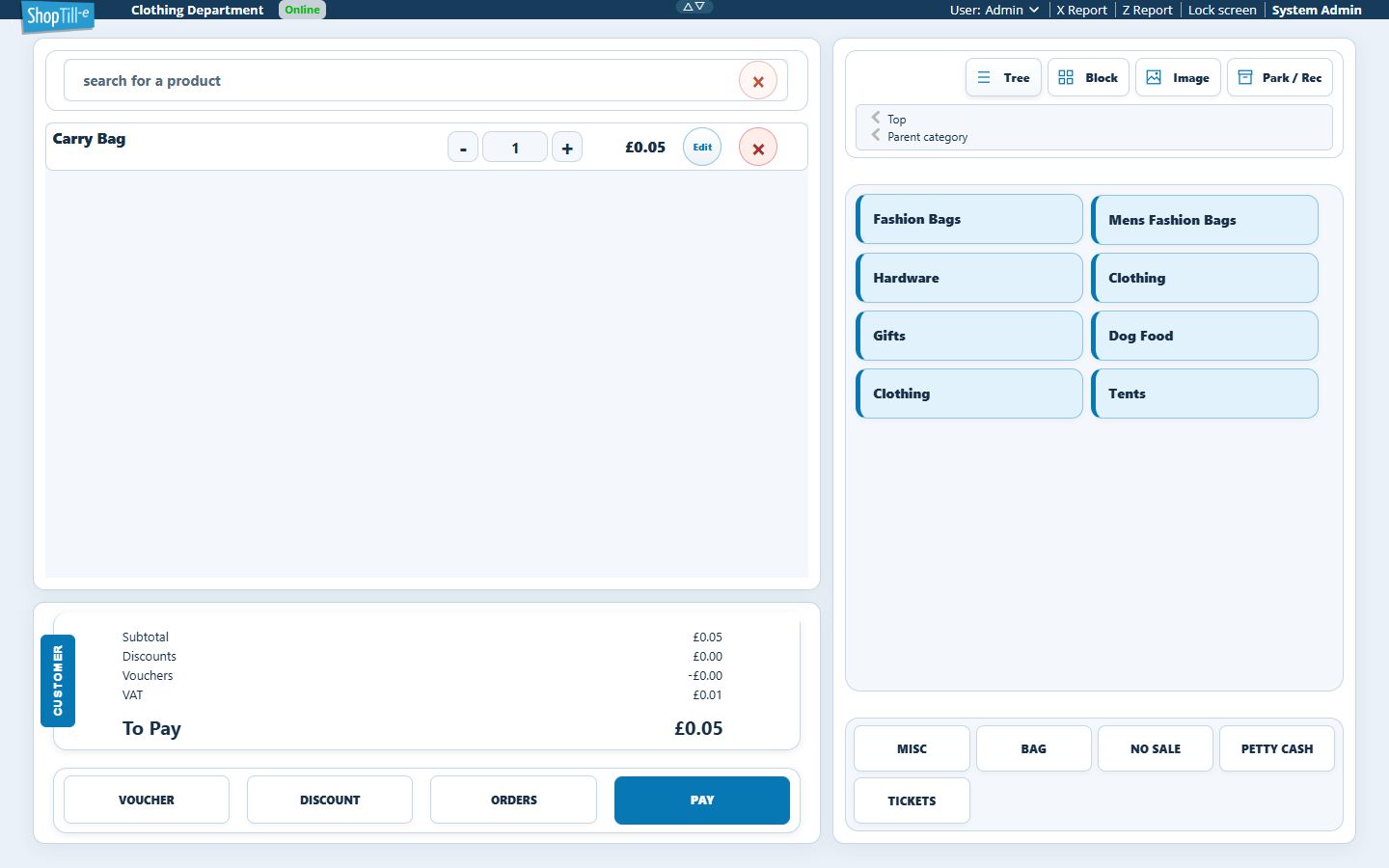
For the demonstration Carry Bag record, entering cbag and pressing Enter added its basket line. A name search and an exact identifier are different ways to find an item; compare the actual result with the item you intend to sell.
If you use a scanner, confirm its input mode and ending key for the exact device. See scanner and onscreen-keyboard guidance when moving between scanning and typing. Use the setup instructions for your scanner’s model and input mode.
Clear a search
Select the × at the right of the search field to clear the text and dismiss its suggestions. You can then start a different search or return to browsing.
Browse a category
- In the desktop layout, find the catalogue area beside the basket, with Tree, Block and Image above it. In a compact layout, select the Catalogue tab.
- Select the relevant category. In this example, Retail contains Fashion Bags.
- Continue into the relevant subcategory until you find the intended range or item.
- Use Parent category to move back one level, or Top to return to the top-level category list.
- Read the intended item’s name before choosing it. Product options, quantities and the basket total need their own check before payment.
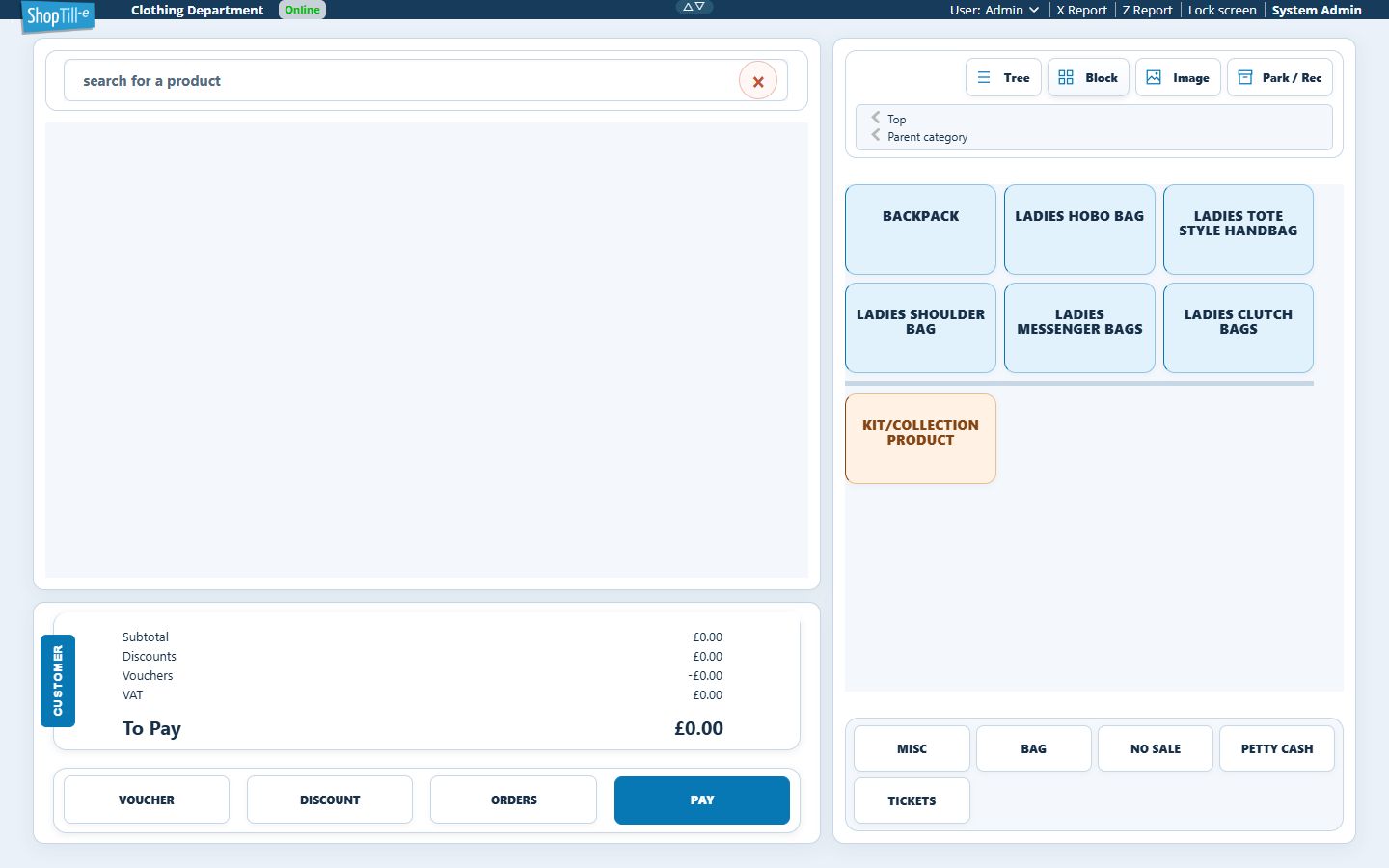
In the compact layout, use ‹ Up to move back through the catalogue. Return to the top-level categories when you need to browse a different branch.
Choose a product in Image view
- Select Image above the catalogue.
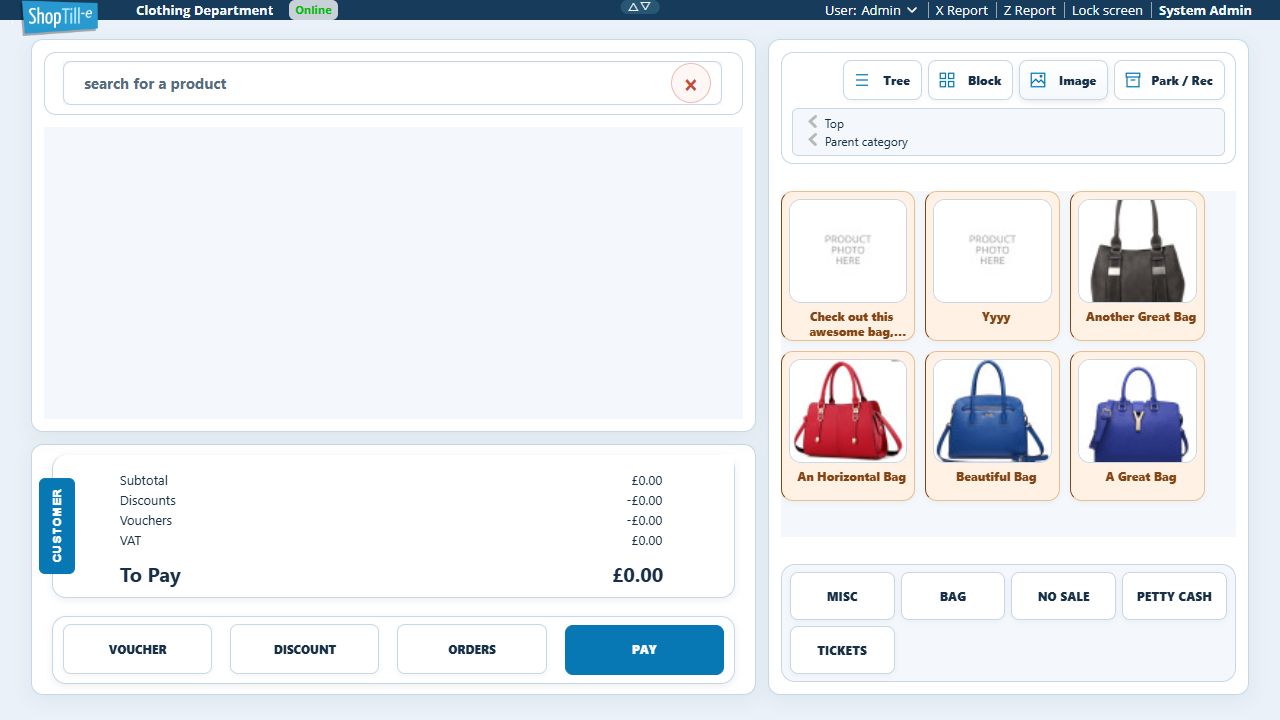
- Open the department and relevant subcategories. For example, Retail → Fashion Bags → Ladies Shoulder Bag leads to the product tiles shown below.
- Compare the tile’s full product name with the item you intend to sell, then select that tile. Complete any required option prompt before continuing.
- Check the added basket line’s name, quantity and amount. Review Discounts and To Pay as well; an automatic offer can change the amount due.
- If you selected the wrong item, use its basket-line Remove control before payment. Check that the remaining lines and total are correct.
If the line amount and To Pay differ
Compare the totals breakdown and open Discount to inspect the applied offer. For example, a £200 line with an applied 10% order saving has a £20 discount and £180 due. Check the actual named entry and amount for your basket rather than changing the product price to make the totals match. Review the offer’s settings if the result is unexpected.
When an item is difficult to find
- Too many matches: try a more distinctive part of the name and read the full result.
- No expected match: clear the field, check the spelling and try the catalogue root or the relevant category. Search items in selected category can limit name suggestions while you are inside a branch; review search scope before changing other settings.
- The wrong category is open: use Parent category or Top before choosing a different branch.
- Still missing: check the product’s Live setting, sales-channel and outlet availability in Builder. Record the product and the till/outlet where it is missing.
- The same name appears twice: investigate the underlying catalogue records and identifiers before selecting an item. A matching name alone does not prove that two entries are interchangeable.
