
Change till product order and search scope
Use POS Settings to choose the till’s default product order and whether name searches stay within the selected category. These choices solve different tasks: changing the sort order does not make an unavailable product live.
Before changing the setup
Record the current choices and identify the till/outlet staff will use to check the result. Check for an unfinished sale or pending local work before refreshing a till to load settings. Use the session checks first.
Choose the default product order
- In Builder, open Global Settings → ePOS/Till Setup.
- Find Default sort order of products on POS Settings.
- Select the ordering that suits the range. The choices include Price (ascending), Price (descending), Product name (ascending), Product name (descending), SKU (Low-High), SKU (High-Low) and Date added (newest first).
- Review the rest of the form before choosing Save Settings for the intended change.
- Reopen POS Settings and compare the saved choice. Check a familiar category on the intended till after its settings are loaded.
- Compare the same category and product view before and after the change. Tree, Block and Image browsing are separate view choices.
Choose whether searches stay inside a category
- On POS Settings, find Search items in selected category.
- Review the intended scope. With category-limited search enabled, a name search inside a category can omit products from other branches. Searching from the top-level catalogue provides a broader starting point.
- Choose the intended Yes or No value deliberately, then review the form before Save Settings.
- Reopen the settings to compare the stored value. On the till, test the same distinctive product name at the catalogue root and inside a different category. Read the suggestions without adding an unintended item to a sale.
Example: a briefcase is not in Coffee Shop
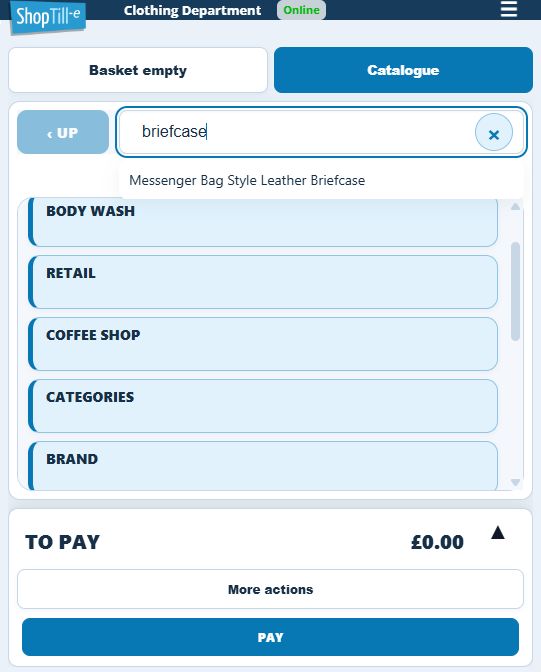
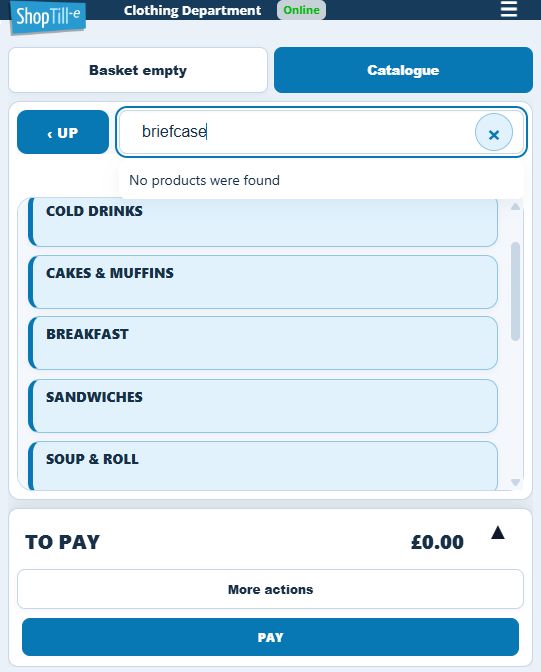
In the demonstration account with category-limited search enabled, typing briefcase from the catalogue root finds Messenger Bag Style Leather Briefcase. The same search inside Coffee Shop reports No products were found. This is a search-scope difference, not evidence that the product was deleted.
Find a missing product before changing a setting
- Clear the search using its ×.
- Return through the catalogue: use Top or Parent category where displayed, or ‹ Up in the compact layout.
- Try the distinctive product name again from the intended category or top-level list.
- If it is still missing, inspect the product’s Live, sales-channel and outlet availability in Builder. Keep the exact product, query and till/outlet when asking for help.
Keep barcode handling separate
Delete leading zero from barcode is a separate identifier-handling choice. Compare the actual scanned value with the stored product/option code before changing it. Do not change barcode handling simply to fix a product-name search.
If catalogue order still looks wrong
For catalogue sorting, compare the stored setting, the actual category and the view used on that device. Keep examples of the product names/SKUs and the order in which they appear. Do not use a customer basket’s line order as the test for catalogue sorting.
Related help
Find a product on the till · Review product availability · Check product and option identifiers.
