
Change a price for one till sale
Use the line price editor for an intended price change on the current sale. Confirm that you are authorised to change the price and distinguish it from changing the catalogue’s standard or customer-group price.
Review and change the line
- Find the exact basket line and check its product/options and quantity.
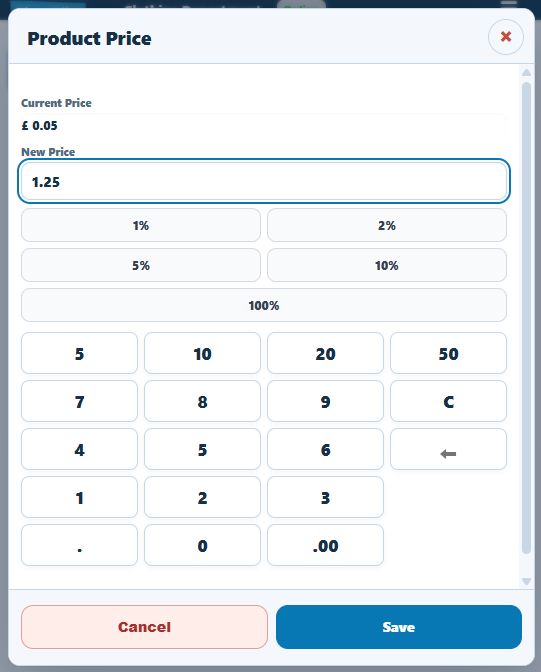
- Select Edit beside the line price, or the pencil control where that layout uses an icon, to open Product Price.
- Read Current Price and enter the intended unit amount in New Price.
- Review any other fields shown. A text-entry option can also expose its wording here; do not change that wording accidentally while editing a price.
- Select Save to apply the edit to this basket line, or Cancel to leave the price editor.
- Check the new line amount, discounts/tax and the basket’s To Pay before proceeding.
Example: one agreed sale price
If two identical items are being sold at an agreed £8 each, check that the editor receives 8 as the unit price and that the line reflects the intended quantity. Do not enter the combined line amount as the unit price.
Discount buttons and group prices
Preset percentages may appear in the price editor when configured. Keep the intended result clear: changing a line price, applying an order discount and selecting a customer with group pricing are different actions. Check the final result rather than combining rules by assumption.
If the price is unexpected
Recheck the line’s options, customer group, quantity and active discounts. A blank or mistyped entry can produce an unintended amount, so compare the saved line with what you agreed before payment.
Catalogue/group prices · Order discount controls.
Complete miscellaneous-item setup and usage.
Check a cancelled or repeated edit
After Cancel, compare the basket line and amount due with their previous values. Reopen the editor if you still intend to make a change; do not assume the cancelled value remains entered. After Save, check the basket rather than relying only on the editor closing.
A price agreed for this sale should not be treated as a change to the catalogue price. When you add an item again, check its price afresh before proceeding. To make a continuing catalogue or customer-group price change, use the relevant Builder product pricing controls.
Use a configured percentage for this line
- Open Edit → Product Price for the intended line and read Current Price.
- Choose the authorised percentage button where your shop has configured it.
- Review the proposed New Price before saving. Check the displayed amount rather than assuming repeated percentage choices give the intended saving.
- Select Save for the intended price, then compare the basket line and To Pay. Use Cancel if you do not intend to apply the proposed edit.
If the order’s Discounts row has not increased
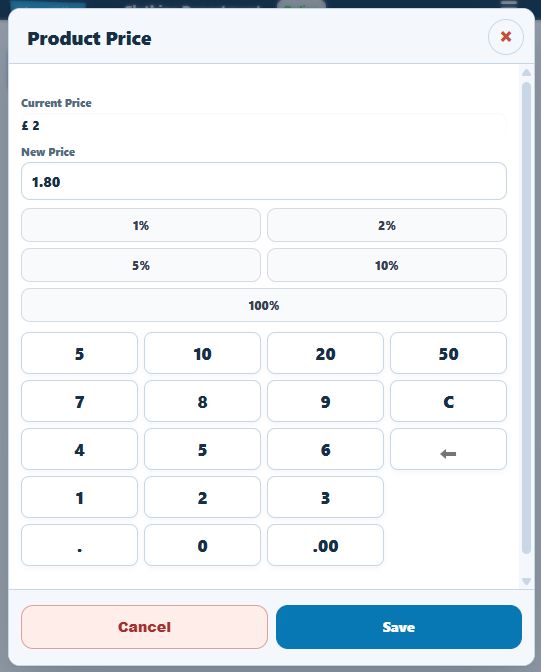
Check the actual line price before applying another discount. In the £2.00-to-£1.80 example, the resulting basket subtotal was £1.80 while the separate order Discounts row showed £0.00. The saving was reflected in the edited line price. Review the intended calculation and any other offers before adding a whole-order discount as well.
Check unit price and quantity together
For a two-unit line at £10 per unit, a 10% line-price choice proposes £9 per unit. After Save, that line is £18. A separate £10 line remains unchanged, giving a £28 subtotal before any order discount.
Check each line independently. Removing a separate whole-order discount does not restore the earlier unit price in this example. Use the intended line editor if you need to correct that price, and review the resulting quantity, amount and basket total. See order-discount examples before adding another percentage.
