
Change an item’s quantity on the till
Change the quantity on the intended basket line before taking payment. Check the product and selected options first, especially when similar items appear more than once.
Increase or reduce a quantity
- Find the intended product line in the basket.
- Use + to add one or − to subtract one.
- Read the resulting quantity, line amount and To Pay total.
Check the resulting value rather than repeatedly pressing minus: a negative line belongs to a return/exchange workflow, which needs its own review. Use the line’s Remove action when your intention is to remove an unwanted item from the current basket.
Enter a specific quantity
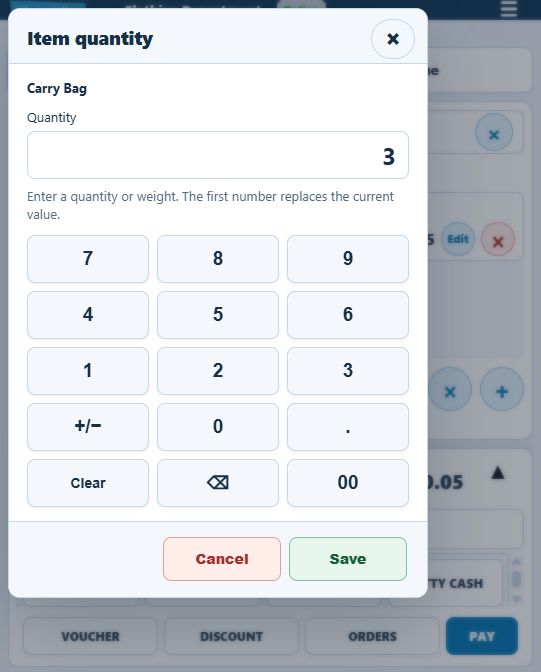
- Select the line’s Item quantity field.
- Check the product named in Item quantity.
- Enter the intended value using the quantity keypad. The first number replaces the current value.
- Check the complete number before selecting Save. Use Cancel to leave that keypad edit.
- Review the updated line and basket total.
Example: several identical items
If the customer wants three of the same size and colour, change that exact line to 3 and check it. Three different options may require separate lines; increasing one size’s quantity does not select another size.
Weights and decimal quantities
The keypad includes a decimal point and describes quantity or weight. Use the units and workflow established for the product. Decimal entry, scale readings, stock deductions and rounding need to agree; do not treat a numeric entry alone as proof of a configured weighing setup.
If editing is unavailable
Finish or investigate the active payment process first. If a card payment needs review, preserve its basket and follow that recovery process. If the basket changed while the keypad was open, close it and select the intended line again.
Find an item · Change a line price · Card-payment review.
Check whether your quantity edit was applied
After Save, compare the quantity, line amount and amount due. For example, three items at £0.05 each show £0.15 before any other applicable adjustments. After Cancel, check that the original quantity remains. Reopen the field if you still want to edit it.
If selecting the quantity opens a keypad, use that editor rather than trying to type directly over the basket field. To remove the whole unwanted line, use its Remove control and check that the line disappears and the total changes. Keep return quantities and payment-recovery work separate from this ordinary pre-payment edit.
