
Find order discounts on the till
The till’s Discount control opens the whole-order discount area. This is separate from a price change on one product line.
Open the order discount panel
- On the till, review the basket and customer involved.
- On a compact layout, open More actions. Select Discount in the action area near Orders and Pay.
- In Add Discount, find the Discount code field and Add discount control.
- The arrow beside the code field opens a list of preset code entries. Review the intended offer before selecting an entry.
- Review the percentage buttons beneath the code area. Their values depend on the shop’s configuration; the screenshot is an example.
- To inspect only, choose Cancel. If applying an authorised offer, check the resulting discount and amount due before completing payment.
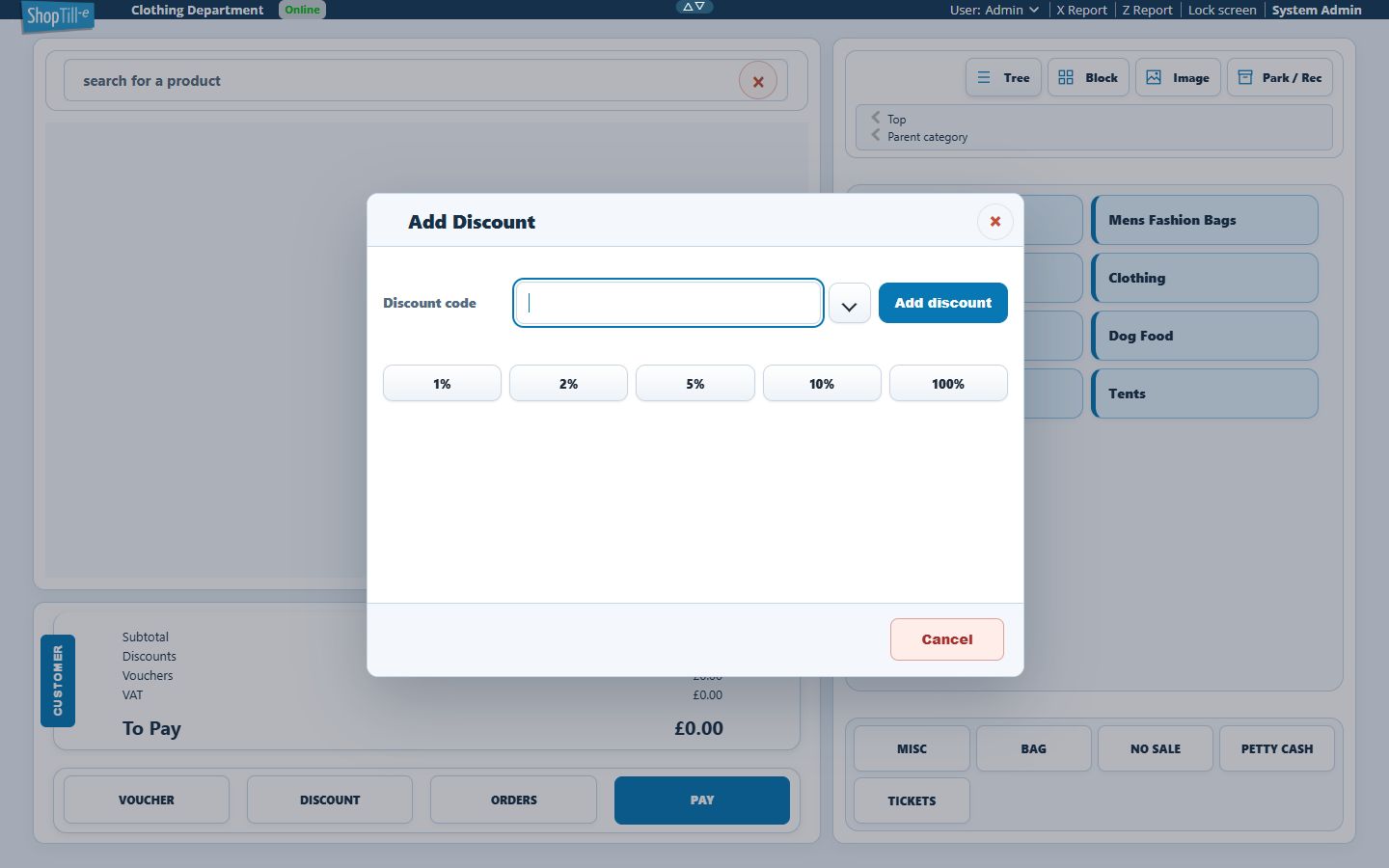
Code offers and quick percentages
A named promotion can have eligibility rules such as a date, spend threshold or customer group. A configured percentage button is a different route into order discounting. Check the intended benefit and actual calculated result; do not choose a different method simply because a code did not qualify.
Example: check one advertised offer
Confirm the basket and customer, then review the intended offer’s code entry or named preset. Compare the expected saving with the displayed discount and final total. If the result differs, note the basket, group, offer and any other discount before asking support.
If a button or offer is absent
Check the shop’s ePOS preset-discount configuration and the offer’s live state. Do not assume every till displays the percentages shown here. Review the promotion rule separately from the till controls.
Related help
Apply a configured percentage and check the result
- Check the basket items, quantities and customer before discounting.
- Open Discount and choose the intended configured percentage only when you are authorised to offer it.
- Check the new To Pay amount. On a compact screen, expand Show order totals breakdown to compare Subtotal and Discounts.
- For small totals, compare the displayed money amounts as well as the percentage: rounding can affect the saving shown. Resolve an unexpected result before taking payment.
Remove a manual percentage before payment
- Reopen Discount for the current basket.
- Find the applied percentage and its manual discount amount.
- Choose Remove beside that entry, then check that the discount and amount due have changed as intended.
- Choose Cancel to close the panel when finished inspecting it. Check the basket totals again before continuing.
Removing a current-basket discount is separate from changing the underlying promotion rules or correcting an already completed sale. For an offer that is automatically applied, review its eligibility and combination rules before attempting another discount.
Compare a line-price saving with an order discount
Work through the intended scope before adding another percentage. For example, start with two units at £10 each on one line and another product at £10.
| Action | What to compare |
|---|---|
| Before either adjustment | £20 plus £10 gives a £30 basket. |
| Change the first line’s unit price by 10% | £10 becomes £9 per unit; two units are £18. The other line remains £10, so the subtotal is £28. |
| Apply a separate 10% order discount | 10% of the current £28 subtotal is £2.80, leaving £25.20 due. |
| Remove that manual order discount | The £2.80 order discount is removed; the edited £9 unit price remains, leaving £28 due. |
Compare the actual lines, Subtotal, Discounts and To Pay in your own basket. This example does not establish how every promotion, customer group, tax calculation or rounded amount combines.
Replace an existing manual percentage deliberately
- Reopen Discount and inspect the applied percentage and manual amount.
- Do not assume choosing a second percentage replaces the first. Remove the existing manual entry when that is the intended change, then check the revised total.
- Choose the intended new configured percentage and inspect the resulting entry and money amount.
- Check the lines and final total before continuing to payment.
For the £28 subtotal above, removing the existing 10% entry and then choosing 5% gives a £1.40 order discount and £26.60 due. If the earlier percentage remains displayed after choosing a different one, remove the existing manual entry before applying the intended replacement. Check the resulting entry and money amount before payment.
Choose a code from the preset list
- Open Discount for the intended basket and customer.
- Use the arrow beside Discount code. Read the code and offer name together; the list can show both.
- Select the intended entry only when you want to submit that code. Selection can close the panel immediately; it is not just a preview awaiting another Add discount click.
- Reopen Discount to check the selected code, then inspect Discounts and To Pay for the basket.
- If the wrong code was selected, use its Remove discount control and recheck the code list and totals before continuing.
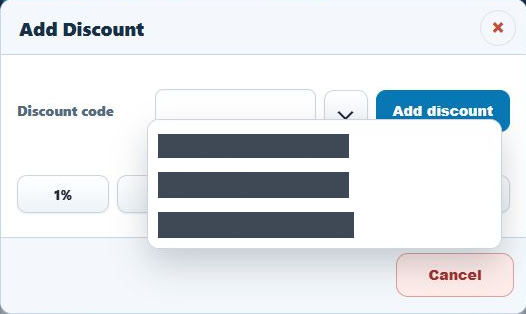
A selected code is not proof of a saving
A code can be listed in the panel without demonstrating a discount on the current items. Check the offer’s dates, customer group, qualifying products, threshold and other active discounts. In particular, selecting a code with an empty basket does not test its advertised saving.
Use Cancel to close the panel when inspecting it. Closing the panel is separate from removing a code already submitted; reopen it and remove an unintended entry explicitly.
If the saving is too large or the amount due is unexpectedly negative
- Stop before payment and compare the basket’s products, quantities, Subtotal, Discounts and To Pay.
- Open Discount and identify the named code and displayed amount. An offer name such as £5 off does not establish that the basket will receive one £5 reduction.
- Remove an unintended code and check whether the original basket amount returns. Removing that code is separate from changing the promotion rule.
- Have the shop administrator review the rule’s type, method, amount, qualifying quantity and repeat-use choices against the intended offer.
- If the result remains unexplained, keep the rule name/code, exact quantities, before/after totals and any message for support. Do not complete a sale merely to investigate the calculation.
A negative amount may be intentional in a return workflow. For an ordinary sale that you expected to remain positive, resolve the discrepancy before continuing. See promotion test cases.
