
Review and edit a discount rule
A discount’s title describes the offer, but its fields control the rule. Review those fields together before making an offer available to customers.
Open the rule
- Open Catalogue & Stock → Discounts/Promotions/Offers.
- Find the intended offer and select Edit.
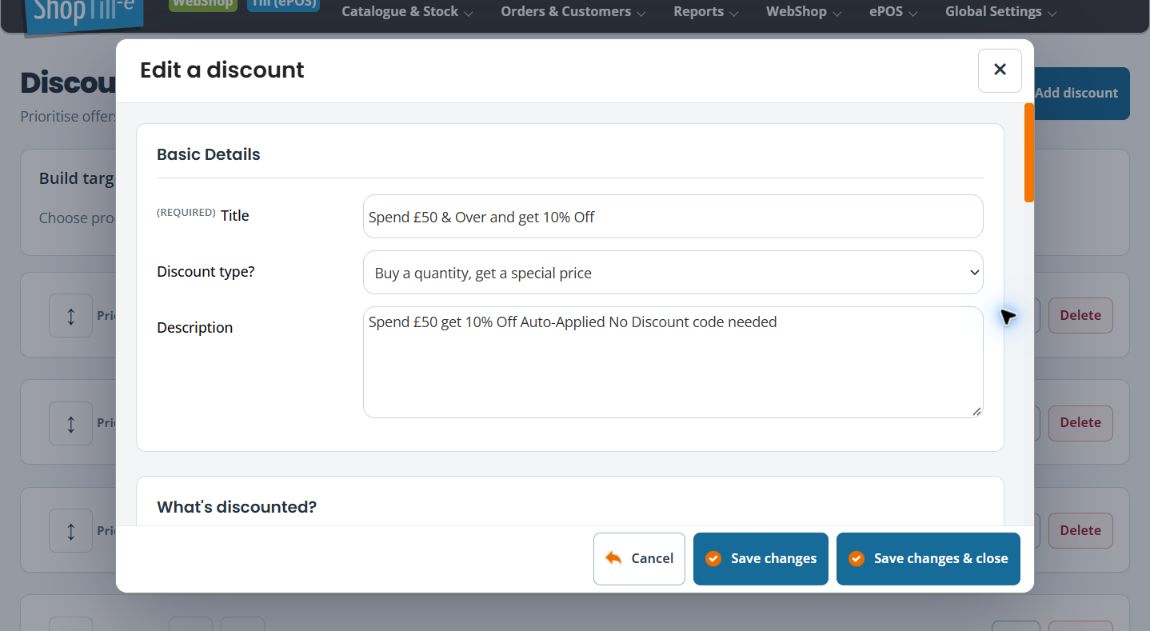
- Under Basic Details, check the Title, Description and Discount type?. The type choices include quantity-based and spend-based offers.
- For a quantity offer, under What’s discounted?, check Qualify type?: all products and categories, specific products or specific categories.
- For a quantity offer, review What’s excluded? separately. An offer’s general scope does not tell you which exclusions have been selected.
Check activation and the amount
- Review Discount code and Min. spend. Quantity offers also expose Min. no. of items.
- Check Only valid for certain dates?, Can it be combined? and Assign to customer group?.
- Review Discount method and Discount Amount together. The method choices shown are None, Percentage, Money off and Total value.
- Check Apply to all quantity?. Quantity offers also expose Maximum uses (0 means unlimited).
- Review Live? before saving. Use Save changes & close for an intended change, or Cancel if you only needed to review the details.
Example: check a spend-threshold offer
For an offer advertised as a percentage discount above a spending threshold, check the rule type, minimum spend, percentage method and amount. Then review date limits, customer-group eligibility, live state and combination settings. Check the controls offered for that rule type rather than looking for quantity-only product/exclusion fields. A convincing title alone is not enough to establish those conditions.
Choose how to finish
Save changes saves the rule and reloads its editor so you can continue. Save changes & close saves and closes it. Cancel closes the form without submitting another save; it does not reverse a save you already completed. Closing the dialog is not an undo for earlier saved changes.
Complete any highlighted required fields and check the result after saving. If the response is interrupted, reopen the rule before retrying; avoid creating a duplicate offer by repeatedly pressing Save. See product/category selections and exclusions and switching off or deleting a rule.
Test the boundaries
Before advertising the offer, compare a basket below the intended threshold with one that qualifies. Include an excluded item, a relevant customer group and any other active offer in your planned checks. Inspect the calculated result before payment.
Priority and unexpected results
The discount list includes priority movement controls that send a save request immediately. Follow Change discount priority to record the order, make a deliberate move and check the result. Verify how the offers interact. If the result is unexpected, note the actual basket, customer group, code, other discounts and rule settings for support.
Detailed tasks
- Prepare a product or category quantity offer
- Prepare a spend-threshold discount
- Review discount dates, groups and combinations
- Find order discounts on the till
Worked offer checks
Use worked basket cases to compare thresholds, repeated quantities, eligibility and overlapping offers.
