
Change your till product view
The till has Tree, Block and Image view controls beside the catalogue area. Use them to choose how you browse categories and find products while serving customers.
Choose a view
- Open the till using Till (ePOS) in Builder.
- Find the Tree, Block and Image controls above the catalogue area. In the desktop layout shown below, they are on the right.
- Choose Tree for named category choices, Block for labelled blocks, or Image to browse the available pictures. The examples below show each view.
- Browse a familiar category and compare how easy it is to find the item you need. Select another view if you prefer it.
Browse category names in Tree view
- Select Tree above the catalogue.
- Open the intended department by name, such as Retail.
- Read the named choices and open the branch you need, such as Fashion Bags.
- Use Parent category to go back one level, or Top to return to the top-level categories.
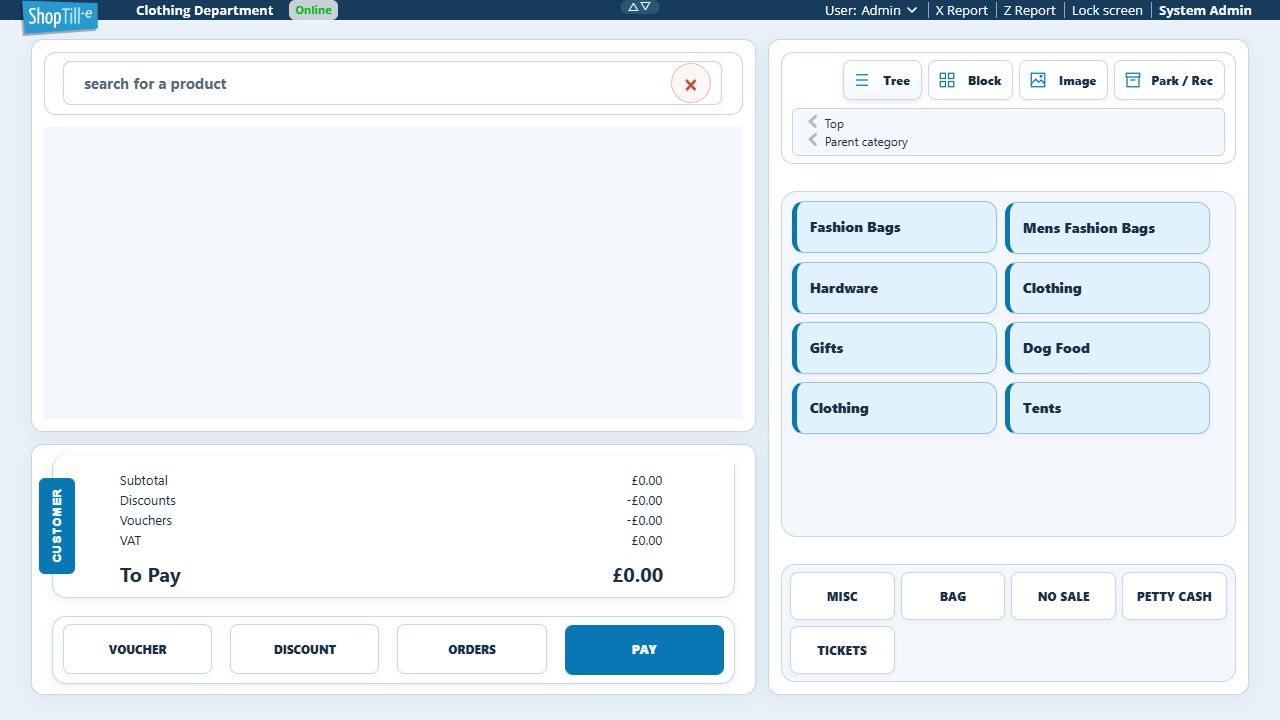
Read the category names when finding your range. Use Image if you want to compare the configured category artwork instead.
Choose a layout for the way you work
Try Block when staff know your category names and want clear labelled choices. Try Image when visual recognition helps staff browse your catalogue. The usefulness of a visual layout depends on the images available for your catalogue.
For example, a shop with several similar bag ranges can compare the layouts using one familiar category. Ask a member of staff to find the same product in each view, then choose the layout they find easiest to use.
Read the product blocks
In Block view, browse into the intended category to see its products as labelled coloured blocks. For example, Retail → Fashion Bags → Ladies Shoulder Bag shows the product names below. Use Image when you want to compare the available photographs instead.
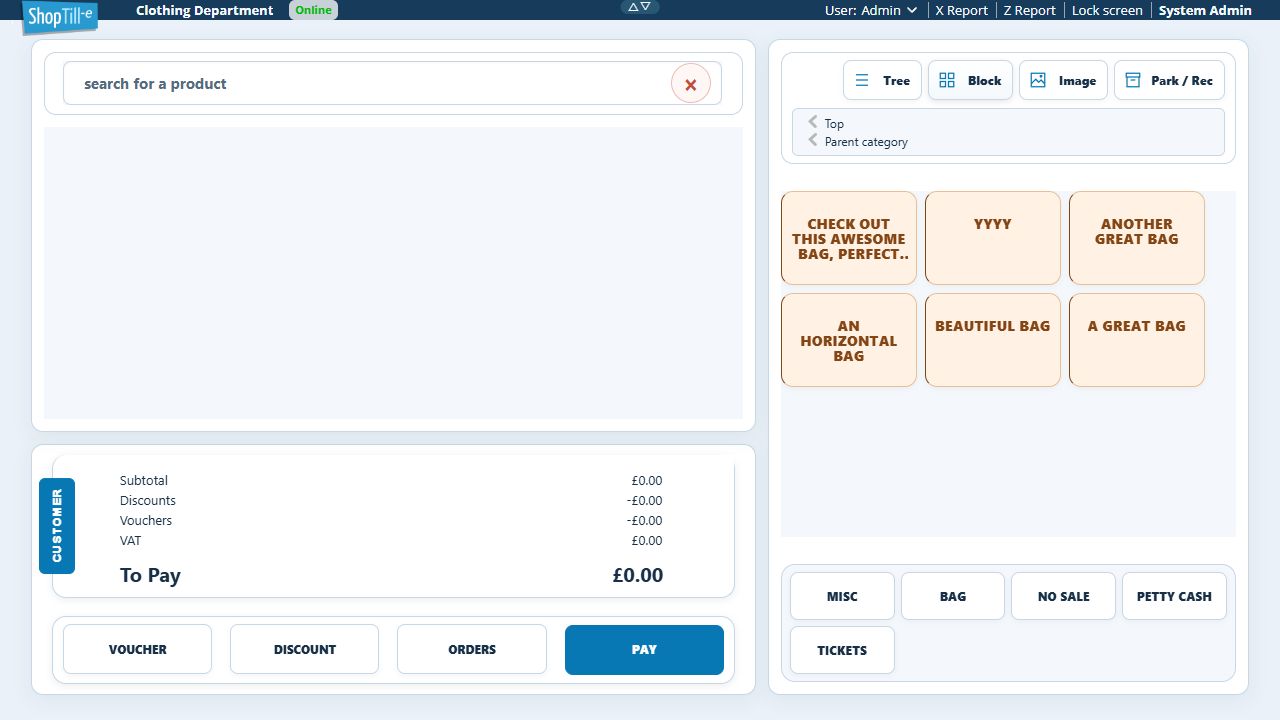
If a shortened label is ambiguous, use product search or the catalogue record to confirm the intended item. Compare the product name and options rather than choosing solely by its position or colour.
Changing the view or changing the catalogue?
The view controls are the place to start when you want a different way to browse. If a category name or product needs changing, that is a catalogue-management task in Builder. The shortcut buttons beneath the catalogue are managed separately through the Quick Bar settings.
If you need help
- I cannot see the controls
- Check that you are on the till screen rather than a Builder settings page. Look immediately above the catalogue area. Screen layout can vary with the space available on your device.
- Image view does not give me the pictures I expected
- Check the relevant catalogue images in Builder. Tell support which category or product you expected to see and include a screenshot of the result.
- I want to change the shortcut buttons
- Open Customise your till screen to find the settings area for Quick Bar shortcuts.
Compare product pictures and category pictures separately
In Image view, a product can show its photograph while neighbouring category cards show placeholders. Check whether you are looking at a product or a category before replacing artwork in Builder.
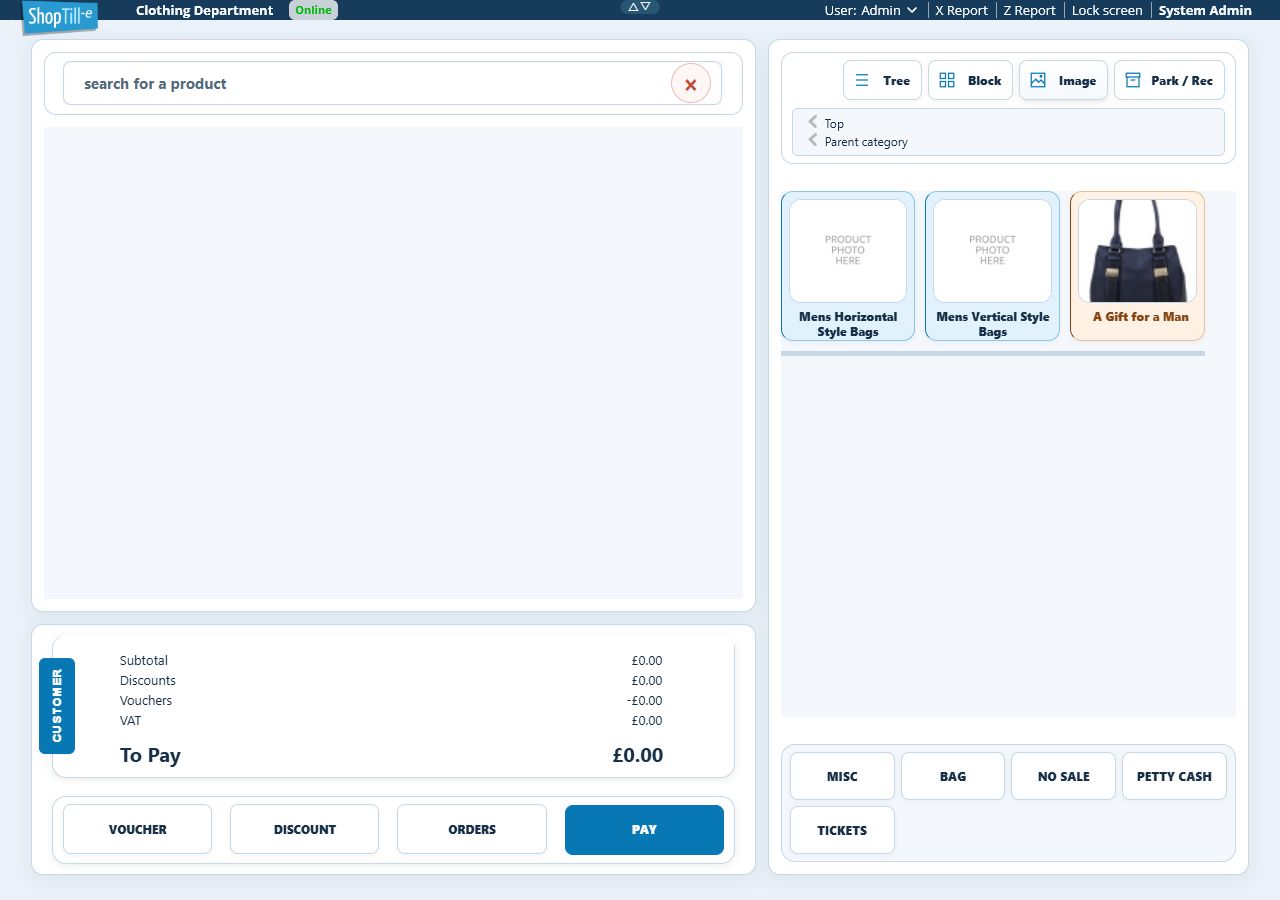
Recognise category artwork
A category can have its own picture in Image view. In the Retail example below, Fashion Bags and Mens Fashion Bags use bag photographs, while other category tiles use graphics or placeholders. Read the category name: a photograph on a category tile represents that branch, not an individual product to add to the basket.
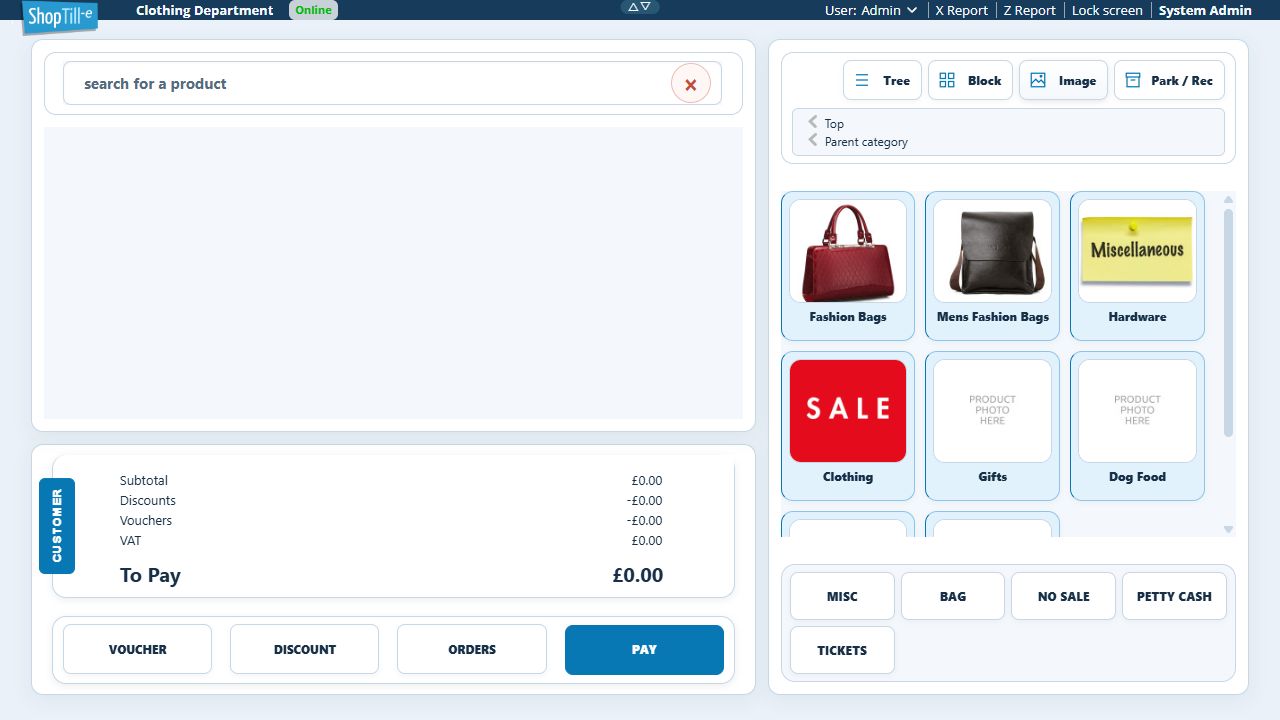
For a category picture or placeholder, review the category’s details and artwork. For an individual product photograph, use the product-image guide. Confirm which record needs attention before replacing artwork. Changing the browsing view does not supply a missing category or product image.
Check the view after reopening the till
After a reload or new session, check which view is selected again. A choice made with the view buttons should not be assumed to change the saved default: the demonstration till returned to Tree after Image was selected and the page reloaded. If you want a different starting view for a cashier, ask your administrator to check the relevant saved user preference rather than repeatedly changing catalogue images.
On a compact phone-style layout, open Show device controls and look for Catalogue view. The controls can be in a different place from the desktop example.
Find the user’s POS Display preference
- An administrator can open Global Settings → Users and find the intended staff account.
- Open that user’s Edit form and find POS Display.
- Review its Tree, Block and Image choices separately from the user’s role, PIN, active state and location access.
- For an intended preference change, review the rest of the form before saving. Reopen the user and check the intended till session before treating the starting view as configured.
- Use Cancel when you are only inspecting the setting.
The current view buttons and the stored user field are separate controls. If they do not give the starting view you expect, keep the exact user, till and reload/login circumstances for support. Do not change access permissions or reset credentials to work around a display preference.
