
Manage product SKUs and additional barcodes
A product’s main Barcode / SKU, an option’s SKU and additional scan barcodes identify different things. Start with the physical item or option you intend to scan and record its existing identifiers before changing them.
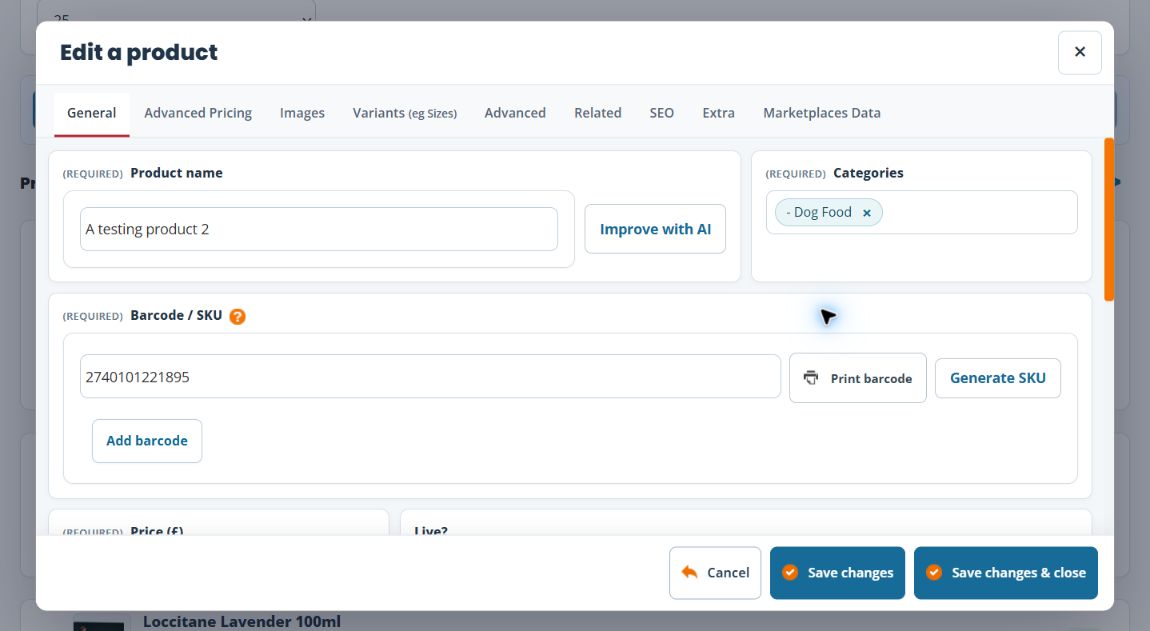
Review the main product identifier
- Find the product in Product Management and choose Edit.
- On General, check Barcode / SKU against the intended item.
- Keep a working supplier or existing label code when it still identifies that item.
- Use Generate SKU only when you intend a generated value to replace the form value. Check the result and any Duplicate SKU code warning before saving.
A generated number does not establish supplier identity or acceptance by a marketplace. Check requirements for any external use separately.
Add an extra barcode to the main product
- Select Add barcode beside the main identifier.
- Enter the intended additional code, preserving leading zeros.
- Use Add barcode in that entry area and check it appears in the list.
- Review every remaining code before an intended product save. Adding a visible chip is not the final saved-record check.
- Save deliberately, reopen the product and compare its main SKU and additional codes.
Use a listed code’s remove control only when you intend to remove that alias. Check all remaining codes after several removals. Removing an alias is different from deleting the product.
Work with an option’s codes
- Open Variants (eg Sizes) and locate the exact value or matrix combination.
- Use its Barcodes control and check the displayed SKU.
- Use Add barcode for an intended additional identifier.
- Use this dialog’s Save changes or Save changes & close, then reopen it and compare the codes.
- Check the product and option selected by a sample scan before issuing labels.
The option barcode dialog saves separately. Cancelling the main product editor later does not undo an earlier barcode save.
Example: a blue medium bag
Use the code for that exact size and colour when the physical variants have different labels. An alias added to the parent product is not evidence that a scan will select the medium blue combination. Scan a sample and check the chosen option.
If a scan finds the wrong item
Compare the scanned code with the main SKU, additional aliases and option codes. Check similar or duplicate identifiers before changing another field. After an interrupted save, inspect the stored lists before retrying. Keep the actual code, product and option for support.
