
Find an order in Builder
Use the Orders page to find the existing record for a sale before investigating fulfilment, payment or a customer query. An order number is the clearest starting point when you have it.
Search for the record
- Open Orders & Customers → View Orders.
- In Search orders, enter the order number. The search field also supports product name, SKU or barcode, as indicated by its prompt.
- Review Channel, Order status and Payment method if you need to narrow the list.
- For a date-limited investigation, enable Filter by date and time range and choose the relevant period.
- Check the order number, date, amount, channel, payment-method label and status in the result.
- Open View for the intended record. If submitting a search opens order details directly, check the order heading and line items before carrying out any further action.
Example: a customer knows what they bought
If the receipt number is unavailable, use a distinctive product name or SKU and narrow the period. If the customer bought in-store, check that the channel filter includes ePOS. Compare the date and amount rather than assuming the first matching product belongs to that customer’s order.
Use the result controls
Sort by changes the list order and Results changes its page size. Check Next and Previous when several pages match. A checkbox selects a record; opening View is a separate action.
If an order does not appear
- Check whether a channel, status or payment-method filter excludes it.
- Widen the date range if the sale was near the start or end of a day.
- Check the receipt number or identifier for typing errors.
- For a named customer, use their customer record’s Orders control as another way to investigate.
A payment-method label is useful for finding a record but is not, by itself, confirmation of a bank settlement or the outcome of an interrupted payment. Investigate the actual order and payment evidence before repeating a transaction.
Find a customer · Review shipments · Find returns and exchanges
Readability and record scope
Display options changes the presentation of the order list. Keep Channel, Order status, Payment method, dates and search choices with your investigation. Selecting a status or payment method as a filter does not change the underlying order. Recheck the order number before opening any action that sends, cancels, refunds or fulfils it.
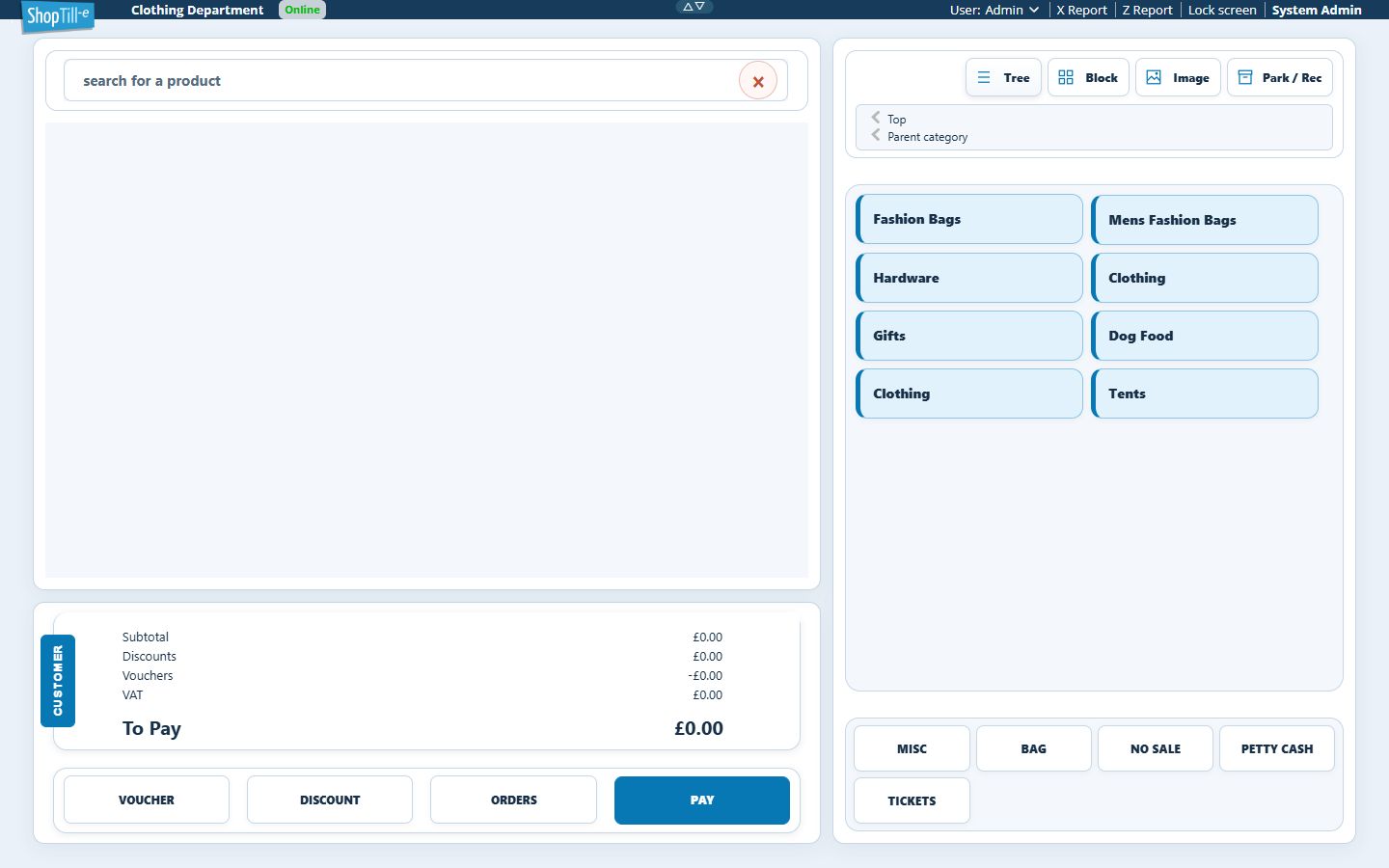
Open Builder order history from the till
The till's Orders button opens Builder order history. Find the intended order there using its reference and the list filters. This is separate from checking locally saved orders, export files or recovery backups on the device.
Read the order row before choosing an action
The row identifies the sales channel, such as ePOS order or Website order, alongside its reference, date, amount, payment-method label and order status. Use those details together to identify the sale.
If the row offers Ship, it opens a fulfilment task for review; the presence of that action is not proof that payment has settled or that every item needs dispatch. If it is absent, open View and inspect the products, order status and existing shipments before deciding what to do. Do not infer the whole fulfilment history from an icon or a single row label.
Continue with fulfilment
When you intend to dispatch items, follow Create a shipment for an order to review the selected products, shipping information and address. To investigate an earlier dispatch, review its existing shipment instead. Check the order’s status and references before opening a further action.
Check the opened order details
- Check the Order # heading after opening the record. Compare its products/options, quantities and totals with the sale you are investigating.
- Read Order Status, Payment Status, the recorded amount paid and the order history together. A recorded amount and an actual money movement need their own reconciliation.
- Choose the guide for the action you intend to take. The detail screen has separate Printables, Resend emails, Exchanges, Returns, Issue refund and Cancel order controls.
- If you were only reviewing the record, use Close order details or the dialog’s close control. Finding and opening an order does not require changing its payment, stock or fulfilment.
- Find a receipt for a saved sale.
- Prepare a return.
- Prepare an exchange.
- Review an order refund.
- Review order cancellation.
Choose the intended document or email action deliberately. Reprinting a document, resending a confirmation, returning goods and refunding money are separate operations. Check the order reference again before any action that changes the order or sends information.
Order documents and messages
Print an invoice, packing slip or address label when you need an order document. Use Resend an order confirmation email when the intended recipient needs another message. Review the order and intended output separately for each task.
Review the recorded payment details
- Compare the order reference, actual payment evidence and existing history before editing a recorded status or amount.
- Use Change payment status to inspect the inline selector. It offers Pending, Authorised, Paid, Failed and Voided. Read the selected value before choosing a different one.
- Use Change total paid to inspect the separate amount editor. Check the intended recorded amount against the actual payments and refunds; do not substitute the order total simply because the values look different.
- If you only wanted to inspect either editor, use Close order details without selecting its Save button.
- For an intended correction under your shop’s process, check the chosen value, select the corresponding Save, then reopen the same order and reconcile the result with the payment evidence and history.
For example, an uncertain card attempt needs payment investigation before changing its recorded status to Paid. A status label or edited total is not evidence that a bank has settled money. Use the card payment review guide when the actual result is unclear.
Review billing details on this order
- Open the intended order and choose Edit beside Billing Details.
- Review Name, Address 1, Address 2, Address 3, Postcode, Country, Telephone and Email. Check which part needs correcting with the customer.
- Keep a billing correction separate from the delivery destination. Check an affected shipment before dispatch, and use the customer address guide if the separate customer record also needs attention.
- For an intended order correction, review the fields and select the billing section’s Save. Reopen the same order to check the result. Do not assume its saved customer record, existing documents or previously sent messages were also updated.
- To inspect without saving, use Close order details.
For example, correcting the purchaser’s invoice address does not establish that a parcel should go to that address. Confirm the actual delivery destination separately. If a save is interrupted or the reopened value differs, keep the order reference and investigate before repeating the edit.
