
Create a shipment for an order
Use Ship on the intended order to prepare a shipment record for the items you are dispatching. Review the order, payment arrangements and delivery details first. Opening the shipment form is separate from confirming a dispatch.
Open the correct order
- Open Orders & Customers → View Orders.
- Find the order by its reference and compare the customer, products and current status. Use the status filter where useful; do not assume every order needs another shipment.
- Select Ship on that order. Check the order number in New Shipment for Order before continuing.
Select the items being dispatched
- Review Products needing shipping, including the product name, options and quantity.
- Use the arrow beside the intended product to move it into Products in this shipment.
- Compare the selected list with the parcel you are preparing. Use the return arrow or Remove beside a selected product if it should not be included.
- Leave items that are not in this dispatch out of the selected list. If you need to dispatch only part of a displayed line quantity and cannot see an appropriate quantity control, stop and check the workflow with support.
The header also contains Scan or search SKU and Packing slip. Keep a packing document separate from the final shipment record, and check the intended order before printing.
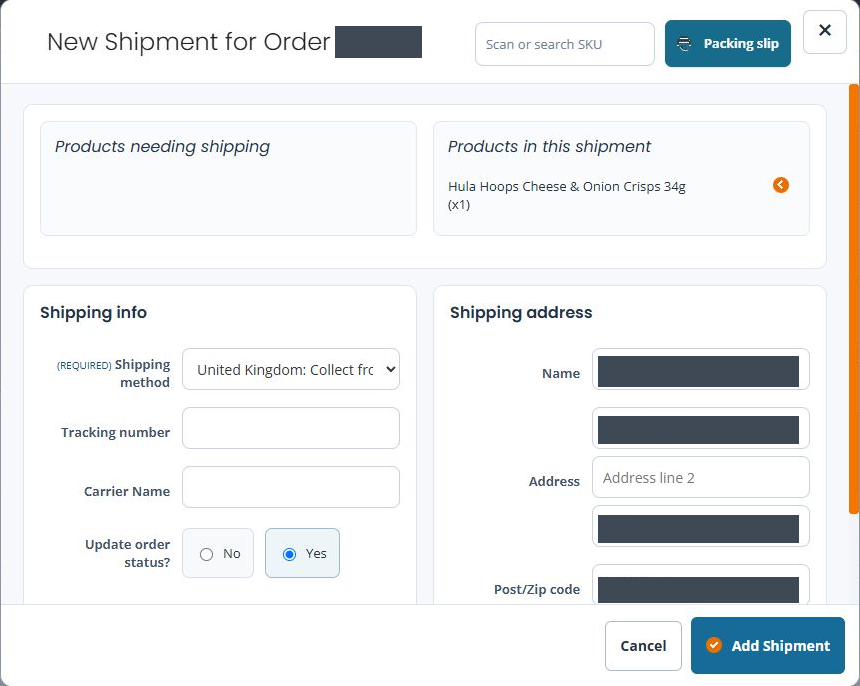
Check shipping information and address
| Field | What to check |
|---|---|
| Shipping method | Choose the method that matches this dispatch. Do not keep a preselected collection method when the parcel is being sent by another service. |
| Tracking number | Use the actual carrier reference where applicable. The order number is not necessarily its tracking number. |
| Carrier Name | Enter the carrier associated with that reference, where applicable. |
| Update order status? | Review the Yes/No choice deliberately before confirming. A form default should not decide your fulfilment process. |
| Shipping address | Compare Name, address lines, Post/Zip code and Country with the intended delivery. Resolve a discrepancy before dispatch. |
Confirm only when ready to dispatch
- Recheck the order number, selected products, method, carrier/reference, address and status choice.
- When you intend to record this dispatch, select Add Shipment and wait for the result. Read any validation or error message before attempting another submission.
- Review the order and shipment record afterwards. Compare the recorded items and references with the actual dispatch.
- Check any customer notification separately. A shipment record or a closed form alone is not proof that an email was received or that the carrier delivered the parcel.
If you are only reviewing the form or are not ready to record a dispatch, choose Cancel.
Example: dispatching one available product
If an order has a bag ready to send and an accessory waiting for stock, compare each line with the parcel. Select the product being dispatched, review its quantity and leave the waiting product out. Check the resulting order and shipment details before later recording the remaining dispatch. Do not mark an entire line as dispatched simply because part of it is ready.
If something looks wrong
- No Ship action: check that you found the intended order and review its status and existing shipments. An already fulfilled order should not be dispatched again just to recreate paperwork.
- The wrong product is selected: remove it from the shipment selection and compare both lists again before confirming.
- The method or address is unexpected: check the order details and intended service. Do not reuse a demo or default value.
- The confirmation outcome is unclear: check the order and existing shipment records before clicking Add Shipment again. Keep the order number, time and exact message for support.
- A customer has no notification or tracking update: check the recorded carrier reference and notification evidence separately from the shipment record. Do not create a duplicate dispatch as an email retry.
Find an order · Review shipments · Shipping destinations and rates.
