
Return items from an existing order
Use the original order to identify the items being returned. Check earlier returns and refunds first, then decide the physical-stock and payment results you intend.
Prepare the return
- Find the original order and compare its customer, items/options, quantities and payment evidence.
- Choose Returns for that order to open Return Items for Order.
- Move the intended quantities from Products in this order into Products to be returned. Review each selected quantity and price; use its removal control to correct a selection.
- Choose Return reason and add useful Comments.
- Review Put products back into stock? deliberately. Saleable stock and a faulty item may need different choices.
Check the form’s starting choices
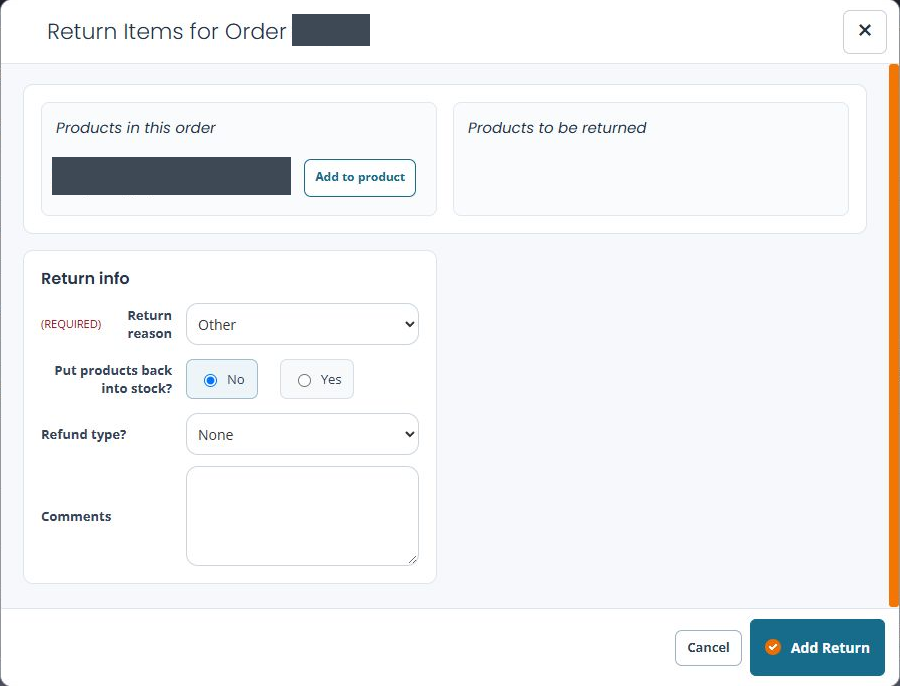
- Read the order reference in Return Items for Order before preparing a selection.
- Compare Products in this order with Products to be returned. Check that the intended items and quantities are actually in the return selection before submitting; the original-order list is a different area.
- Review the selected Return reason. The form offers Other, Changed Mind, Faulty Goods, Theft and Damaged; choose the reason that describes the actual return.
- Read the selected answer beside Put products back into stock?. Do not assume it matches another return or exchange form, or that returned goods are saleable.
- Review Refund type? separately. A form opening with None does not mean a refund route has been prepared. Check any additional fields shown for the route you intend.
- Use Cancel if you are only inspecting the form. Add Return is the committing action for an intended return, not a way to preview its result.
For example, inspecting a faulty item needs both a reason and a deliberate restock decision. Choosing a reason alone is not a substitute for checking where that item should be held or how any refund will be handled.
Review the refund choice
Refund type? offers None, Gift voucher and Manual (offline) refund; a provider Refund option can appear when the order supports it. Where your selected route displays Refund amount or a customer-account assignment choice, review those fields before submission. With None selected, those additional fields need not be visible.
A manual refund records an externally handled refund; it is not an instruction that sends money through the original provider. A gift voucher creates credit with its own record and customer restrictions. Confirm the intended route rather than selecting the first available option.
Submit and check each outcome
- Compare the selected items, reason, stock decision, refund type/amount and comments.
- Select Add Return for the intended operation.
- Open the saved return and original order. Check quantities, stock result, order totals and order events.
- Check the actual refund or new voucher record separately. A created return can still have an event reporting a refund/voucher problem.
If an outcome is uncertain
Keep the return/order references and provider evidence. Investigate before creating another return, voucher or refund. If a manual correction is required, reconcile what already succeeded first.
