
Add a product to your catalogue
Use Add product for a new catalogue item. Prepare its identifying details before you start so staff can find the correct item and avoid duplicate records.
Before you start
- Search the existing catalogue by name and SKU to check the item has not already been added.
- Choose the category or categories that should contain it. If the category does not exist, review your category structure first.
- Have the product name, barcode or SKU, selling price and an accurate description ready. Decide whether it should be live immediately or prepared for later.
Create the main record
- Open Catalogue & Stock → Product Management and select Add product.
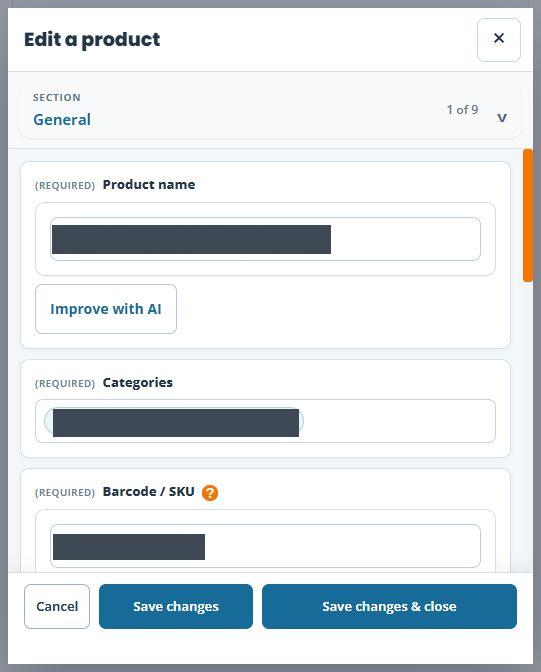
- On General, enter Product name. Use a name that distinguishes this item from similar products.
- Select its Categories. Product name, Categories, Barcode / SKU and Price are marked required in the form.
- Enter the intended Barcode / SKU. The form also offers Generate SKU and Add barcode; choose an identifier that fits your catalogue process.
- Enter Price in the account currency. If prices differ by size or customer group, plan the advanced pricing separately.
- Review Live?. Choose deliberately whether this new product should be live before saving.
- Add the product description. Check facts such as materials, sizes and contents, including any AI-suggested wording.
- Review any relevant Advanced settings, including stock tracking, product type and channel availability. Then select Save changes to retain the editor, or Save changes & close to finish.
- Find the saved record again by SKU. Check its values before continuing with images, variants or other setup.
Start from a similar product with Copy
Use Copy product when an existing item provides a useful starting point for a different item. Keep editing the original when you only need to correct that same product.
- Find the source product in Product Management and check its name and SKU.
- Choose the row’s Copy product action. Check that the heading says Add a product (copying …) and names the intended source.
- Replace Product name and Barcode / SKU with the new item’s identity. Do not assume Copy generates a new code: the starting form can contain the source SKU.
- Review Categories, Price, description, Live? and the relevant Advanced settings for the new item. Keep Live set to No while preparing an item you do not intend to offer yet.
- Choose Save changes & close, then search by the new SKU. If your old SKU filter is still active, change it before concluding the new item is missing.
- Reopen the new record and check its identity, saved values, stock setup, images, variants and advanced prices separately. Do not assume all dependent records were duplicated.
- Prepare any missing photographs and options, then check the intended till or webshop journey before offering the item.
Example: another colour sold as a separate item
If your catalogue treats each colour as a separate product, use a natural-colour tote as the starting point for a navy tote. Change the name and identifier, review the description and photographs, and check its own stock and availability. If customers should choose colour within one product instead, follow the variants guide.
Add images and variants after saving
The Images tab on a new record says that images become available once the product has been saved. Use the saved product’s Variants (eg Sizes) tab to configure its options. Save and reopen the product before continuing with product images and variants.
Check the product address before sharing it
- Reopen the saved product by its SKU and confirm that you are inspecting the new item rather than the original used for a copy.
- Open Advanced and read the actual URL field. Keep it separate from Product name, Barcode / SKU and the SEO Meta Title.
- For an item intended for your WebShop, check its complete customer-facing address on the correct storefront when it is ready to be offered there. Compare the product name, photograph and options before sharing the link.
- If the product is still under preparation, keep its intended visibility unchanged while checking its settings. An unavailable public page is not a reason to create a duplicate record or make it live merely for this check.
- Before an intended URL change, review existing menu links, promotions and redirect requirements using the product-address checklist.
For example, a navy tote copied from another item needs its own name, identifier, pictures and intended product address. Read the actual saved values; do not derive a link from the visible name or assume a later name change also changed every existing link.
Example: a new canvas tote
Use a clear name such as “Canvas tote bag — natural” and your intended SKU, for example TOTE-NAT-01. Select the appropriate bag category and enter the selling price. If the photography is not ready, keep the record under preparation and revisit its visibility when the remaining details have been checked.
If you cannot continue
Check the required fields and any validation message. If an item already exists, edit the existing record rather than adding another with a slightly different name. If a saved item is absent from the webshop or till, review Live? and the availability settings rather than repeatedly creating it.
Finish the main record before its dependent tasks
Save the intended main record first, then reopen it for images and variants. Save changes keeps the editor available; Save changes & close finishes the main form. If a response is interrupted, search the catalogue before submitting another new record. Check the saved identity before issuing codes or labels.
Related help
Edit product details · Manage product images · Review variants.
