
Edit a category’s title and description
Categories organise your catalogue into departments and ranges. Edit the category itself when its title or introduction needs changing; edit the product when the item’s own details need changing.
Edit the main category information
- Open Catalogue & Stock → Categories / Departments.
- Find the intended category in the category tree, then select its Edit control.
- On General, check Parent Category so you know which part of the hierarchy you are editing.
- Update the required Title and, where useful, the optional Description.
- Review the remaining settings before saving. In particular, do not change Active? or Customer Group merely to rename a category.
- Select Save changes & close when finished. Reopen the category and check the stored title and description.
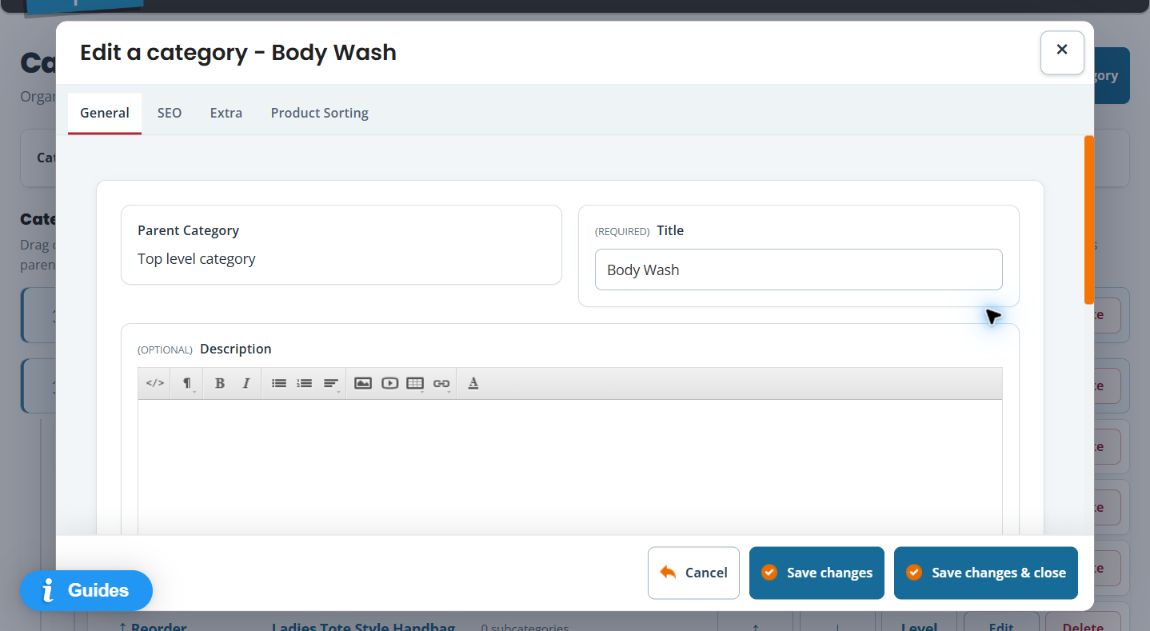
Example: make a department clearer
If a category is called “Accessories”, a more specific title can help distinguish it from another department’s accessories. First check the parent category. Use the description for useful context about the range rather than repeating the title.
Images and presentation
General includes Image and Extra Image areas with Change and Remove controls, plus Template, Extra text and Extra URL fields. Review the existing images and template before changing presentation. The effect can depend on the shop template and the screen where the category is shown.
Check how category artwork appears in your shop
- Open the intended category’s General tab and check its parent, title, current Image and Extra Image. These are separate image choices.
- Open your actual WebShop and follow the customer’s route to that category page. Check the category heading and parent path so you are comparing the same record.
- Look at the complete page, including any banner, category tiles and introduction. The active theme can use the image as a wide banner rather than the small thumbnail seen in Builder.
- Check the crop and any text placed over it. Keep the important part of the picture visible and ensure headings and description remain readable. Check a narrow screen as well as a desktop view.
- For an intended image change, use the Image area’s Change control and complete the intended image-selection and category-save steps. Reopen the category and check the actual storefront again before considering the result finished.
- Use Cancel if you only inspected the existing category. Do not remove artwork merely because another screen crops or places it differently.
For example, a bag photograph can appear behind a category heading and introduction in a wide banner. A long description can overwhelm that space even when the image is present. Check both wording and layout before replacing the photograph.
If the WebShop and till pictures look different
First confirm the exact category and whether each picture represents a category or an individual product. Check the WebShop’s active theme and the till’s selected browsing view separately. Compare the current result on both screens rather than assuming that a matching category title means an identical crop or presentation. Use Change your till product view to inspect Image view, and keep screenshots of both results if you need help.
Visibility, groups and locations
The category has Active?, Customer Group and Manage availability controls. These deserve a separate review from wording changes. Check the result with the intended customer and storefront before assuming a restriction behaves as you expect.
Ordering is a separate task
The editor also has SEO, Extra and Product Sorting tabs. The category tree provides its own order and movement controls. Distinguish changing the order of categories from changing the products displayed within one category.
Find the products assigned to a category · Review the till browsing layout.
More category tasks
Add a category or subcategory · Edit category metadata · Review order and nesting controls.
Review category deletion and Undo. To change an existing category’s parent, use the category tree’s movement controls; the existing category’s Parent Category field identifies its context.
Opening, switching tabs and saving
You can open an existing category by selecting its name in the tree or its Edit control. Check the full parent path if names repeat. General, SEO and Extra show different parts of the same form; switching tabs does not save a change.
Save changes saves and reloads the editor for continued work. Save changes & close saves and closes it. Cancel or Close leaves without another form save; it does not reverse an earlier save, tree move or separate library action. Complete highlighted required fields and reopen the category after an intended save.
Format a category introduction
For paragraphs, headings, lists, tables, links and media in Description, use the rich-text controls and link instructions. Check the saved category page in your active theme; an editor preview does not establish every storefront layout.
Choose which storefronts can use a category
Manage availability concerns shops/subshops. It is separate from a physical stock outlet or the quantity held there.
- Open the intended category and select Manage availability.
- Compare Shops/Subshops with Available in.
- Use Add to include the intended shop and Remove to remove a specific selection.
- Review Everywhere carefully: it means broad availability. Removing the final specific shop can return the selection to Everywhere, so an empty-looking selection is not a hide-everywhere method.
- For an intended change, use this availability dialog’s Save changes & close.
- Reopen Manage availability and compare the stored list. Check each intended storefront separately.
This dialog saves availability separately from the main category form. Cancel it if you only inspected the choices; cancelling the main form later does not undo a previously saved availability change. Use Active? and other visibility controls deliberately when your aim is to hide a category, and check their actual storefront effect.
