
Review advanced prices for groups and variants
Use Advanced Pricing when a product needs price settings beyond the base price in General. The groups and variant values shown depend on your catalogue and account setup.
Find the intended price
- Open the product editor and review the base Price on General.
- Select Advanced Pricing.
- Find the relevant customer group. The example account includes Public, Trade, Locals and Top Customers; your names may differ.
- Within that group, identify the base-product row or the intended variant value.
- Review whether Default or Override is selected. Price-entry fields can be disabled while Default is selected; review the relevant row before choosing an override.
- If you intend a specific override, select the appropriate Override control and enter the intended amount. Check the group and variant again. Choose Save changes to save and keep the editor open, or Save changes & close to finish. Reopen the product and compare the stored choice and amount.
- Verify the resulting price with the intended customer group and option before using it for a real sale.
Advanced Pricing screen example
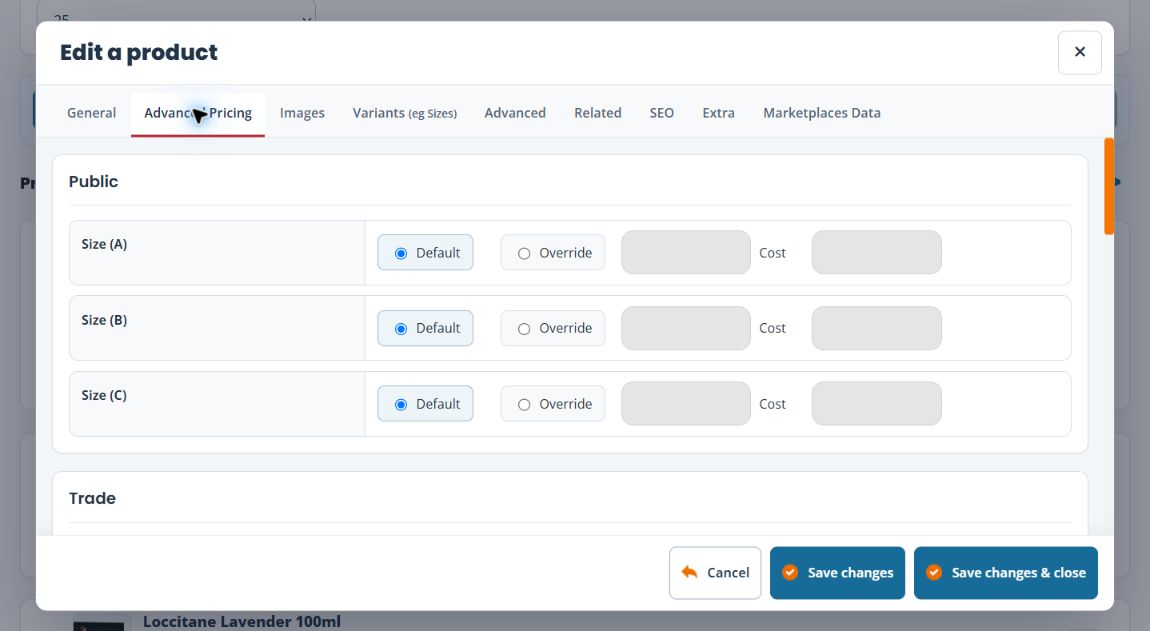
Read the group and row together
The labels Default and Override repeat. Identify the customer-group heading and the row label together before selecting a control.
| Example heading and row | What to check |
|---|---|
| Public → Size (B) | The size-B row in the Public group, rather than the base product or another group’s size-B row. |
| Trade → Base product price | The Trade base component. Review selected option additions separately. |
| Trade → Size (B) | The Trade size-B option row. It is separate from both Public size B and Trade Base product price. |
Public, Trade, Locals, Top Customers and Size (A)/(B)/(C) are examples from the demonstration catalogue. Your groups and option names can differ. A checked Default control or a disabled input alone does not tell you the final selling price; compare the intended customer and complete option selection.
Example: one trade price
Suppose a product is sold to both public and trade customers, and you want to review the trade price for size B. Open the Trade section, locate size B and check its Default/Override state. Changing another group or the base-product row may address a different pricing case.
Default, override and other price rules
Keep a note of the current settings before editing. A Default selection is different from entering an explicit amount. Discounts, customer groups and variant choices can also affect the case you are testing, so reproduce the same customer and product selection when comparing the result.
If the displayed price is unexpected
- Confirm that you edited the correct product and variant.
- Check which customer group applies to the sale you are reviewing.
- Compare the base price with the relevant Advanced Pricing rows.
- Record any discount being applied, rather than treating the discounted total as the stored product price.
Ask support to check the calculation if you cannot explain the result; include the product, group, option and expected price.
Review variant values · Edit base product details.
Pricing components
A group’s Base product price override replaces its base component, while selected option amounts are added to that base. Review worked base/group/option examples before entering amounts.
Changing one price versus a range
For a change to one group or option amount, identify and edit that exact row here. Bulk Price Update applies a rule across selected products; choosing a customer group there also includes the standard product values. For example, a £1 bulk increase with Public and option Update can change a £10 standard price to £11 and a £2 Public option addition to £3. Check both saved components rather than expecting an option-only change.
Before looking for Advanced Pricing
Open Global Settings → General → Shop and ePOS and review Enable advanced pricing?. For customer-group prices, review Enable user groups? separately. Apply only intended settings through Save Settings and reopen them. Use customer-group pricing setup when preparing group settings, customers and product prices together.
Prices for product options
Match the customer-group heading and the exact option row before changing its Default/Override choice. Review the worked pricing examples and check the complete choice in the intended selling channel.
