
Manage product and variant images
Use the product editor’s Images tab for photography belonging to one product. Use the bulk image manager when preparing images for many SKUs.
Before you start
Save a new product before adding its images. Prepare clear photographs that match the actual item. Use a JPG/JPEG, PNG or GIF image and check any file-type or size feedback from the uploader. The current image panel recommends 1600px × 1600px square images. Keep a copy of your original photographs; an accepted file type alone does not establish how animation, transparency or every theme will display it.
Prepare a useful image copy
- Keep the original photograph and prepare a separate working copy for upload.
- Check that the actual product and its colour or option are clear. Use a consistent crop that shows the item without stretching it or cutting off an important feature.
- Use the panel’s recommended 1600px × 1600px square dimensions as a preparation target, rather than a statement of the largest permitted upload. Check the file type and file size too.
- After uploading, inspect the stored thumbnail and the actual product page, including the relevant option. A completed queue does not establish that every theme crop or zoom view shows the detail you intended.
- If the uploader rejects the file, retain its exact message, dimensions, type and size. Prepare a corrected working copy based on that feedback and check the existing image group before uploading again.
For example, a square photograph can show the whole bag while a closer second image shows its fastening. Check both at the actual page size. Do not discard the originals or assume a very large file needs no preparation simply because the system creates display images.
Open the correct product and image group
- Open Catalogue & Stock → Product Management, find the product and choose Edit.
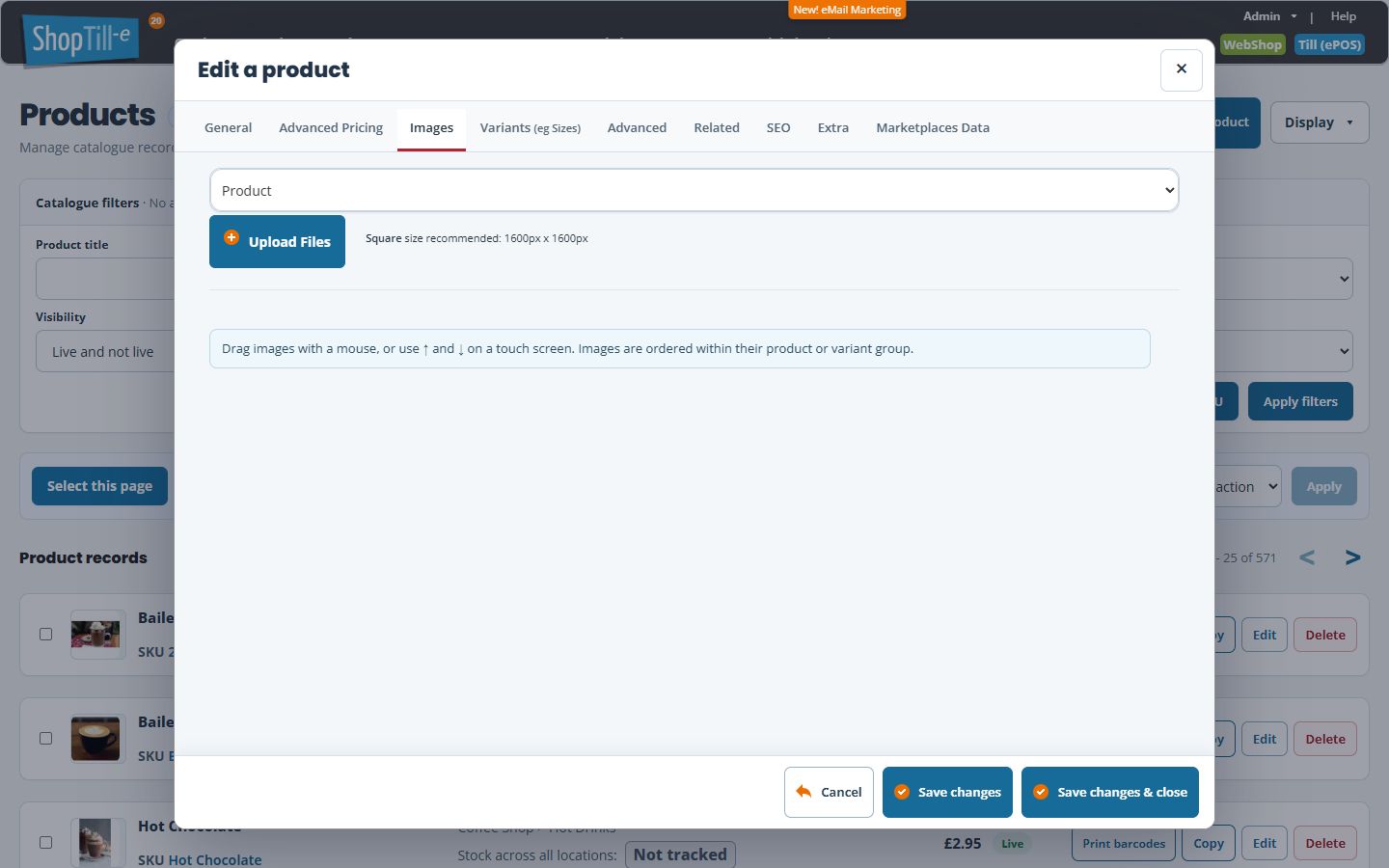
- Select Images. The group selector above Upload Files chooses the destination for photographs you upload. Check its full label, such as Product or Colour: Blue.
- Choose Product for general photographs. If variant groups are offered, choose the specific variant for photography belonging to that option.
- Select Upload Files and choose the photographs. Check the filenames in the upload queue and confirm the selected image group, then choose Start Upload. Wait until the queue finishes and the image thumbnails appear.
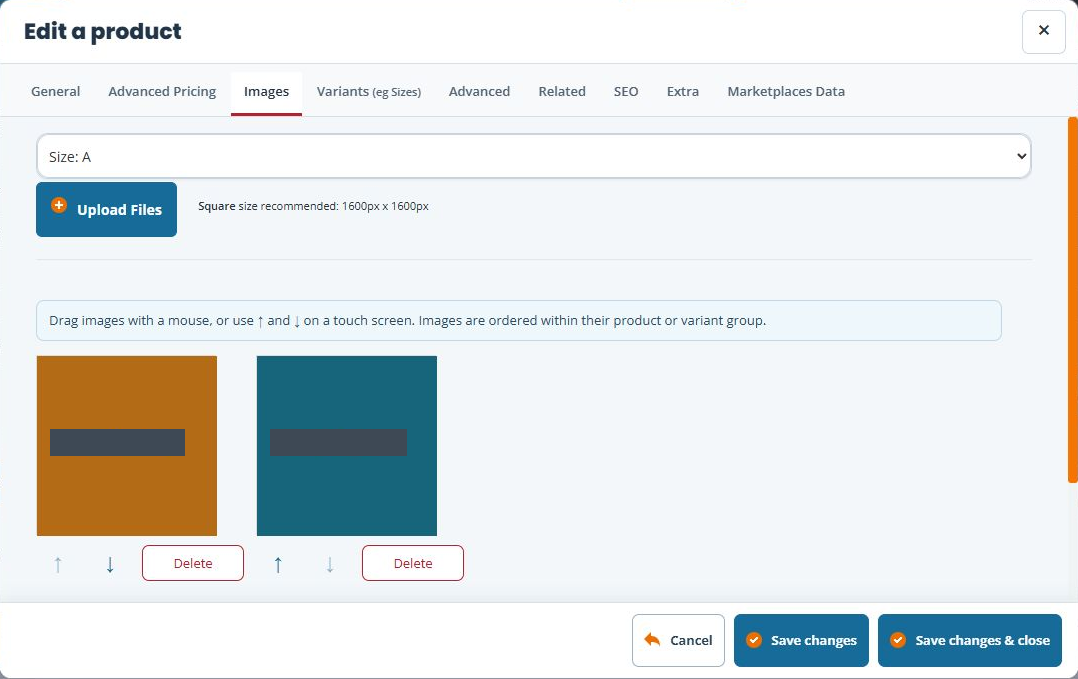
- Once images are present, arrange their order within the product or variant group using the displayed controls: drag with a mouse, or use ↑ and ↓ on a touch screen.
- Wait for any image operation to finish. Reopen the Images tab and check the group, order and relevant webshop product page. Save other product details separately when needed.
Example: the same bag in two colours
Use the Product group for photographs describing the item generally. If the editor offers colour variants, select the matching colour group before adding its photographs. A blue photograph should not be assigned to a red option. Check the customer-facing result for each option after saving.
If an image is missing or in the wrong place
Confirm the intended SKU, then inspect the current image list and any named variant sections. The upload selector is separate from the existing photographs: changing Product to a variant choice does not move the photographs already uploaded. Product images can remain visible while another upload group is selected. Check the intended group again immediately before Start Upload.
If a photograph needs to belong to a different option, keep its original file and use the intended upload group; selecting a different value alone is not a reassignment step. Review any removal separately. Check the actual webshop presentation for each option, because the back-office group choice does not establish how every template switches photographs.
Images for many products
The bulk workflow uses SKU-based filenames to match images to products. Follow Prepare images for bulk upload rather than repeating the single-product process for a large catalogue.
Image actions can take effect separately
Start Upload, image ordering and confirmed image deletion act on the images themselves. Do not rely on cancelling the outer product editor to undo them. Keep original photographs and check the Images group after each change.
Arrange or remove an existing image
- Check the product or variant group before moving an image.
- Drag within that group, or use its up/down controls. Wait for the operation to finish before another move.
- If an order error appears, reopen the group and compare the actual saved order before trying again. A restored display is not a substitute for checking the record.
- To remove a photograph, use its Delete action and review Delete Image?. Choose No to keep the image if you opened the confirmation by mistake; confirm Yes only when removal is intended.
- Reopen the image group and check the webshop presentation afterwards. Do not assume every layout uses the first image or variant groups identically.
For a large SKU-named batch, review filename matching, Append/Overwrite and queue checks before choosing files.
If Upload Files does not open or an upload stops
- Keep the product name or SKU and the selected image group. Note which step failed: opening the file chooser, selecting files, Start Upload, queue progress or the resulting thumbnails.
- If no chooser is visible, check whether the device’s file-selection window is behind another window or waiting for a response. Do not assume that no thumbnail means no file was selected.
- Read the uploader’s exact file-type, size or other error. Compare the intended file with the listed image formats and keep its original name, dimensions and size for support.
- Before repeating an upload, reopen the product’s Images tab and inspect the intended group. If the photograph already appears there, check its identity and presentation before adding another copy.
- Record the device, operating system, browser name/version and exact message. Note whether one file or several are affected and whether the same action works elsewhere.
- If a browser comparison is needed, first check the existing queue and stored images. Use the same intended product, group and file so the comparison answers one question; keep each browser’s actual result.
- Give support these details if the problem remains. Keep a browser-specific problem separate from a wrong image group, an unfinished queue or a photograph that is stored but presented differently by the WebShop.
For example, a file chooser that never opens needs different investigation from a queue that finishes without the expected thumbnail. An old recommendation to switch browsers is not a substitute for checking the failing step and whether anything was already uploaded. Do not remove working photographs to diagnose an upload problem.
Related help
Add a product · Review variants · Feature products on your homepage.
Check the full option label
Read both the variant name and its option, such as Colour: Blue. An option appearing in the image menu does not establish that it is active or offered to customers. Review its variant settings separately.
Images for many products
For a batch of SKU-named images, follow Prepare images for bulk upload. Check exact SKUs, filename delimiter, Append/Overwrite and every queue target before starting. The product editor’s Images tab remains the place to check each saved product or option group.
