
Edit product search metadata
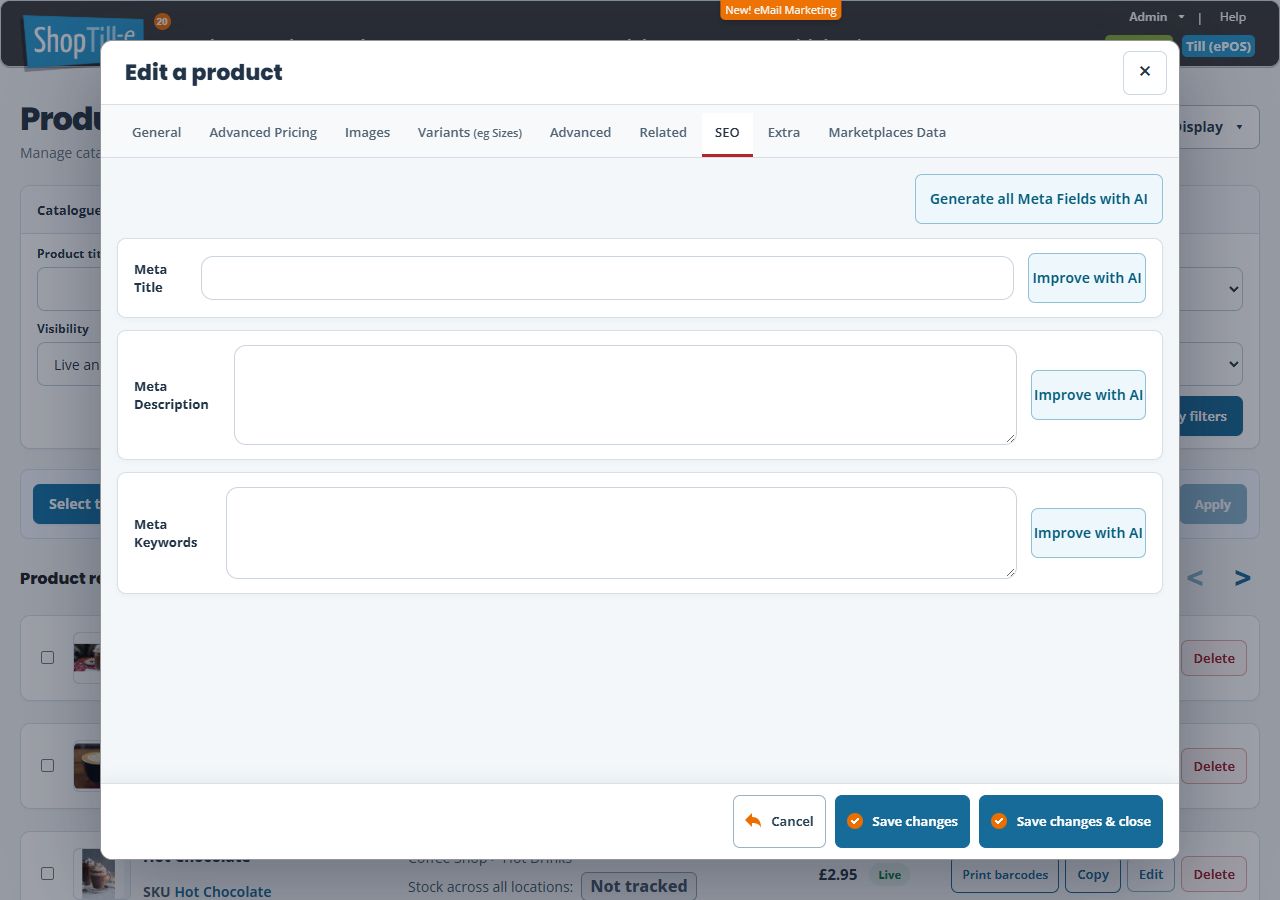
The product editor includes an SEO tab with Meta Title, Meta Description and Meta Keywords fields. Use it to review the text associated with an individual product, keeping it consistent with the item you actually sell.
Review and edit the fields
- Find the product in Product Management and select Edit.
- Choose SEO.
- Review Meta Title. Write a clear title identifying the product and any distinguishing range, material or size that belongs to that record.
- Review Meta Description. Describe the product accurately in readable language, avoiding promises or specifications you cannot confirm.
- Review Meta Keywords if your existing content process uses it.
- Select Save changes & close, then reopen the same record to check the stored values.
Example
For a blue canvas tote, a title such as “Blue canvas tote bag” identifies the item more clearly than “Great product”. A description can explain its intended use and confirmed features. Only mention dimensions, capacity or materials when you have checked the product information.
Using the AI controls
The tab includes Generate all Meta Fields with AI and Improve with AI controls. Treat proposed wording as a draft. Check product facts, spelling and readability before saving, and remove claims that are not supported by your product information.
Check the right setting
The product’s URL is a separate field on Advanced. Editing metadata is a different task from changing that URL. If you intend to change an existing product address, review its existing links and any redirect requirements first.
Review the product name and description.
The Meta Keywords field is not used by Google Search for indexing or ranking. See Google’s supported meta tags and the search-content checklist.
If you changed the wrong text
- Reopen the intended product and check the saved SEO fields.
- If the visible product name or description is wrong, review the product’s main details. If its address is wrong, review URL on Advanced. These are separate from SEO metadata.
- Compare the exact product address and storefront with the page you are checking. Keep the current field values and the displayed text together for support.
- Do not change a working product URL merely to alter a title or description. Review existing links and redirect requirements before an intended address change.
Before changing a product address
- Open the existing product on your webshop and copy its complete address. Record the product name and SKU so you can identify the same record later.
- Decide what needs changing. For different search wording, use the SEO fields above. For the visible product name or description, edit the main product details. Change the address only when that is your intended task.
- List places that use the existing address, such as webshop menu links, other pages, email campaigns, social posts, printed QR codes and adverts. A previously sent email or printed code may continue to use the old address.
- Choose a short, descriptive proposed address. Check whether another product or page already uses it; do not assume that a similar-looking address is available.
- Before saving an address change, confirm how visitors using the old address will reach the product. If you cannot confirm the redirect arrangements, give support the existing address, proposed address and product reference before proceeding.
For example, correcting the description of a blue canvas tote does not require changing the address already printed on its packaging. Keeping that address avoids an unnecessary link migration.
Edit the URL field for an agreed address change
- Complete the link and redirect preparation above before editing a product already used by customers.
- Find the exact product by its name and SKU in Product Management, select Edit, then open Advanced.
- In Identity and classification, find URL. Record its existing value separately from the complete webshop address you copied earlier.
- Enter the intended product address part, such as blue-canvas-tote, using lowercase letters, numbers and dashes. This field is the product’s address part, not the complete https:// address. Keep it distinct from the product title and SEO metadata.
- Review the rest of the product form so an address correction does not also change price, availability or stock settings.
- When the intended change and old-link arrangements are ready, select Save changes and read the result. Reopen the same product and check the exact stored URL; do not assume the typed value is the final saved value.
- Use the webshop address checks below before updating links elsewhere. If you are only inspecting the field or the old-link plan is unresolved, use Cancel without saving.
For example, the URL field for a blue canvas tote could contain blue-canvas-tote, while its Meta Title includes a fuller product description. These are separate choices. Do not clear a working URL merely to refresh the title or description.
Check an intended address change
After an agreed change, open both the new address and the old address in a separate browser tab. Check which address is displayed and whether the expected product opens. Also check a webshop menu link and one other existing link. A saved URL field alone does not demonstrate that old links still work.
If a link opens the wrong product or an error page, record the exact starting address, final address and message. Check the product reference before editing anything else. Give those details to support rather than repeatedly renaming the product or assuming that saving again will create a redirect.
