
Add a category or subcategory
Categories organise your products into departments and ranges. A subcategory belongs inside another category: for example, “Backpacks” inside “Bags”. Plan this structure before adding many products.
Before you start
Check the existing category tree for a suitable home and for duplicate names. Decide on the new title, its parent and whether it should be active. The WebShop menu is managed separately, so creating a category is only part of making it easy for online customers to find.
Create the category
- Open Catalogue & Stock → Categories / Departments.
- Select Add new category.
- Review Parent Category. For a top-level department, keep No parent, this is a top level category. For a subcategory, select the intended existing parent.
- Enter the required Title. Add an optional Description when it will help explain the range.
- Review Active?. Choose deliberately rather than assuming a new category is immediately visible.
- Review any relevant Customer Group, Image and Template settings. Keep the default presentation unless you intend to change it.
- If needed, complete the SEO fields.
- Select Save changes & close. Find the category in the tree and reopen it to confirm the parent and saved details.
- Assign the intended products using their Categories setting. Review the till and the WebShop navigation separately.
Example: a bags department
Create “Bags” as a top-level category, then choose Bags as the parent when preparing “Backpacks”. This keeps related ranges together. Check the full parent path if another department already contains a category with the same title.
Make it findable in your WebShop
Creating a category and adding a website menu link are separate tasks. The category screen links to Webshop Menus; use it to review how customers reach the new department.
- First check that the category and its intended products exist. Keep the category name and parent context so you can identify the correct destination.
- Follow Webshop Menus from the category screen, or open WebShop → Webshop Navigation Manager.
- Choose the intended Storefront and review the existing active menu and its current links. Use the location your customers should see, rather than relying on a menu's title alone.
- If the category link is already present, inspect that item's target instead of creating a duplicate. Otherwise choose Add item to this menu for the intended menu.
- Enter the link's Title, choose Category as its Type, then select the exact category in Reference. Use the hierarchy shown in the selector to distinguish repeated names.
- Review Active? deliberately. The label customers read and the referenced category are different fields; check both.
- For an intended addition, choose Save changes, reopen the item and compare the stored target. Use Cancel if you only inspected the form.
- Check the actual link on the intended storefront and on mobile. Confirm it opens the expected range and products; a saved category or menu item alone does not establish every theme's visible navigation.
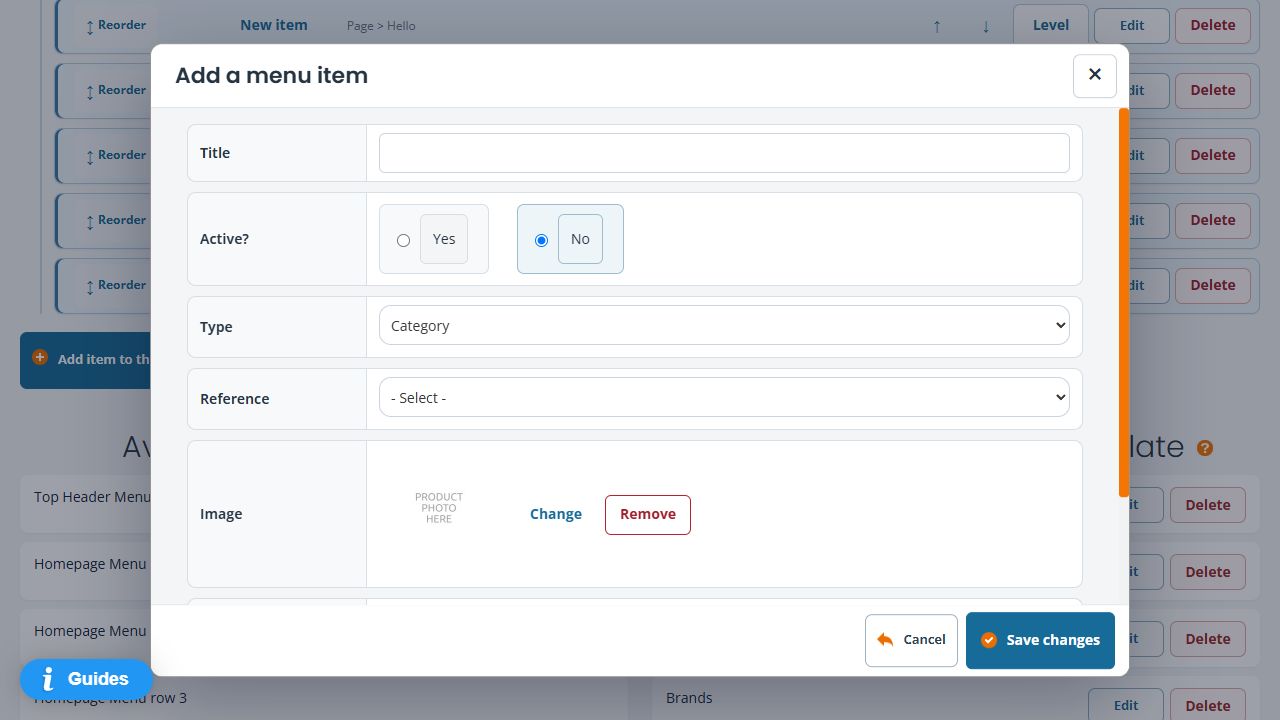
For example, after preparing a Bags department and its Backpacks subcategory, decide whether customers need a link to Bags, a direct link to Backpacks, or both. Choose each intended reference deliberately and check the resulting nesting. Use the menu-link guide for the full form and menu order and nesting for its position.
Auto-generating a menu is a separate replacement operation. Do not regenerate a working menu merely to add one department link.
If the category seems missing
Expand the expected parent in the tree. Check the saved parent and Active? setting, then review any customer-group or availability restriction. If the category exists but the WebShop menu is unchanged, inspect the menu rather than creating the category again.
Finish or leave the new form
General, SEO and Extra are parts of the category form. Use Save changes & close when ready to create it, then reopen the new record and check its fields. Save changes keeps the editor available after saving. Cancel or Close leaves without another save. If a response is interrupted, inspect the category tree before submitting again so you do not create the same range twice.
Use rich-text help to format Description, and keep the category title distinct from its SEO title.
Related help
Edit category details and presentation · Review category ordering controls · Add a product.
