
Format text, lists and media in the content editor
Use the rich-text toolbar in a content field to structure the wording customers read. This guide covers the shared editor used in content pages and gallery descriptions. Check the surrounding record before saving: formatting the text and saving or publishing the page are separate actions.
Prepare the text and editing position
- Open the intended content page or gallery description.
- Keep a copy of useful existing wording before a substantial edit. Check the storefront, title and address.
- Click in the content area for a paragraph-level change, or select the exact words for emphasis, colour or a link.
- Apply one change at a time and review the result in the editor before saving the record.
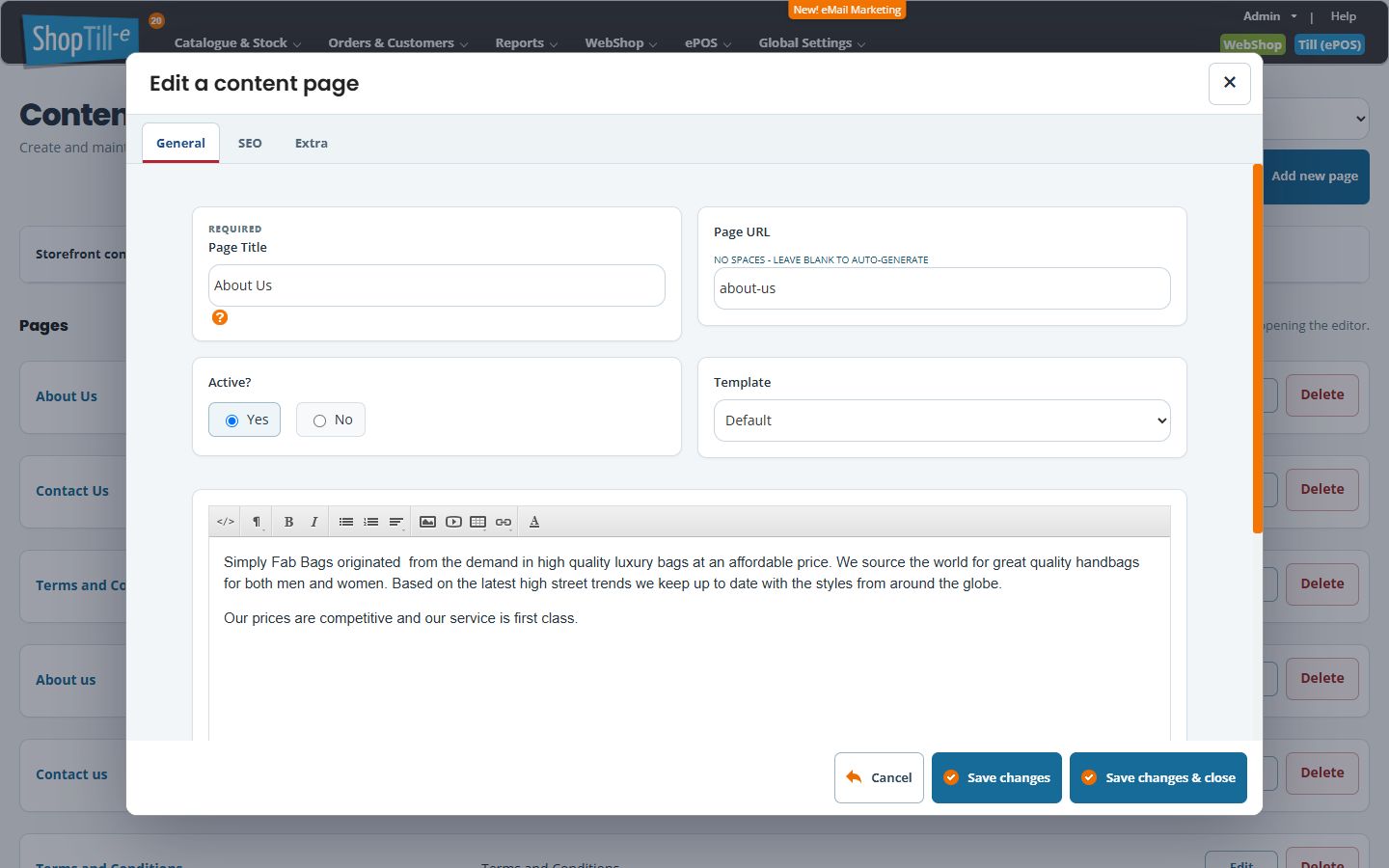
Headings, paragraphs and emphasis
- Place the editing position in the paragraph you want to change.
- Open Formatting and choose the appropriate Paragraph or Header level. Keep heading levels meaningful within the page.
- For emphasis within a sentence, select the words and choose Bold or Italic.
- Check the surrounding text so the formatting has not extended to unintended words or the next paragraph.
For example, use a heading such as “Delivery information”, followed by normal paragraphs. Making an entire paragraph bold is different from giving a section a heading.
Bullets and numbered steps
- Select the relevant paragraphs or place the editing position where the list should begin.
- Use Unordered List for parallel items such as available services, or Ordered List when sequence matters.
- Review each item and the text following the list. Check that unrelated paragraphs have not become list items.
Use the list controls rather than typing a row of spaces and bullet characters. A numbered list is useful for collection instructions; a bulleted list is useful for the items a customer should bring.
Alignment and colour
Place the editing position in the intended paragraph and use Alignment for its text position. For a selected text colour, use Font Color and review the chosen colour against the actual page background. Check that links remain identifiable and that colour is not the only way important wording is distinguished. The active theme can affect the final appearance.
Insert a small information table
- Place the editing position where the table belongs.
- Choose Table → Insert Table, enter the intended Rows and Columns, then choose Insert.
- Enter the content in the cells and check the reading order.
- With the editing position in the relevant cell, use the Table menu to add a row above/below or a column left/right when needed. Review the target before deleting a row, column or table.
- Where using Add Head, review and fill the new heading area deliberately rather than assuming existing cells were converted automatically.
- Check the saved table on a narrow screen and review headings and reading order in the actual page.
Keep tables for related information, such as opening times. Do not use a wide table merely to position the whole page layout, and do not assume a visual heading row establishes all accessibility details.
Links, images and video
- Link: use the link guide for URL, email and anchor targets, visible text, new-tab choice and removing a link.
- Insert Image: opens ShopTill-e's content-image library. Follow the image chooser and properties steps; product photographs and gallery-image uploads are separate workflows.
- Insert Video: expects Video Embed Code. Place the editing position, open the dialog, enter the intended embed code and choose Insert, or Cancel to leave it out. An ordinary watch-page URL is different from embed code. Check the saved page and playback; availability and presentation depend on the embed and theme.
Use HTML view deliberately
HTML switches between visual editing and the markup for that content field. Keep a copy before changing existing markup. Return to visual editing and check the result before saving the record. Do not replace a content fragment with an entire webpage or assume switching views publishes anything.
If a pasted fragment or embed looks wrong, keep the previous wording available and inspect the content before saving a large change. Ask support to review the intended fragment when the result is unclear.
Save the record and check the actual page
- Review the content and any surrounding title, address, template and visibility fields.
- Use the record's Save changes or Save changes & close for the intended update. A small editor dialog's Insert or Save returns its change to the content field; it is not the page's final Save.
- Reopen the record and view the actual storefront page. Check headings, lists, links, tables and media on desktop and a smaller screen.
Uploading or deleting an image in the shared library can have a separate effect from saving the content field. Cancelling the outer page editor does not establish that a library upload or deletion was undone.
