
Generate a WebShop menu from existing content
Auto generate this menu replaces that menu’s current contents. Record the existing labels, destinations and hierarchy before using it. If you only need one extra link, use Add item to this menu instead.
Prepare the source and destination
- Open WebShop → Webshop Navigation Manager and choose the intended Storefront.
- Identify the exact destination menu and review all its current links.
- Check that the source pages, categories or galleries you intend to use exist. For Pages, review the intended active pages for the storefront.
- Only proceed when replacing the menu is intended and you have a recoverable record of its old contents.
Choose what to generate
- Select Auto generate this menu for the intended menu.
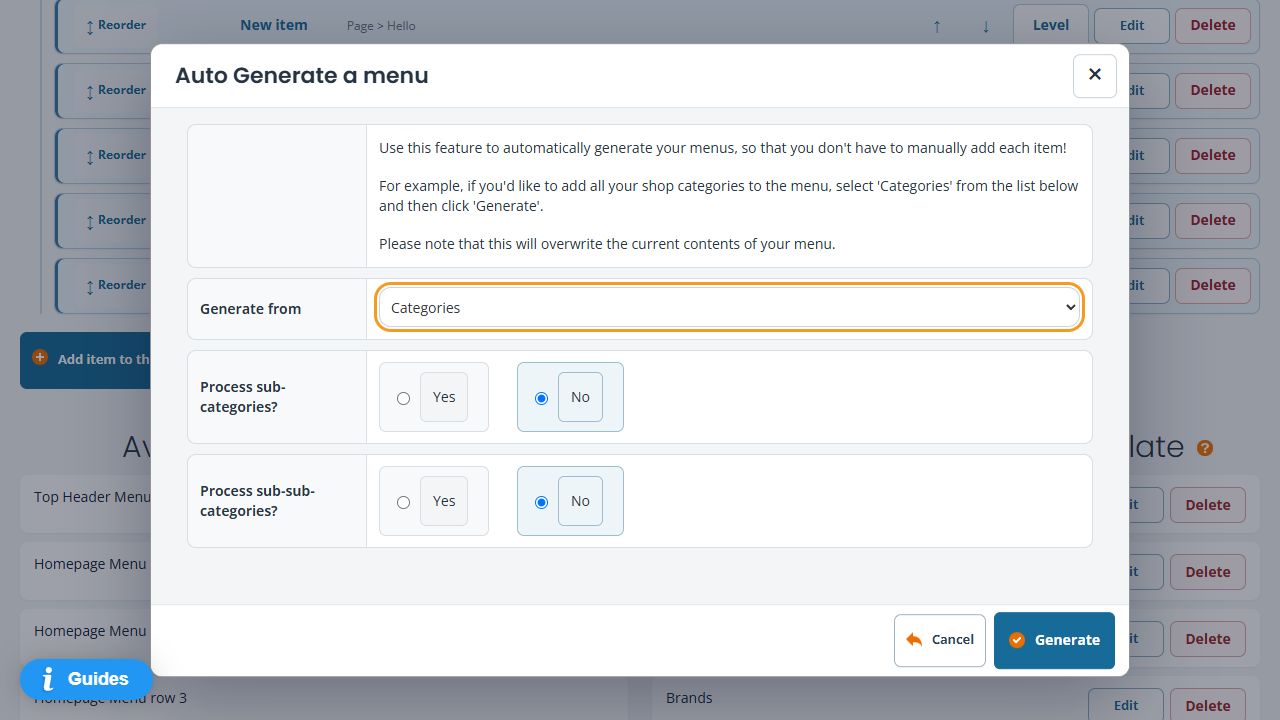
- Read the overwrite notice.
- Choose Generate from: Pages, Categories or Galleries.
- For Categories, review Process sub-categories? and Process sub-sub-categories? separately. The deeper level depends on including its parent level.
- Use Cancel if you are only reviewing the choices. Use Generate only for the intended replacement.
Review the source before Generate
- Check that Generate from names the source you intend. The dialog can initially show - Select -.
- Choosing Categories reveals separate Process sub-categories? and Process sub-sub-categories? choices. Read each selected Yes/No value rather than assuming deeper levels are included.
- Compare the intended depth with your actual category hierarchy and the menu you are replacing.
- Use Cancel if you only wanted to inspect the source or depth choices. Selecting Categories is separate from the committing Generate action.
The overwrite notice applies to the selected menu. Do not use Generate merely to preview a category tree or add one missing link.
Check the result
Review the generated labels, targets, order and hierarchy in Builder, then test the actual storefront menu. A category tree and a theme’s visible dropdown behaviour are separate checks. Do not assume a template displays every generated level.
Example: categories as main navigation
If the intended category tree is Bags → Backpacks → Small backpacks, decide whether the menu should include just Bags, Bags with Backpacks, or all three levels. Check the resulting nested menu on the current template and on mobile. Keep information-page links in a separate menu if you want them preserved independently.
If generation reports an error
After an error, inspect the actual menu and compare it with your saved copy before retrying; do not assume the previous links were retained. Keep the exact error and your recorded old links for support. Do not rely on a generic undo control as proof that generation can be reversed.
Add one link instead · Review nesting and order.
Check the category journey as a customer
- Open the intended storefront and use its actual main menu to reach a parent category.
- Check the parent page's heading and the expected range. Review any Sub categories links or category cards offered by the theme.
- Follow a child category and, where relevant, a further level. Compare the final page heading and address with the category you intended.
- Check the menu itself and the category-page navigation separately. A theme can present category-page links without showing the same layout in its main menu.
- Repeat the intended journey on a phone as well as desktop before sharing the new navigation with customers.
For example, a customer can reach a department from the main menu and then browse narrower ranges from its category page. Decide which levels also need direct menu links; do not assume one layout is used by every theme.
If a child category is reachable but absent from the menu
Inspect the actual menu item's target, nesting and intended location, alongside the generation choices you used. Category-page links and generated menu entries are different things. Keep the exact parent/child names and addresses for support. Do not regenerate a working menu merely as a diagnostic step: generation replaces its contents.
