Prepare a combination or matrix variant
A Combination/Matrix variant provides a grid for two sets of choices, such as shoe size and colour. Plan the combinations you actually sell before entering identifiers or quantities.
Prepare the grid
- Open the saved product and choose Variants (eg Sizes) → Add Variant.
- Select Combination/Matrix from Type.
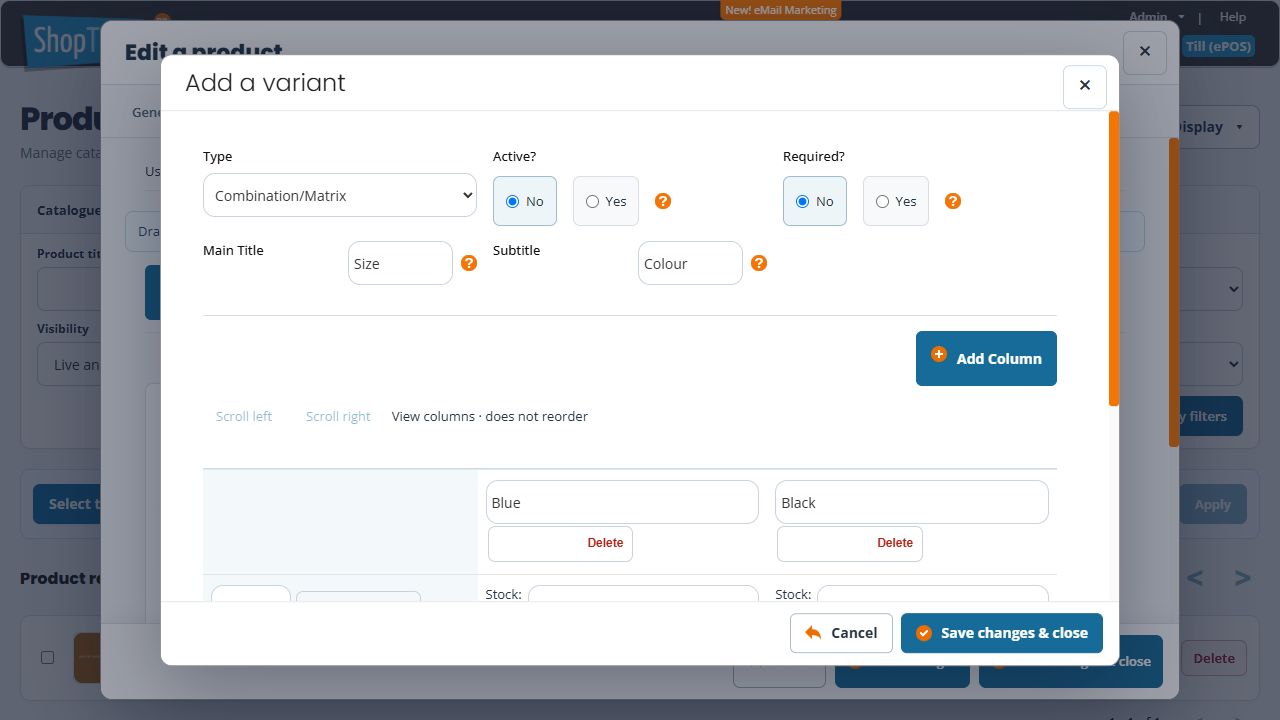
- Use Main Title for the choices running down the rows, such as Size, and Subtitle for the choices across the columns, such as Colour. Give both dimensions names customers will understand.
- Review the starting row and column labels. The demonstrated new form starts with one row, one column and one Stock/SKU intersection. Replace generic labels with your intended choices.
- Use Add Row and Add Column for the required grid. Each addition creates more intersections to inspect.
- Trace the row and column headings together for every cell. Enter the SKU and quantity for that physical combination; do not copy one identifier across different combinations.
- Choose Active? and Required? separately. Both initially select No in this new-form example. Review the choices for the selling journey you intend.
- Check the complete grid before an intended save. If you were only comparing forms, select Cancel.
Example: Small and Large, in Blue and Black
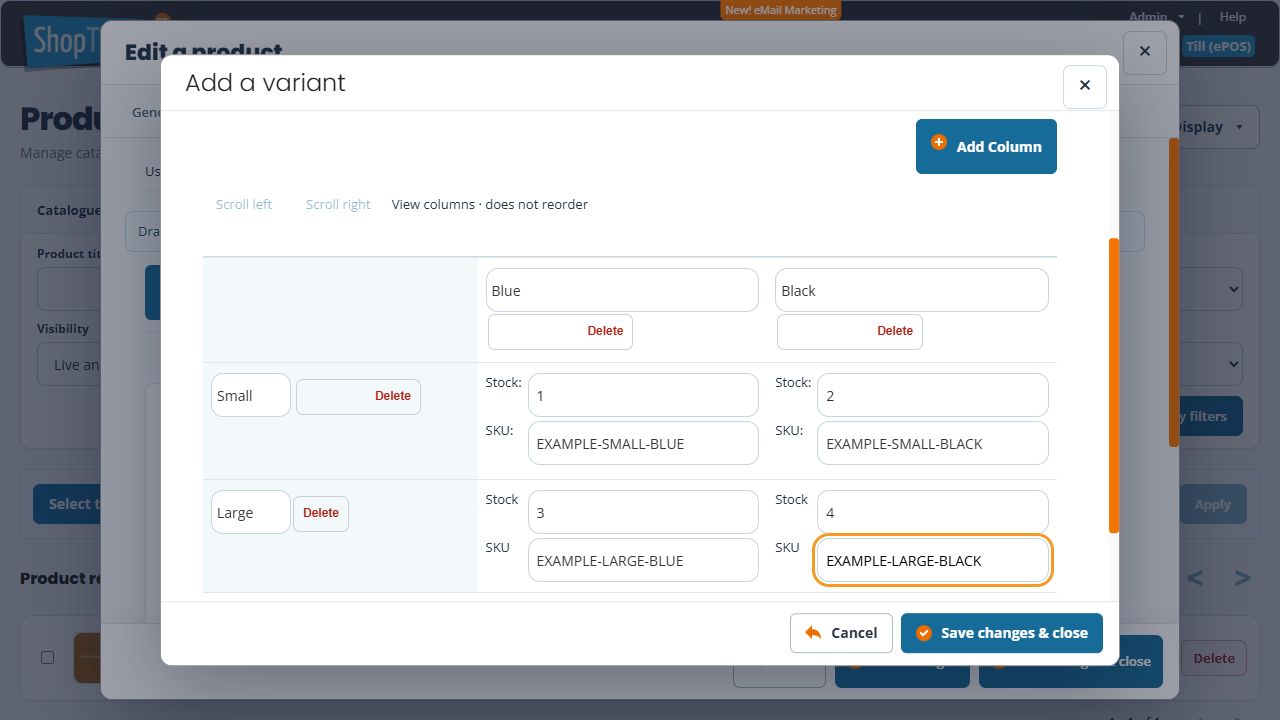
Set Main Title to Size and Subtitle to Colour. Name the two rows Small and Large, then the columns Blue and Black. Follow one row and one column to locate each combination. The identifiers and quantities below are illustrative, not stock to copy into your shop.
| Row: Size | Column: Colour | Example SKU | Example Stock |
|---|---|---|---|
| Small | Blue | EXAMPLE-SMALL-BLUE | 1 |
| Small | Black | EXAMPLE-SMALL-BLACK | 2 |
| Large | Blue | EXAMPLE-LARGE-BLUE | 3 |
| Large | Black | EXAMPLE-LARGE-BLACK | 4 |
For Large in Black, use the intersection of the Large row and Black column, rather than the adjacent Large/Blue cell. Check each identifier against the physical item and review the product’s stock-tracking level separately. A blank SKU or zero Stock alone does not establish that a combination cannot be sold.
Remove an unwanted row or column while preparing the grid
Check the label beside the Delete control first. In a new unsaved grid, removing a column removes its intersections in every row; removing a row removes its intersections across the columns. For example, removing Black from the grid above removes both Small/Black and Large/Black, while the Blue cells remain. Inspect all surviving labels and values before continuing.
Use the variant dialog’s Cancel if you want to abandon the new grid. This is separate from saving the variant or cancelling the outer product editor. Review an existing saved matrix carefully before removing any part of it; deleting a whole axis is different from correcting one cell.
View columns and review generated codes
Scroll left and Scroll right have the guidance View columns · does not reorder. Use them to inspect off-screen columns. They do not change the sequence of your choices.
Review Generate missing SKUs separately from Regenerate all SKUs. Preserve identifiers already in use before considering replacement. Compare every affected code with its row and column headings before saving; do not assume a generated code has been checked against all your existing identifiers.
Change the order of existing rows and columns
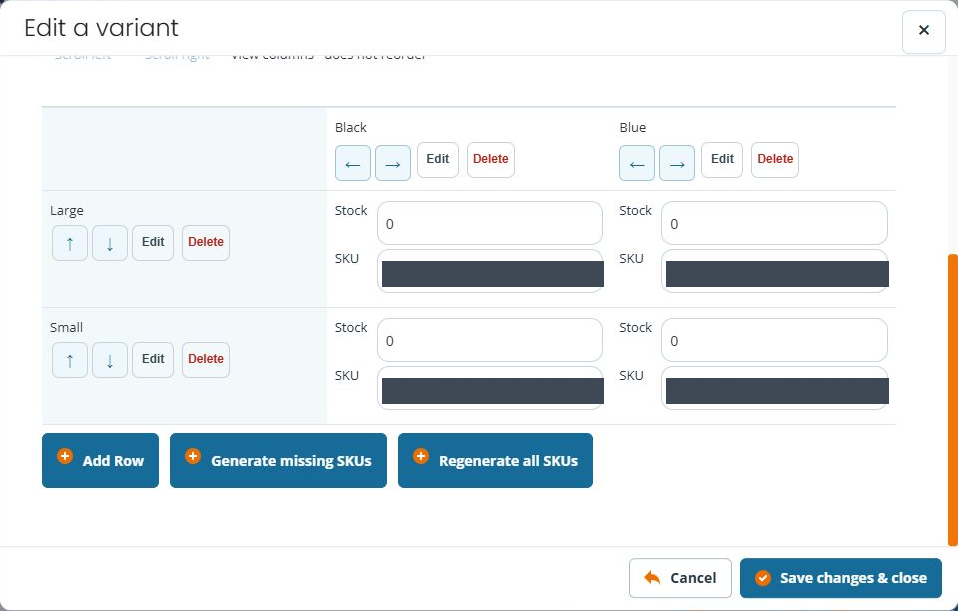
- Open Edit on the intended saved matrix and check its heading labels.
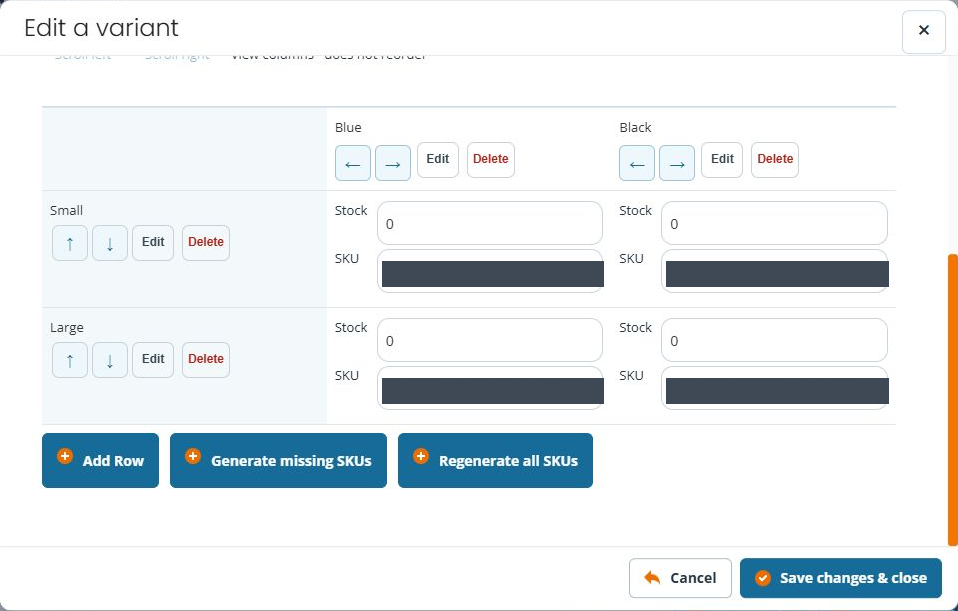
- Use the arrows beside a row heading to move that row up or down. Use the arrows beside a column heading to move that column left or right.
- Check the complete combinations after the move: the intended row or column and its Stock/SKU cells should stay together.
- Use Save changes & close, then reopen the matrix and compare its headings, full codes and quantities.
For example, move Small above Large using the arrow beside Small, and Blue before Black using Blue’s left arrow. Compare Small/Blue and the other intersections after reopening. These arrows change ordering; the separate Scroll left and Scroll right controls only change which columns you can see.
Check the resulting choices in each sales channel before offering the product. The back-office grid alone does not establish how a particular webshop template or till view presents them.
Correct one combination’s SKU
- Open the saved product’s Variants section and use Edit on the intended matrix.
- Follow the row and column headings to the exact combination. For Large in Black, edit that cell’s SKU, rather than renaming a row or column.
- Review the complete current code, including text that extends beyond the visible field. Check existing labels and other uses of the identifier before replacing it.
- Enter the intended code and check the neighbouring cells and Stock values.
- Use Save changes & close, then reopen the same variant and compare the changed cell and its neighbours by their headings.
If you have not saved and want to abandon the edit, use the variant dialog’s Cancel. Reopen the variant to check the recorded value. Cancel after a successful save does not reverse the earlier saved change.
Check the saved matrix by its headings
- Use the variant dialog’s Save changes & close when the complete grid is ready.
- Check the saved variant’s title, type, Live/Not Live and Required/Not Required state in the product’s variant list.
- Reopen the intended variant with Edit and compare its Main Title, Subtitle and each row/column heading.
- Match every full SKU and Stock value to those headings. Do not check by screen position alone: the saved grid can display the headings in a different order from the entry form.
- Review the main product’s visibility, stock-tracking level and prices separately before making it available for sale.
The variant dialog saves separately from the outer product editor. After the variant has saved, cancelling the outer product editor does not undo that saved variant. Reopen the variant to inspect the stored result before deciding on another change.
Before offering the product
Check the stock-tracking level and variant prices separately from the labels.
Before offering the product, test representative combinations in each intended sales channel and check the selected combination on the resulting order. For reusable structures, review variant sets before applying one to an existing product.
If the grid does not look right
- A column seems missing: use Scroll left/right to inspect the full width. Check both dimension labels before adding another column; it may already be off screen.
- A code is beside the wrong combination: trace its row and column headings together. Correct that cell rather than changing a whole row of otherwise correct identifiers.
- The size sequence is unsuitable: compare the displayed order with the physical size order you need before saving.
- A combination is unavailable: a blank SKU or zero quantity alone does not establish that it cannot be sold. Check the tracking setup and actual selection in the sales channel before offering it.
- The save was interrupted: reopen the existing product and inspect the saved grid before adding or loading the structure again. Keep the product SKU and affected row/column labels when asking for help.
Related help
Choose a variant type · Review variant stock and barcodes.