
Add a dropdown product variant
Use a Dropdown List for one set of choices, such as Small, Medium and Large. Save the main product first so its variant controls are available.
Prepare the option group
- Open the existing product from Product Management and select Variants (eg Sizes).
- Select Add Variant.
- Set Type to Dropdown List.
- Enter a clear Main Title, for example Size.
- Review Active? and Required?. Choose each deliberately before saving.
- Select Add Row. Enter the option label in the new row, then repeat for the other choices.
- Check the row’s SKU and Stock fields against your intended stock and identifier setup. Establish which level will track stock before entering quantities.
- Review the complete list and use the variant dialog’s Save changes & close for the intended update. Review the product editor before completing its save controls.
- Reopen the product to confirm the saved group, values and flags. Check the selection in the intended webshop or till workflow.
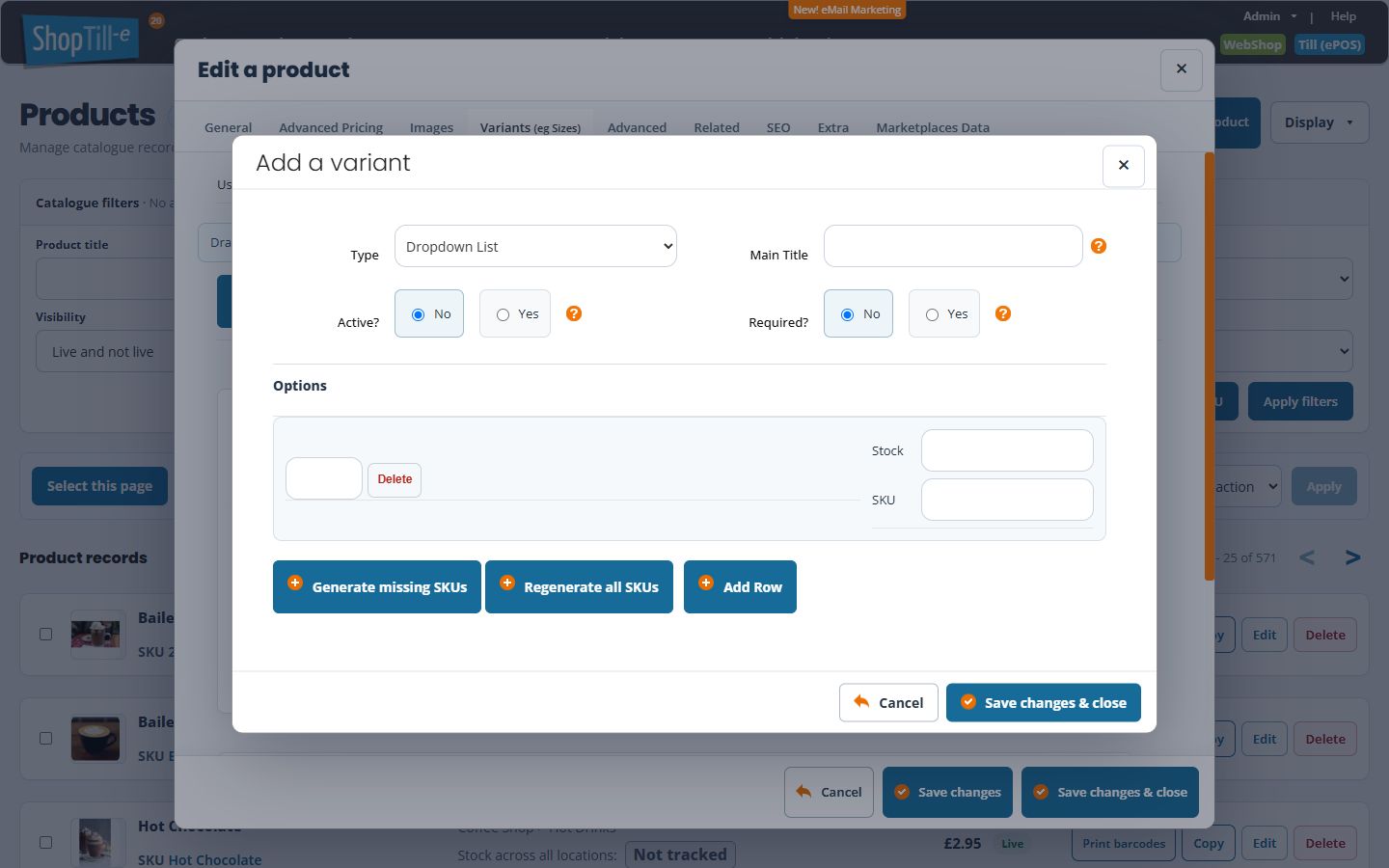
Example: three sizes
Use Main Title “Size” and add Small, Medium and Large as separate rows. If the physical sizes have separate barcodes, check their exact identifiers, including leading zeros. Do not put a size name in the SKU field merely because it is convenient to type.
Generated SKUs and existing choices
The form provides Generate missing SKUs and Regenerate all SKUs. These are different intentions: review your existing identifiers before using either. The existing dropdown editor also has option up/down controls and Sort A–Z; alphabetical order may differ from a useful size order.
If prices or stock differ by option
Review Advanced Pricing for the relevant option and customer group. For quantities, check stock by option and outlet and the product’s stock-tracking level.
Choose the intended SKU action
Generate missing SKUs fills eligible empty fields. Regenerate all SKUs asks for confirmation and replaces eligible existing values in this variant form. Preserve identifiers already used on labels or integrations before choosing replacement. Check every option after generation and after saving.
Sort A–Z arranges the option rows in the form. Review the resulting sequence before the variant save; alphabetical sorting may place sizes differently from your intended order. The variant dialog saves separately from the main product form.
Related help
Choose another variant type · Size and colour matrix.
Assign your own option identifiers
- In Variants (eg Sizes), select Edit beside the intended group.
- Match each option label to its own SKU field. Enter the identifier for that physical choice; use its existing barcode when appropriate. Do not reuse another product’s option identifier.
- Leave stock quantities alone when you are only assigning identifiers. Check the product’s tracking level separately before changing stock.
- Select the variant dialog’s Save changes & close. This saves the variant independently of the outer product form.
- Reopen the product and the variant editor. Compare each saved label and SKU with your records. Cancelling the outer product editor does not undo a variant update already saved.
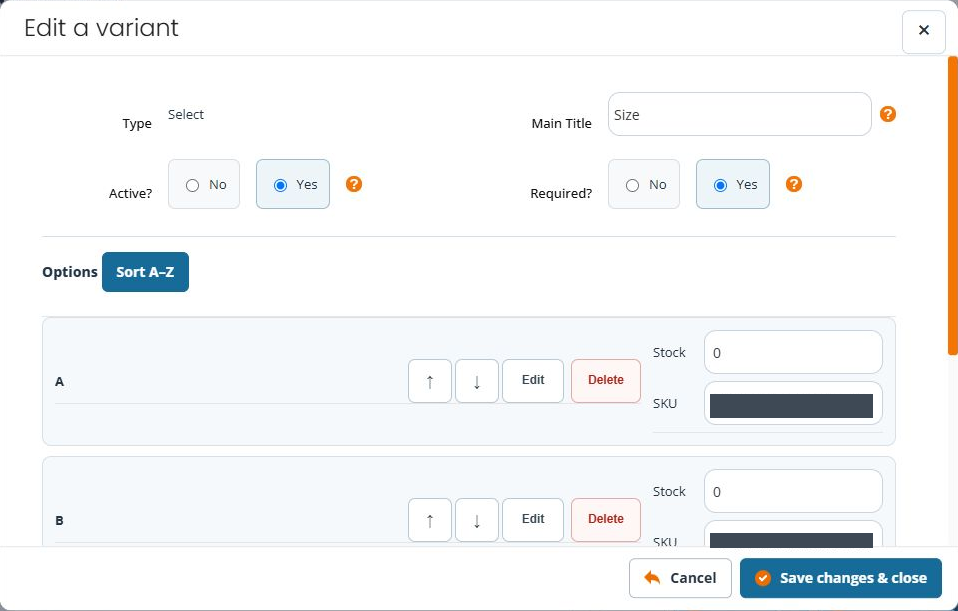
If an identifier appears beside the wrong choice, correct that exact row and save the variant again. If a save is interrupted, reopen and inspect the saved values before repeating the action.
Put choices in a useful order
- Open the existing group’s Edit dialog and compare the option labels with the order you want customers to see.
- Use the option row’s up/down control to move that choice. Check its SKU remains paired with the correct label.
- Use Sort A–Z when alphabetical order is appropriate. For sizes such as Small, Medium and Large, review the resulting order rather than assuming alphabetical order is useful.
- To discard an unsaved row move, use Cancel in the variant dialog and reopen it.
- To keep the order, use the variant dialog’s Save changes & close. Reopen the product and compare the sequence. Cancelling the outer product editor does not undo an already saved variant order.
- Inspect the choices in the intended sales channel before relying on their presentation.
Moving options within one group is different from moving whole variant groups in the product’s Variants list. Use the controls for the level you intend to change.
