
Save and reuse a product variant set
A variant set lets you reuse an option structure across products. Plan the source and target carefully: applying a set changes the target through its own action and can affect existing options and quantities. Record the target’s current variants and stock first.
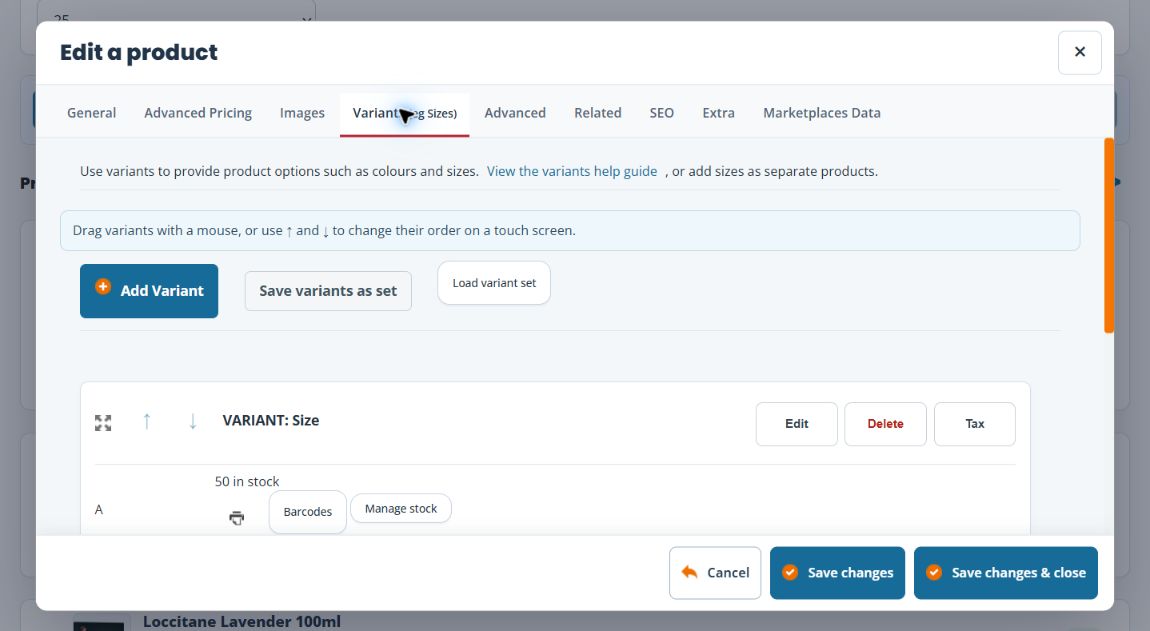
Save a reusable set
- Open the source product and inspect Variants (eg Sizes).
- Check the saved group names, type, labels, Active? and Required? choices and order.
- Select Save variants as set.
- Enter a clear set title, for example Clothing sizes — small to large.
- Select Save variant set and wait for the list to refresh.
- Check the saved set is available before leaving.
Apply it to the intended product
- Prepare and save the target product, then open its Variants tab.
- Check whether it already has groups and record their identifiers, prices and quantities.
- Open the variant-set list and confirm the intended set. Choosing it applies the set; do this only when you intend that change.
- Wait for the variant list to refresh. Inspect all resulting groups, including any that existed beforehand.
- Review the names, flags and option order. Loaded options can show No SKU: the reusable structure is not a substitute for assigning the target product’s own identifiers. Open the variant editor, enter and save the correct option SKUs, then check barcodes, prices and stock before making it available for sale.
- Reopen the product and test representative choices in the intended sales channels.
Do not assume loading a set keeps existing quantities unchanged, replaces the old structure cleanly, or copies every price and identifier correctly. If the target already sells, establish the effect on its recorded stock and orders before applying a set.
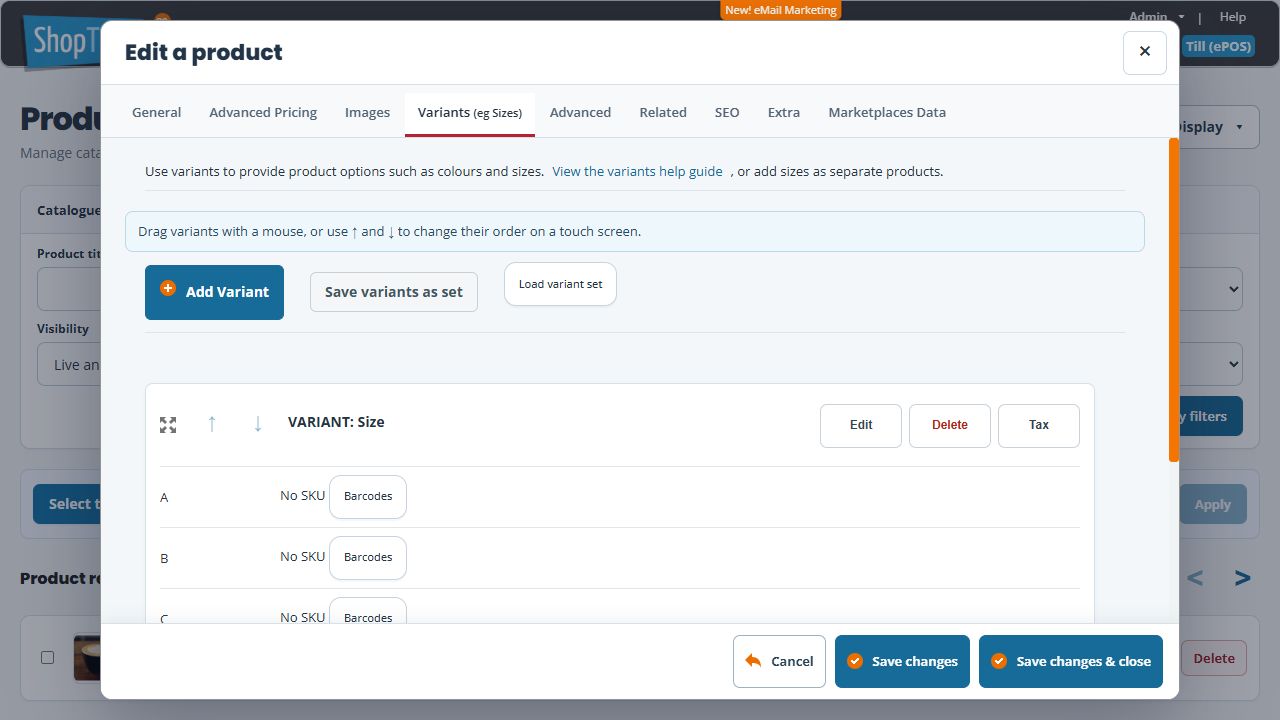
Understand the save boundary
Saving, loading or deleting a variant set uses a separate action from the main product form. Closing or cancelling that outer editor does not undo a set operation already completed. If a request is interrupted, inspect the set and target product before repeating it; repeated loading can create unwanted groups.
Remove a reusable set
Use the set’s Delete control only for the intended reusable template. Read Delete Variant Set? and cancel if unsure. Review products where it was applied separately; do not assume deleting the template restores or removes their existing variant groups.
Example: common clothing sizes
Reuse the saved Small, Medium and Large structure for another garment, then assign that garment’s identifiers and verify its quantities and prices. Matching size names do not make the physical stock or selling prices the same as the source product.
Variant types · Dropdown options · Option prices
Assign your own option identifiers
- In Variants (eg Sizes), select Edit beside the intended group.
- Match each option label to its own SKU field. Enter the identifier for that physical choice; use its existing barcode when appropriate. Do not reuse another product’s option identifier.
- Leave stock quantities alone when you are only assigning identifiers. Check the product’s tracking level separately before changing stock.
- Select the variant dialog’s Save changes & close. This saves the variant independently of the outer product form.
- Reopen the product and the variant editor. Compare each saved label and SKU with your records. Cancelling the outer product editor does not undo a variant update already saved.
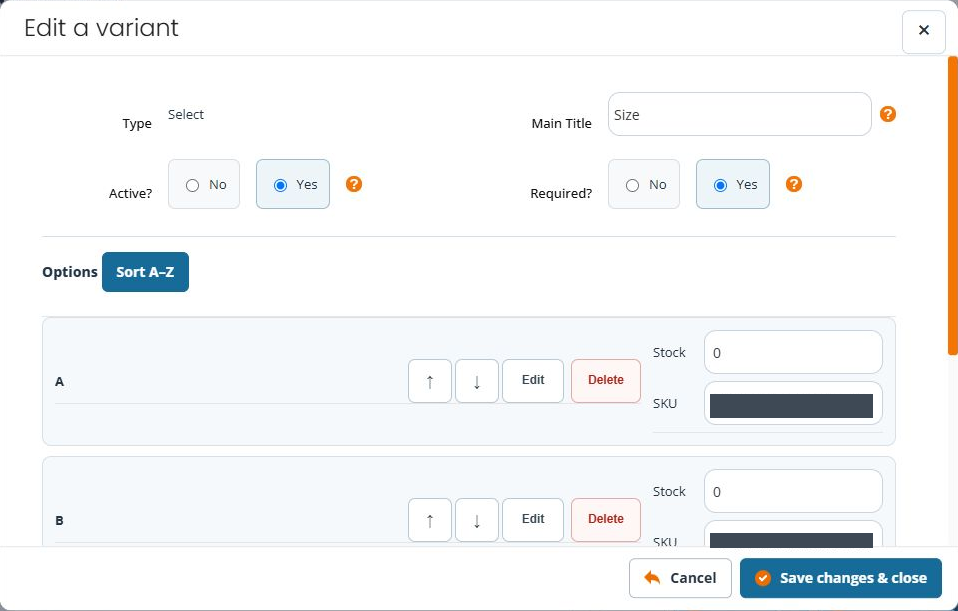
If an identifier appears beside the wrong choice, correct that exact row and save the variant again. If a save is interrupted, reopen and inspect the saved values before repeating the action.
If a reused set does not look right
- Reopen the target product and check its actual groups before loading the set again. A repeated load is a further change.
- If options show No SKU, use the identifier steps above to assign the target’s own values. Do not treat a copied label as proof of a copied identifier, price or stock quantity.
- If identifiers appear beside unexpected labels, match every row to your records and correct the intended row in the variant editor. Save and reopen to check the mapping.
- If quantities, existing groups or prices differ from what you recorded, compare them before selling or making another structural change. Review stock tracking and option pricing separately.
- If you cannot explain the result, give support the source product, set title, target product and before/after details. Do not delete the reusable set as an attempted undo of a load already applied.
