
Add a text-entry option for a product
A Text box variant provides a product option for entered wording. A useful example is a personalisation message that staff need when preparing an item.
Prepare the option
- Save the main product first, then open its Variants (eg Sizes) tab.
- Select Add Variant.
- Set Type to Text box.
- Enter a clear Main Title, such as “Personalisation message”.
- Review Active? and Required?. Choose each deliberately before saving.
- Review the title and intended behaviour, then select the variant dialog’s Save changes & close for an intended update. Review the outer product editor before finishing.
- Reopen the product and check the saved option. Enter sample wording in the customer-facing option and check that wording on the resulting test order.
Example: a message on a gift
Use a title that tells the customer what text you need. Keep instructions about what can be produced clear in the product description. Check with the people fulfilling orders that the entered wording reaches the screen or document they use.
Check the complete journey
Review how a required field behaves when left empty and how long or unusual wording is handled. Check the customer’s final entry on the order before using it for production. Check that the wording fits the actual order and fulfilment output. Ask support about any required length limit before offering personalisation that depends on it.
Related help
Compare variant types · Edit the product description · Find an order.
If the message is missing or incorrect
- Reopen the exact product and check that the intended option uses Text box, with the correct Main Title and Active/Required choices.
- Distinguish a missing input from an empty entry. Required is a separate setting from Active; check the intended customer journey rather than relying on the option title.
- Compare the customer’s entry with the exact order item and the output used for fulfilment. A message visible during selection is not sufficient evidence that staff received it.
- Keep the product SKU, order reference, option title and affected screen or document for support. Confirm any missing or ambiguous wording with the customer before producing a personalised item; do not reconstruct it from a similar order.
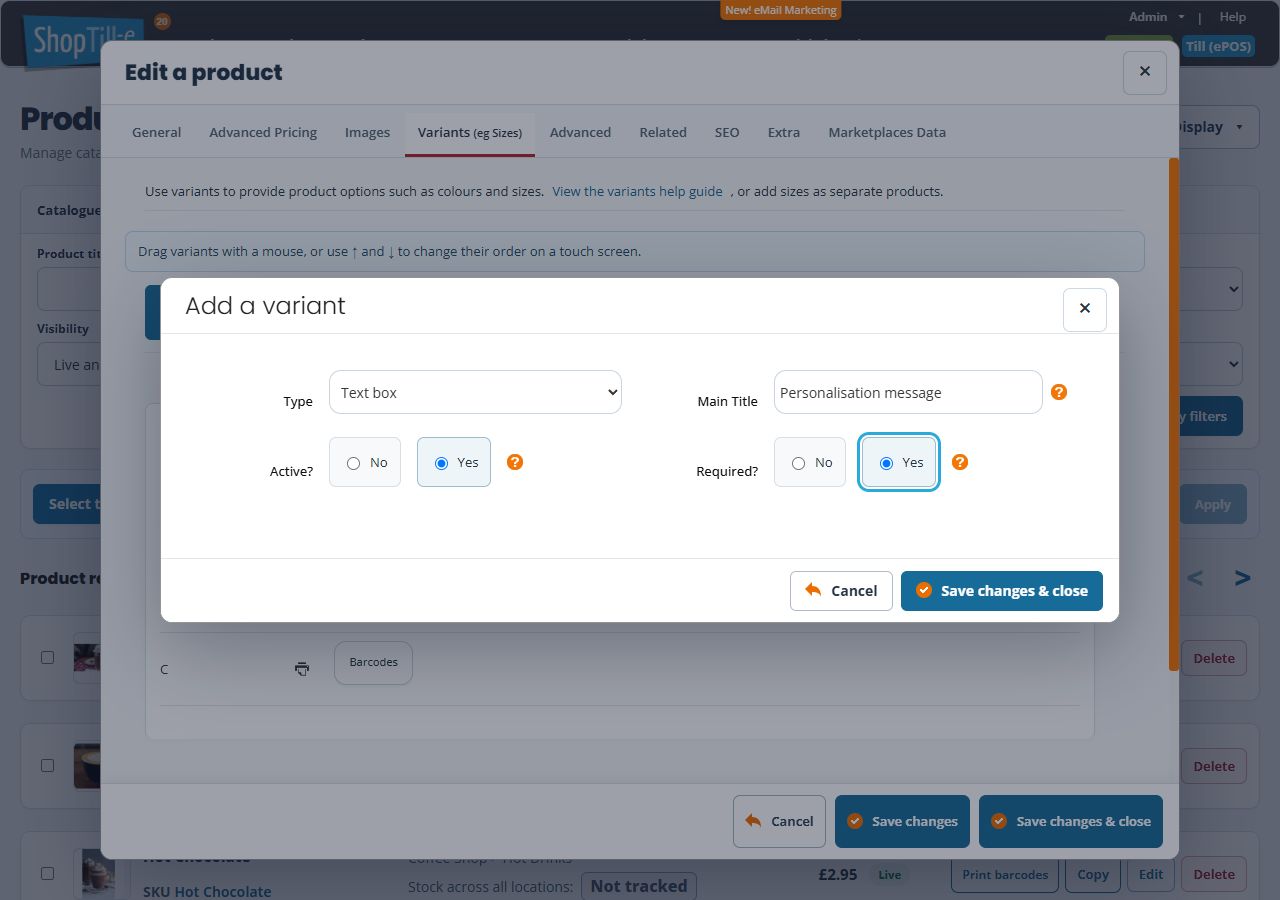
Choose the starting flags deliberately
In the demonstrated new form, Active? and Required? initially select No. Choosing Text box reveals Main Title without a list of option values. Enter the instruction customers should recognise, then choose whether the option should be available and whether an entry is mandatory. The example shows Yes for both; choose the settings that fit your product. Use Cancel if you were only comparing the forms.
Check the saved text option
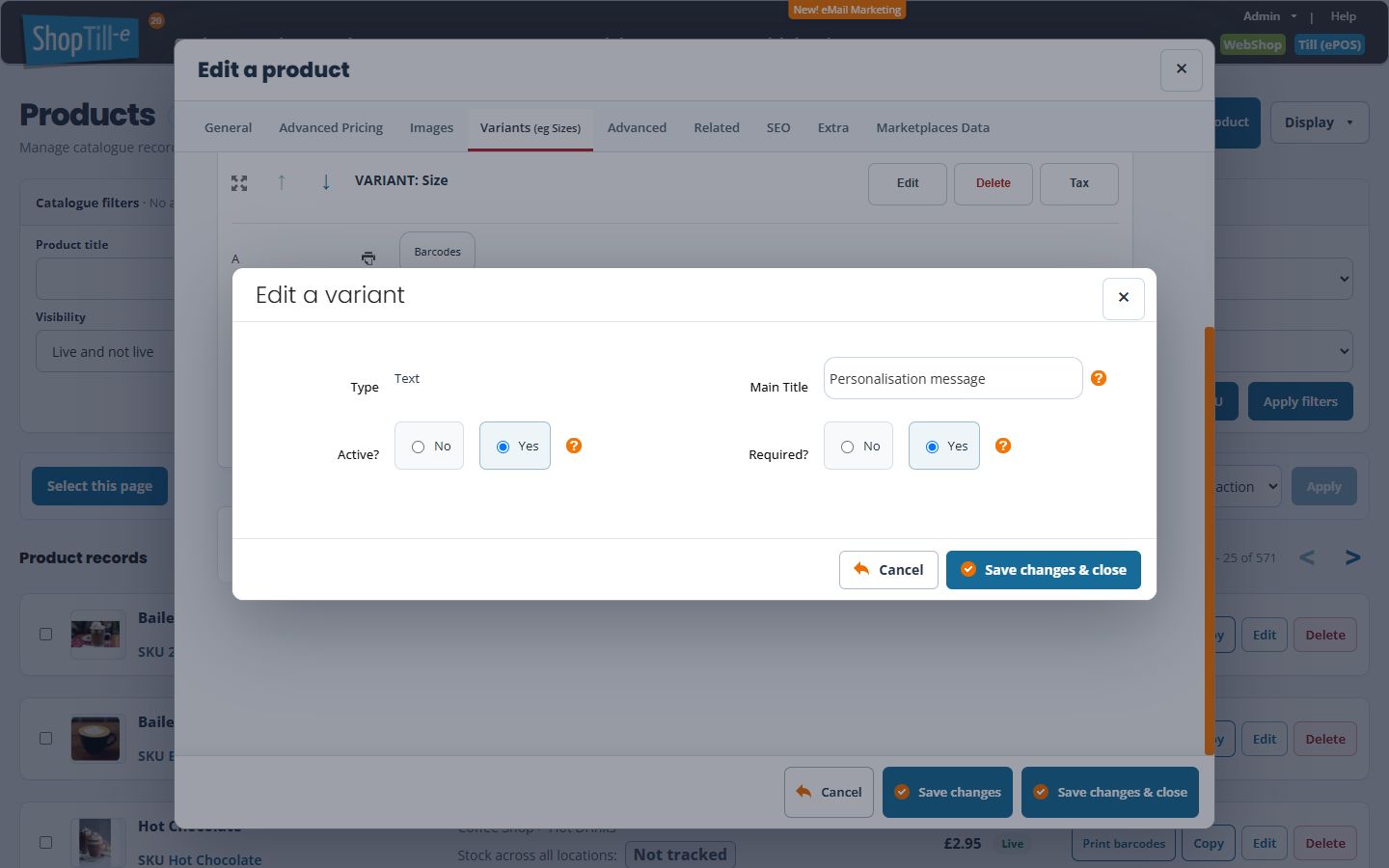
The variant dialog has its own Save changes & close. After saving, reopen the product and its text option to check Main Title, Active? and Required?. The reopened type can be shown as Text, while the new-option choice is labelled Text box.
Compare order wording with each printed output
Entered text can be retained as an option beneath the product’s base name. Check it in the saved order and on the document used for fulfilment. An invoice and a Builder Receipt can show different detail: the invoice can include a Text option that the Receipt omits.
If staff need the wording to personalise an item, verify their exact screen or document before production. A missing option in one printable is a reason to compare the saved order and template, not to reconstruct the customer’s wording or create another sale.
