
Edit a WebShop content page
Use Content Pages for information such as About Us or Contact Us. Select the correct storefront and page before editing, especially if several storefronts have similarly named pages.
Open and edit a page
- Open WebShop → Content Pages.
- Use Storefront to narrow the list, or review All storefronts if you need to locate the record first.
- Check the title and summary, then select the page’s Edit control.
- On General, update Page Title and the main content. Use paragraphs, headings and lists to make longer information easy to scan.
- Review Page URL. The field guidance says no spaces and that a blank value can be auto-generated. Keep an established URL unless you are intentionally changing the address and have planned its existing links.
- Check Active? and Template as separate decisions. A wording correction does not require changing either.
- Choose Save changes & close when ready, then reopen the page to check the saved text. Visit the intended storefront and test its menu link as well.
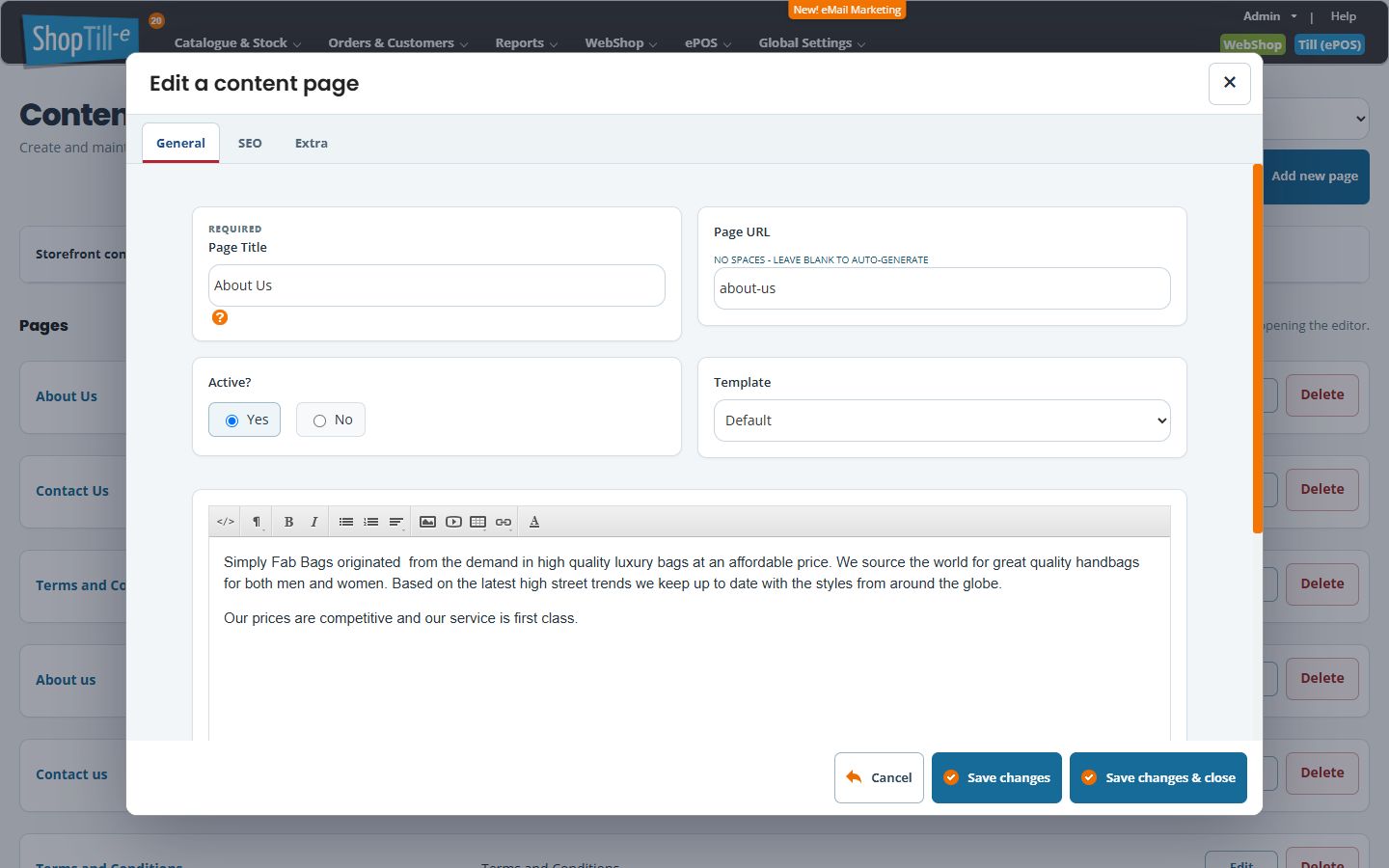
Example: update your opening information
Open the existing Contact Us page and change the relevant wording. Check any telephone number, address and opening times against your current business details. Keeping the page address avoids an unnecessary navigation change.
Templates and extra content
The Template selector lists the page layouts available for your store. Example names include Default, page.contact and page.latestproducts. Choose the layout intended for this page and check the result on the webshop. The Extra tab contains Extra Content 1–5; their display depends on the template using them.
If the page looks wrong
Confirm the storefront, existing menu destination, active state and template. Check the saved record before repeatedly pasting content. If only part of the layout is unexpected, note the template and exact page address for support.
Edit page metadata · Check its menu link
More detailed tasks
For the content field, use text, list, table and media formatting and link editing. Save the surrounding record after applying editor changes.
Shared form and saved address
General, SEO and Extra are parts of one form. Save changes saves and reloads the page editor; Save changes & close saves and closes it. Switching tabs does not save. Cancel or Close leaves without another save and does not undo a previously completed update or separate library upload.
Keep an established Page URL unless an address change is intended. Leaving it blank can derive a value from the title; do not assume changing or regenerating an address creates a redirect. After an interrupted save, inspect the record before resubmitting.
Remove a page and review its links · Remove navigation separately
