
Insert an image into a content page
Content images belong to the page or article you are editing. Product photography is managed separately through the product editor.
Choose an image
- Open the intended content page and place the editing position where the image should go.
- Select the editor’s Insert Image control.
- In Select an image, review Previously Uploaded Images.
- If the intended image is already present, select its thumbnail and check the inserted result.
Upload a new content image
- In the image chooser, select Upload Images.
- Choose the intended files and review the upload queue.
- Use the queue’s remove action to correct the selection before upload, or Cancel Upload to leave that upload task.
- Select Start Upload for the intended files.
- Review progress and any error message. When the refreshed image list is shown, select the intended thumbnail.
- Review the image in the editor, save the content page and reopen the actual page in the intended storefront.
Example: an About Us photograph
Choose a photograph that fits the paragraph and page width. Check it on both desktop and a narrow screen after saving. If your editor offers image description, size or alignment controls, review those for the intended presentation rather than relying on the thumbnail.
Removing an insertion and deleting a library image
Removing an image from one page and using Delete in the shared image list are different actions. Check where an existing library image is used before deleting it. Keep the source file when replacing a photograph.
If an upload or insertion fails
Read the file-queue error and check the file type, size and selected image. Check the saved page and actual storefront result before uploading another copy. Use the product Images tab when the photograph belongs to a catalogue product.
Review an inserted image's properties
- Click the inserted image in the visual editor to open its image-properties dialog. Check that you selected the intended photograph.
- Review Title for descriptive image text, Link for an optional destination, Position for None/Left/Right, and Width/Height.
- Keep the image's proportions when choosing dimensions; avoid stretching a photograph to fill an unrelated shape. Check the saved image on a narrow screen as well as in the editor.
- Choose the dialog's Save to return the intended change to the content field, or Cancel to leave that property edit.
- Save the surrounding page and review the actual image, description, alignment, dimensions and optional link.
For example, a small staff photograph may sit to the left of an introduction, while a wide overview may work better without floated text. Check the actual page rather than assuming the editor width matches the storefront.
Delete in this inserted-image dialog removes that insertion from the content field. It is different from deleting the shared image file in the library. If resizing causes the photograph to disappear, keep the prior content and ask support to check the image reference before uploading more copies.
Format text around an image · Manage text links.
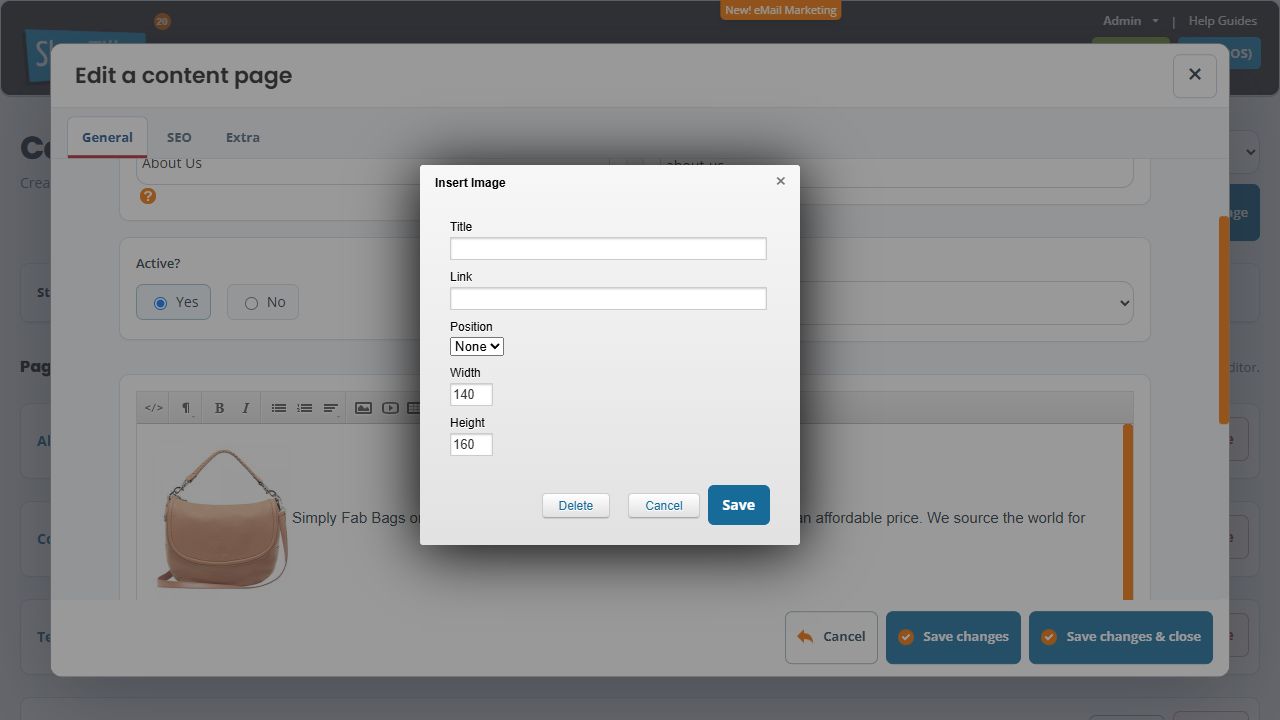
Resize an inserted photograph using its dimensions
- Click the intended inserted image and note its current Width and Height.
- Choose dimensions that keep the same proportions. For example, reducing a 140 × 160 image to half its displayed dimensions means 70 × 80, not 70 × 160.
- Enter both intended values and review Position separately. Width and height describe size; Left or Right controls how the image sits with surrounding text.
- Use the image dialog's Save, then inspect the photograph and nearby text in the editor. Reopen its properties if the proportions or placement are wrong.
- For an intended page update, use the surrounding page's save control and check the actual page at desktop and narrow widths. Smaller displayed dimensions do not establish that the original uploaded file became smaller.
If the image looks distorted, compare both dimensions with the original proportions before uploading another copy. Keep the original file when a different crop or source image is needed. If you decide against the unsaved page edit, use the outer page's Cancel; this does not reverse a separately completed library upload or deletion.
