
Edit a WebShop menu link
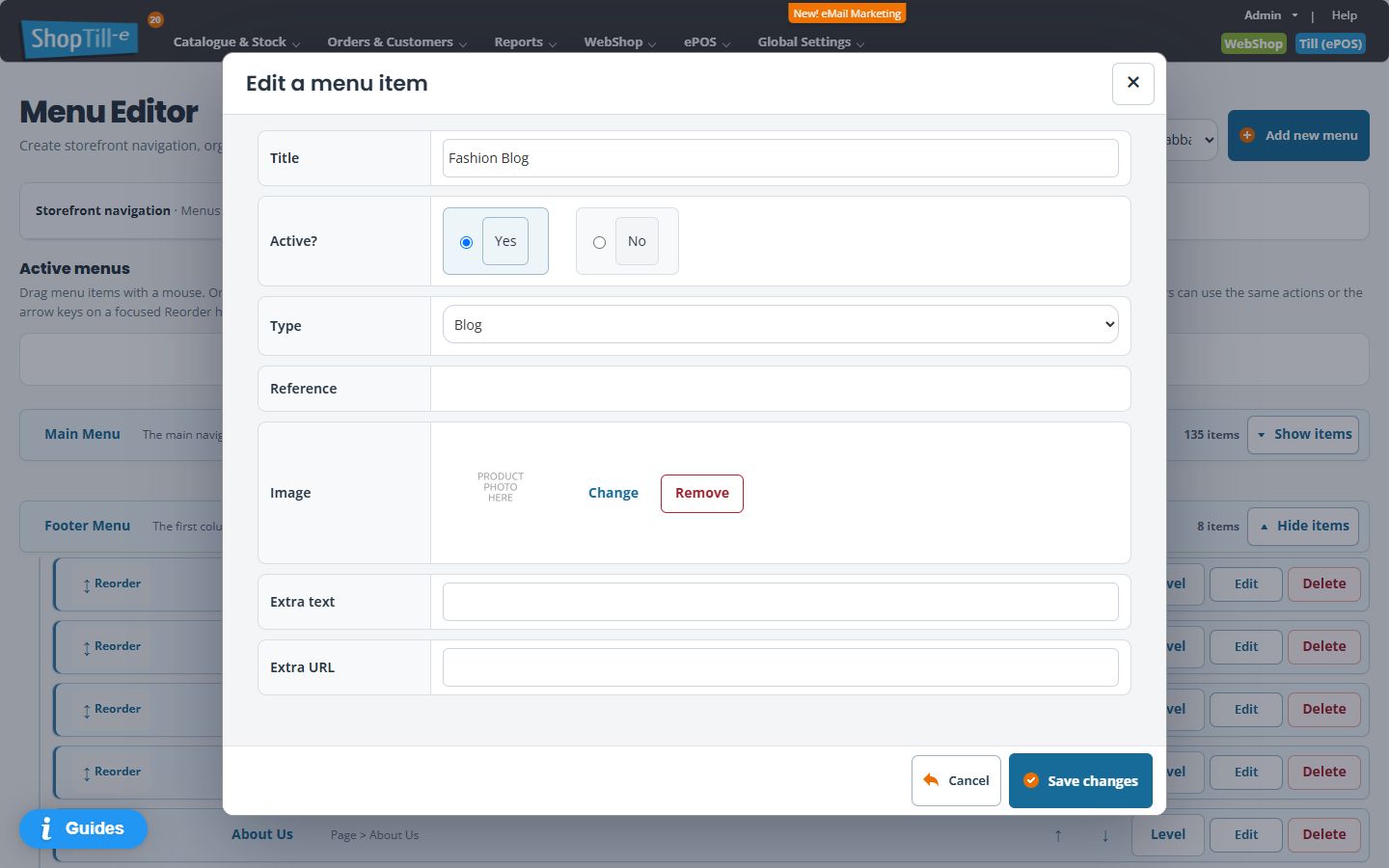
A menu item has a title and a destination. Renaming the title changes what customers read; selecting its type and reference determines where the link goes.
Find the right item
- Open WebShop → Webshop Navigation Manager.
- Choose the intended Storefront.
- Find the menu used in the relevant location, such as the main or footer navigation. Use Show items if its entries are collapsed.
- Select the intended item’s title or Edit control to open Edit a menu item.
Review the label and destination
- Check Title and Active?.
- Choose the appropriate Type. The current choices include Page, Product, Category, Gallery, Blog and URL.
- Check the corresponding Reference. For a Page item, the editor shows a list of existing pages. Match the actual page, not just a familiar title.
- Review any Image, Extra text and Extra URL settings if your template uses them.
- Select Save changes for an intended change, then test the link on the correct storefront.
Example: a correct label with the wrong link
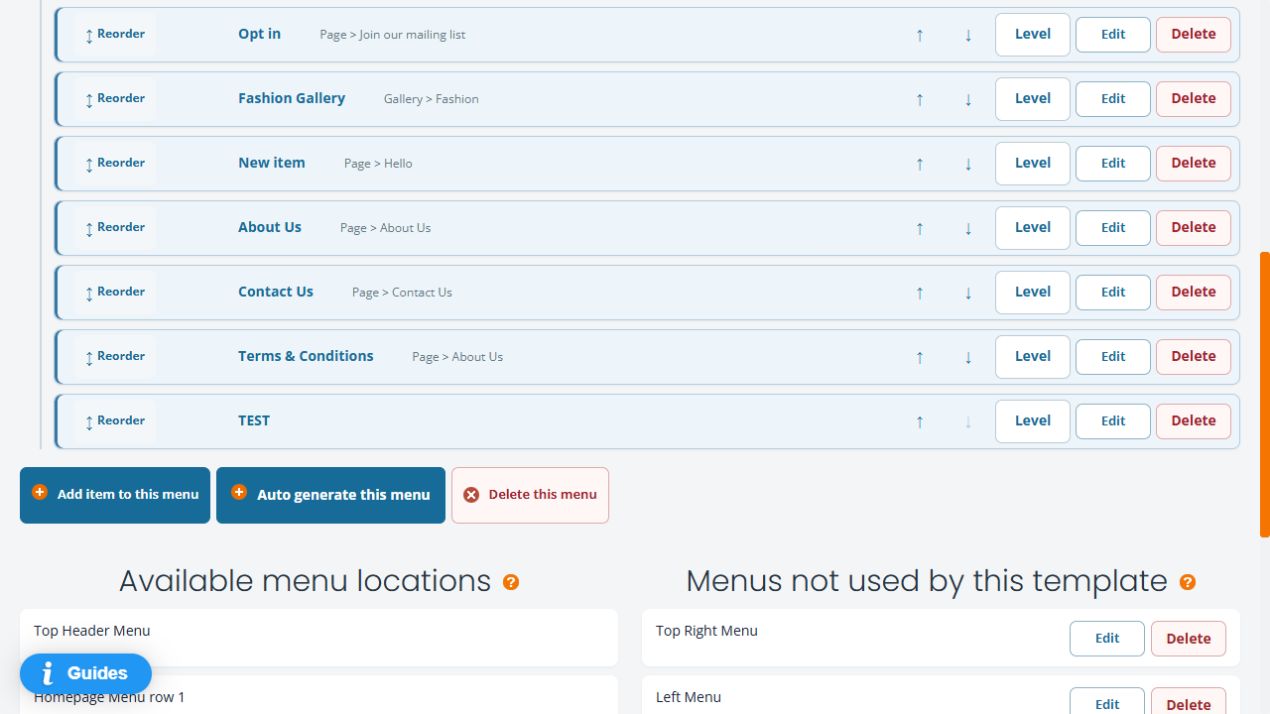
A footer label might read “Terms & Conditions” while its reference points to About Us. Check the Page reference and select the intended existing page; changing the title again would not fix the destination.
If your menu change is not visible
Check the storefront and the menu’s template location. The Menu Editor distinguishes active menus, available locations and menus not used by the template. A saved item in an unused menu may not appear where you expected.
Reorder or nest menu items · Review a linked page
Check Reference after changing Type
The reference control changes with the item type. After switching Type, select and check the intended destination again before Save changes. A Blog link opens the blog area; it is different from selecting a specific Page. For a URL, enter the intended address and test it on the storefront.
Use the removal guide to distinguish hiding a link, deleting an item and deleting an entire menu.
