
Find and review stock-audit documents
The Stock Audit Documents list records stock-count work. Find the intended count before opening or editing an audit, especially when several partial counts exist for the same category.
Locate the audit
- Open Catalogue & Stock → Stock Audit.
- Choose the intended Outlet, or include All outlets while locating the record.
- Use Sort audit documents and Audit documents per page to review the list.
- Enable Filter by date and time range and choose the relevant period if needed.
- Check the audit number, date, category/outlet detail, Full or Partial type and status.
- Choose View for the intended record. Use Edit only when you intend to work on that count.
Review the opened document
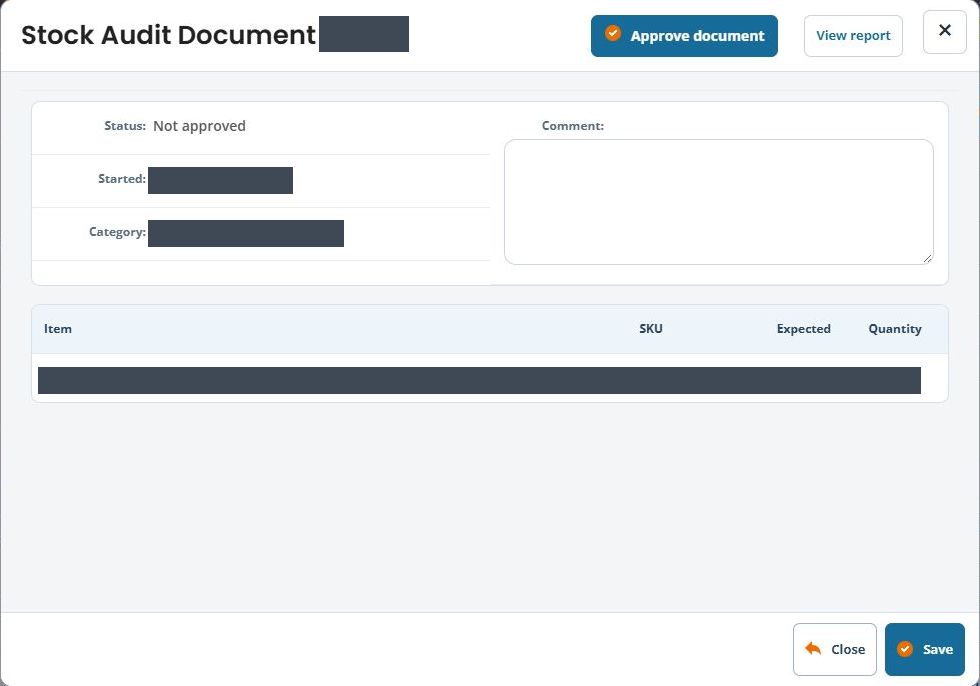
- Check the Stock Audit Document # heading and the Status, Started and category details shown.
- Compare each listed product’s option, SKU, Expected and Quantity.
- Choose View report to review counted and uncounted items with report filters.
- Use Close when you only needed to inspect the document.
The View dialog can include an editable Comment, Save and Approve document. Opening View is separate from saving a comment or approving the audit. Read the saved status; the presence of an approval action does not mean approval has happened.
Example: review a partial count
If a team counted only one bag category in one branch, confirm both the category and outlet in the document details. A partial category count should not be treated as evidence that the entire outlet has been counted.
Opening the workspace
The Edit action is intended to open a separate audit workspace. Keep the audit number and outlet visible in your notes so you can confirm that the new workspace belongs to the intended count.
Before starting or approving a count
The list offers Add new audit and some records provide Edit or Delete. Those are separate from looking up a previous count. Review the count’s scope, current work and approval process before applying a stock adjustment.
Check current outlet stock · Review audit reason choices
Stock-counting tasks
- Choose a stock-update workflow
- Prepare a full or partial stock audit
- Count items in a stock audit
- Review stock-audit discrepancies and reasons
- Prepare to approve a stock audit
Review before deleting an audit document
- Confirm the audit number, outlet, scope and approval state.
- Keep the count information and discrepancy evidence you need.
- Use Delete only on the intended document where the action is offered.
- Read the confirmation and cancel if the count or its approval history is uncertain.
- After an intended deletion, inspect the document list and investigate any stock changes separately.
Deleting a document is not evidence that earlier stock adjustments have been reversed. Use the approval and correction workflow for the actual stock issue; do not delete a completed count merely to make a discrepancy disappear.
Return to a newly created audit
Match the numbered row’s Category, Outlet and Full/Partial detail to your count plan, then choose View. Compare the saved Comment and Started time with the intended work. Keep the document number so colleagues can identify the same count. A new document’s View can have no counted rows; creating another copy is separate from resolving an empty report or starting the count.
