
Review return and stock-audit reason choices
The reasons page contains separate lists for exchange/return reasons and stock-audit reasons. Choose the list that belongs to the operation you are reviewing.
Find the reason lists
- Open Global Settings → Exchange & Return Reasons.
- Review Exchange/Return Reasons for customer-return vocabulary.
- Review Stock Audit Reasons for stock-count adjustments.
- Use the appropriate Edit control to inspect an existing reason before changing it.
Example: distinguish a customer return from damaged stock
A customer may return an item because they changed their mind, while a stock count may identify damaged goods. Keep those operational meanings distinct so staff select a useful reason in the relevant workflow.
Plan names that staff can use consistently
The sample account includes Changed Mind and Faulty Goods for returns, and Theft and Damaged for stock audits. Your labels should describe the reason staff can actually establish, rather than requiring them to guess an explanation.
Adding, editing and removing
The page offers Add new reason, Edit and Delete. Check the intended reason type and how existing records refer to it before removing or renaming a choice. A reason label describes an operation; it does not itself perform a return, refund or stock adjustment.
Find existing return and exchange records
Add a reason to the correct list
- Select Add new reason.
- Enter a clear Title.
- Choose Type: Exchange/return, or Stock audit where that option is available.
- Select Save changes.
- Check the reason under the intended list heading before staff use it.
For example, use a customer-return explanation such as Incorrect size in the Exchange/return list. Use an established stock-count explanation in Stock audit rather than treating a customer-return reason as a physical count adjustment.
Edit or remove a reason
- Find the exact title in the correct reason list and select Edit.
- Review Title and Type together. A type change can move the choice into a different workflow.
- For an intended edit, select Save changes and check the resulting list.
- For an intended removal, use the reason's removal control, read Delete Reason? and confirm only the intended record.
- Check the refreshed list and review how relevant historical records are displayed.
Cancel closes without another form save. Keep the previous title and its intended meaning when changing established vocabulary. Removing a reason is separate from reversing the original return, refund or stock adjustment; ask support before deleting a choice whose historical use is uncertain.
If Stock audit is missing
The Stock audit type and list depend on the shop's available stock-audit feature. Check the shop and staff access with an administrator or support if the expected choice is absent.
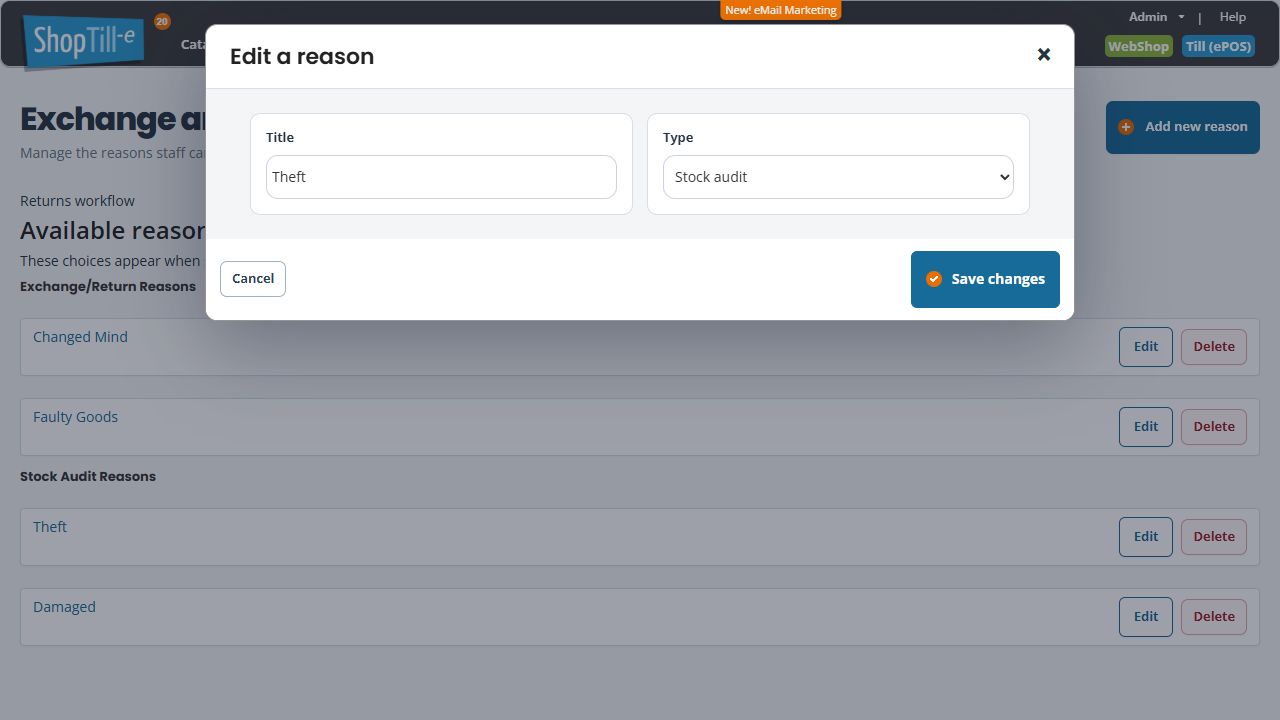
Check the Type before an intended save
The new-reason form initially offers Exchange/return in this example. Select the intended type explicitly when you are adding a stock-audit reason, rather than relying on the initial choice. Recheck the resulting list after an intended save. Choosing a type in an unsaved form does not itself record a stock adjustment or a return.
If a reason is missing from a workflow
Compare the reason’s Type with the workflow in use, then check the shop and staff access. A similarly worded title in the other reason list does not establish that the intended choice is available. Use Cancel while inspecting; do not rename, move or delete an established reason just to bypass a missing-choice problem.
