
Review stock-audit discrepancies and reasons
Review the count before approving a stock audit. A discrepancy needs the correct item, option and outlet context, together with an explanation where appropriate.
Open the report
- Find the intended audit in Stock Audit and open its document details.
- Confirm the document number, scope, outlet and approval status.
- Select View report.
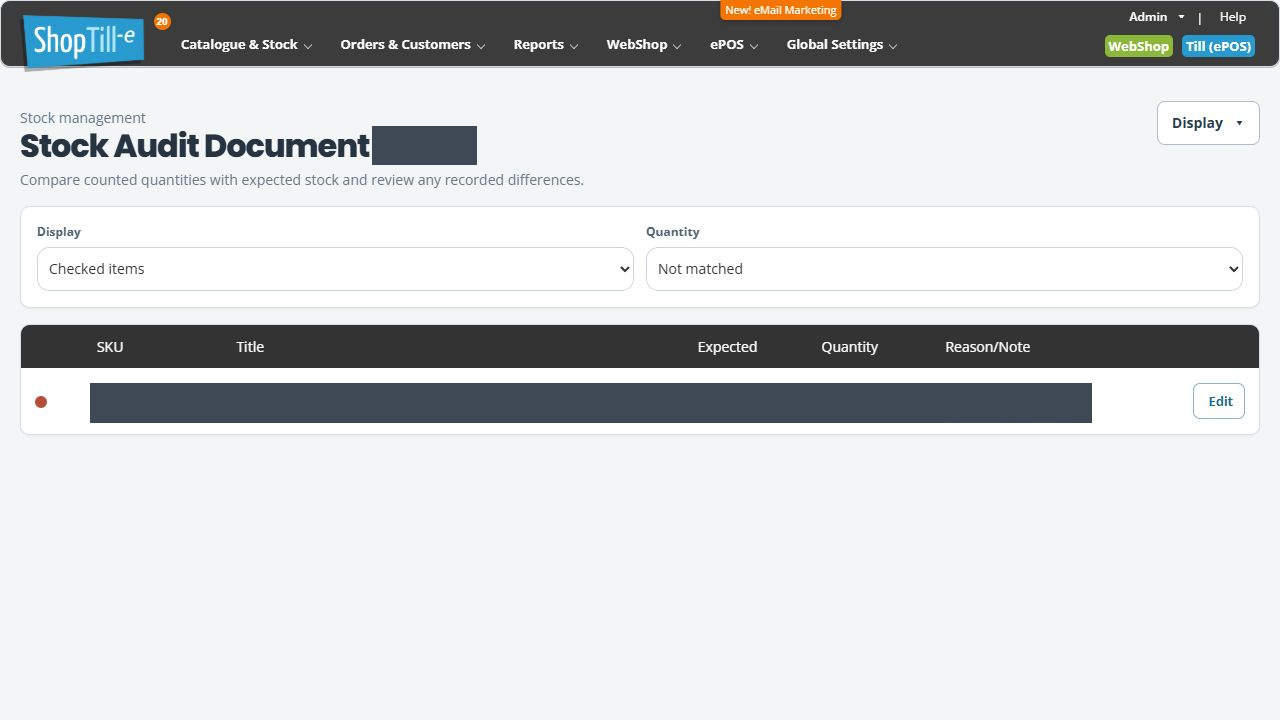
- Review the report’s SKU, Title, Expected, Quantity and Reason/Note columns.
Use the filters deliberately
- Display offers All items, Checked items and Not checked items.
- Quantity offers matched or not-matched comparisons.
A filtered list can hide work still needing attention. Return to All items and review the not-checked cases before treating the audit as complete.
Work through counted and uncounted items
- Choose Checked items in Display to inspect the rows with a recorded count.
- Choose Not matched in Quantity to focus on counted differences. Compare each exact product option and SKU.
- Clear the Quantity choice and choose Not checked items to inspect work still outstanding.
- Return to All items and review the complete scope before moving to approval.
For example, a counted row with Expected 11 and Quantity 10 appears under Checked items with Not matched. A Matched filter can hide that row; this does not resolve its discrepancy. A row labelled not checked needs a different review from a recorded physical count of zero.
Record a discrepancy explanation
- Identify the intended report row and open its edit control.
- Check Expected and Quantity for the exact item. Expected is displayed as a disabled field in the row editor; review the recorded Quantity separately.
- Add useful Notes and choose an appropriate Reason where one applies.
- Review any quantity correction carefully, then use Save for the intended row update.
- Recheck the row and the relevant report filters. If you only opened the editor to inspect its existing values, use Cancel.
Example: expected ten, counted eight
Recount the actual stock and check the product option and location before entering a reason. A note such as “Recounted shelf and reserve location” is more useful than an unexplained number change. Record the actual cause only when it is established.
Reason choices
The shop’s reason settings provide the choices used in audit rows. Keep a reason relevant to the discrepancy; selecting one does not itself prove why the stock differs.
Related help
Count or correct items · Approval checks.
If results are missing or unexpected
- An item is missing: check the audit document, outlet and scope, then review Display and Quantity filters. A matched-only view can hide discrepancies; a checked-only view can hide work still outstanding.
- The number looks wrong: compare the exact SKU and option, recount shelf and reserve stock, and check movements made during the count. Do not change a count simply to make it match Expected.
- A reason is unavailable: review the configured reason choices with the person responsible for them. Record the established facts in Notes rather than choosing an unrelated explanation.
- A row save was interrupted: reopen that row and check its quantity, reason and note before repeating the edit.
Before moving to approval, review all relevant rows, including uncounted items, and keep the document reference. A filtered report with no differences is not proof that the whole audit is complete.
If a new audit report has no item rows
- Confirm the report’s document number against the saved audit.
- Review Display and Quantity so you know which items the report is asking to show.
- Return to the document’s View and check Category and Outlet.
- Compare that scope with the products you expected to count. Keep their codes and the document reference for support if eligibility is unclear.
Do not treat an empty report as a completed physical count or approve it merely to see whether items appear.
