
Check stock by outlet and product option
Stock Management presents inventory rows for the selected outlet. When checking an apparent discrepancy, match the location and variant as well as the product name.
Find the stock row
- Open Catalogue & Stock → Stock Management.
- Choose the intended Stock outlet.
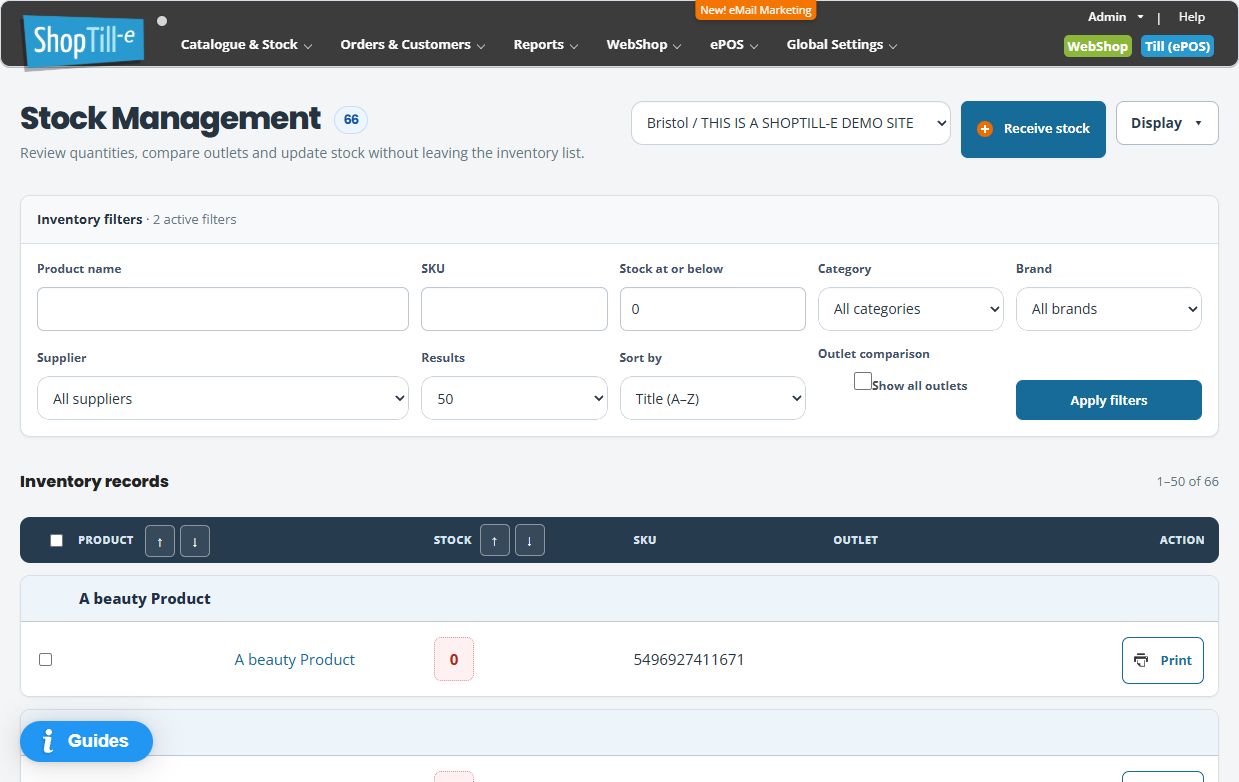
- Use Product name, SKU and Category to locate the item.
- Check Stock at or below and any other active filters. A low-stock restriction can hide an item whose quantity is above the threshold.
- Review the exact option description, Stock, SKU and Outlet information in the inventory row.
- Use the product link when you need to inspect its catalogue record. The quantity’s Edit stock control is a separate operation.
Starting from the Dashboard’s Stock Levels
- In the Dashboard’s Stock Levels widget, choose View full stock report.
- On Stock Management, check the selected Stock outlet and Stock at or below. This shortcut opens a low-stock view with a threshold of 1; the word “full” does not mean every holding is included.
- Review the remaining filters, exact product or option and result pages before investigating a missing item.
- If you need a wider stock check, choose the intended filters and use Apply filters, then check the resulting scope before comparing quantities.
For example, a holding above 1 may be absent from this shortcut’s low-stock view. Check the intended outlet and threshold before assuming the product or its stock record is missing.
Example: a missing size
A product’s total quantity can include several sizes or branches. If the question concerns a medium size in London, find that precise inventory row before comparing it with stock at another branch or the product’s overall total.
Barcode controls
The inventory rows provide Print barcode links and barcode-selection checkboxes. Print selected barcodes is available for a selected group. Check which option each identifier represents before printing labels.
Choose the operation that matches the event
A delivery belongs to Receive Stock; moving stock belongs to the transfer workflow; and a physical stock count belongs to a stock audit. Investigate the event rather than using an unexplained direct quantity edit to compensate for it.
Find a stock audit · Inspect variant stock controls
More detailed tasks
Review all active filters
Brand and Supplier can narrow the list as well as Product name, SKU and Category. Review Stock at or below when a known item is missing: a value of 0 is a low-stock restriction, not a request to show every quantity. Use a suitable threshold for the review and check the result count.
Use Results to choose how many records appear on a page and Sort by to order by title or stock. These controls do not replace checking other pages. Use Apply filters for the entered filter values and review the resulting rows; changing a dropdown can also refresh the list.
Example: a received item disappears from a low-stock list
A tracked item starts at 0. After receiving five units, its holding is 5, so a Stock at or below filter of 0 can omit it. Check the same SKU and outlet with a threshold that includes five before concluding the receipt failed. Do not receive the delivery again merely to make the row return to a low-stock list.
Compare outlets deliberately
Where available, Show all outlets is an outlet-comparison view. Check each location heading/value and compare the exact product or option across branches. Return to the intended single-outlet view before a direct holding correction; a comparison is not a stock-transfer action.
If an item is missing or a number differs
- Check the stock threshold, category, brand and supplier as well as the text search.
- Confirm stock tracking and whether quantities belong to the base product or its options.
- Check other result pages and the selected outlet.
- Compare recent sales, deliveries, transfers and count adjustments before making a correction.
- Read the quantity and its context rather than relying only on its colour.
For label selection, batch scope, copies and output checks, use Print barcode labels from Stock Management.
