Prepare a full or partial stock audit
A stock audit compares a physical count with the expected holding. Plan which stock will be counted and who will review discrepancies before creating the document.
Plan the count
- Choose the outlet and a full or partial scope.
- For a partial count, identify the intended category or department and check similarly named branches of the category tree.
- Agree how staff will avoid counting the same physical items twice and how sales, deliveries and transfers during the count will be handled.
- Prepare the counting device and scanner, and identify who will review and approve the completed audit.
Create the document
- Open Catalogue & Stock → Stock Audit.
- Check the list for an existing count covering the intended work, then select Add new audit.
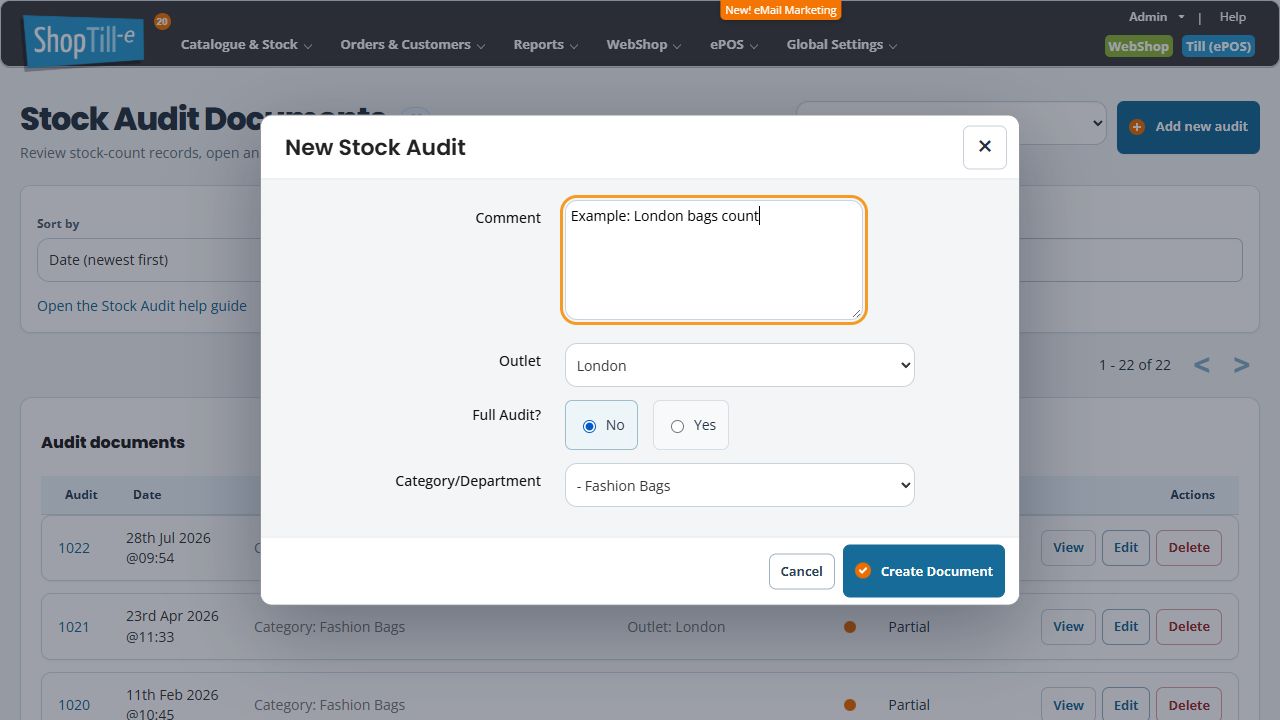
- In New Stock Audit, enter a useful Comment.
- Where the form offers Outlet, choose the outlet being counted.
- Review Full Audit?. Choose Yes for a full count or No for a partial count.
- For a partial count, choose No for Full Audit? to enable Category/Department, then select the intended category. Check the indentation and full category branch when similar names appear.
- Check the scope and use Create Document for the intended new audit.
- Find the new document in the list and check its number, outlet, category and Full/Partial detail before opening the counting workspace.
If Category/Department is unavailable or becomes blank
With Full Audit? set to Yes, the category choice is disabled. Choose No when preparing a partial count. Switching to Yes clears the selected category; if you then return to No, choose the intended category again. Recheck Outlet and category together before Create Document.
Use Cancel if you opened this form only to review the choices. Creating the audit document is a separate step from preparing its comment and scope.
Example: one department in one branch
For a bags count at one branch, choose the intended outlet and a partial audit for the correct bags category. Use a comment that helps colleagues distinguish it from another count. Review what the category scope includes before starting.
Check the saved document before counting
- Find the new numbered row in the audit list and compare its Category, Outlet and Full/Partial detail with your plan.
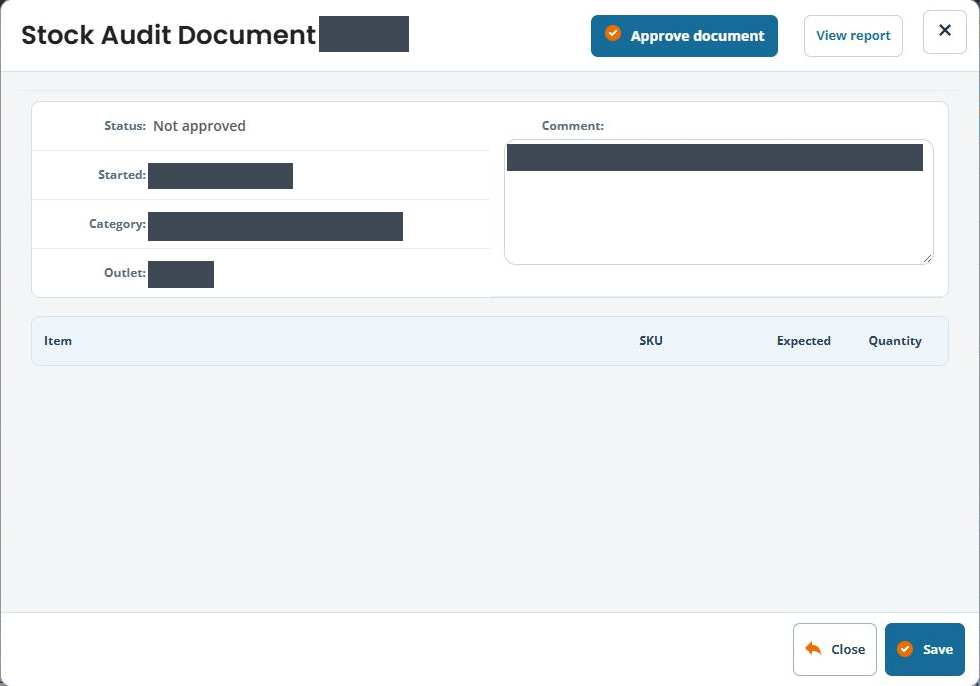
- Use View on that row. Check the document heading, Status, Comment, Started, Category and Outlet.
- Keep the document number with the count instructions so colleagues return to the same audit.
- A new unapproved document can have no counted rows in this View. Use its separate View report link when reviewing report items and filters.
If the report has no items, check the saved category and outlet as well as its Display and Quantity filters. Establish which products are eligible for that scope before counting or approving; an empty report is not proof that the physical stock count is complete. Keep the document number and expected product codes when asking support to investigate.
Start counting
Use the intended document’s Edit action to open the count workspace. Confirm the document context, then follow Count items in a stock audit. Creation and approval are separate stages.
Continue from counting to approval
After creating the intended document, count the actual stock, review discrepancies and reasons, then use the separate approval procedure when ready to commit the count. Review any uncounted-item or visibility choice in its real confirmation; opening a report is different from approval. Keep the document reference and compare resulting quantities before treating the audit as complete.
- Count items in a stock audit
- Review stock-audit discrepancies and reasons
- Review return and stock-audit reason choices
- Prepare to approve a stock audit
- Find and filter products in Builder
Related help
Find an existing audit · Review the results.
If you cannot find the new audit
- Return to the audit list and check its filters and outlet context.
- Look for the comment, document number and scope you entered. Ask colleagues whether the same count is already underway.
- If creation was interrupted, inspect the list before creating another document. Two documents for the same physical count can make the work difficult to reconcile.
- Open the matching document and confirm its outlet and full/partial scope before entering counts. If those details are wrong, stop and establish the correct document before counting or approving.
The expected result of this stage is an identifiable audit document ready for counting. Creating it is not evidence that quantities have been counted or approved.