
Find purchase orders and review delivery status
The Purchase orders page helps you find supplier orders and distinguish their current delivery states. Use it to identify the right record before editing or carrying out a receiving task.
Find an order
- Open Catalogue & Stock → Purchase Orders.
- Choose a Supplier if you know which company the order belongs to.
- Use Order status to include All statuses or select Open, Delivered, Part Delivered or Canceled.
- For a date search, select Filter by date and time range and enter the intended Start date and End date.
- Use Search by order number, product name, sku when you have a particular record or item in mind.
- Review the order number, supplier, date, value and displayed status. Check other result pages if necessary.
Use search suggestions
- Click Search by order number, product name, sku and type the reference or product detail you know.
- For a product name or SKU, review the suggested order numbers, suppliers, dates and amounts. Match these with your paperwork before choosing an order.
- When an exact order number opens its record directly, check the heading and supplier before taking any further action. Use Close to return to the list after reviewing it.
- If the search says No orders found, clear the text and check the reference or try the product name or SKU. This search message does not mean your shop has no purchase orders.
Recover from an empty filtered list
- Review both Order status and Supplier. These restrictions can combine to leave no matching records.
- Choose All statuses to broaden the status search. Clear the supplier choice if you need to include other suppliers.
- Review the date restriction separately. Turn off Filter by date and time range when you intend to search without a date restriction, and check that the checkbox is actually clear.
- Read the refreshed result count and match the intended reference again.
An empty-state message such as You haven’t had any orders yet. can appear for a combination of filters with no matches. Broaden the search before concluding that an order is absent.
Search a particular day and time
- Select Filter by date and time range.
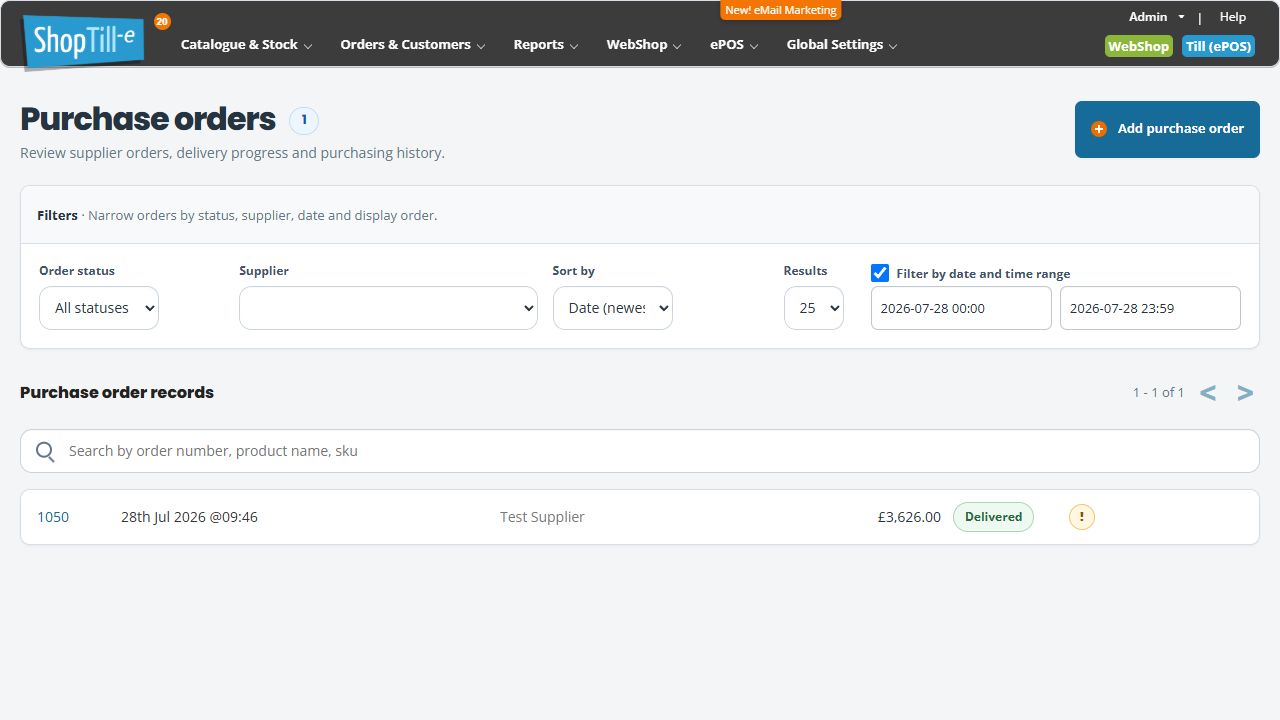
- Open Start date and choose or enter the intended date and time. The fields display year-month-day followed by hours and minutes, such as 2026-07-28 00:00.
- Set End date and its time, then leave the field and wait for the refreshed result count.
- Check the displayed order date and time against the range. A calendar date choice can retain a time; review it rather than assuming the field means the whole day.
For example, to look through 28 July 2026, enter a start of 2026-07-28 00:00 and an end of 2026-07-28 23:59, then inspect the results. An order shown at 09:46 will be outside a range starting at 09:47 or ending at 09:45. If an expected order is missing, broaden the range before concluding it is absent.
Move between result pages
Read the range above the list, such as 1 - 25 of 50. Choose Next to see the following page and Previous to return. Check the new range and the order reference after moving: in this example the second page is 26 - 50 of 50. Change Results when you want a different page size.
Example: check a split delivery
If a supplier delivered only part of an order, include Part Delivered in your search. Compare the intended order number with your delivery paperwork before taking the next action. The list’s status is a starting point for investigation, not a count of the physical items in front of you.
Use the list controls
Sort by offers newest-first and oldest-first date ordering. Results changes the page size. The list may show Order has changes; inspect the relevant order when you need the underlying details rather than inferring the change from the icon.
Check before changing a record
The page provides Add purchase order and actions for some existing records. Match the order and supplier first. Treat editing, sending, receiving and cancelling as distinct tasks: finding a record is not confirmation that any of those actions has happened.
If the record is missing
Include all statuses, review supplier and date restrictions, and check the identifier. If you still cannot locate it, give support the supplier, approximate date and expected order number.
Review supplier details · Receive stock by SKU
Purchase-order tasks
- Prepare a purchase order
- Review purchase-order products, quantities and costs
- Review purchase-order delivery quantities
- Print or email a purchase order
Link a product to its suppliers.
Before changing a filtered result
Record the order number and supplier after searching. Filters and result size change the list you are looking at; they do not mark an order delivered or send it to a supplier. After changing the date range or status, check the intended reference again before opening a receiving or sending task.
