Review purchase-order delivery quantities
Match the delivery to the correct purchase order, outlet and product options. Review both the physical quantities and each line’s state before using Mark as Delivered.
Review the delivery
- Find the order and confirm the supplier, order number and destination.
- Compare the delivered goods with each product or variant line.
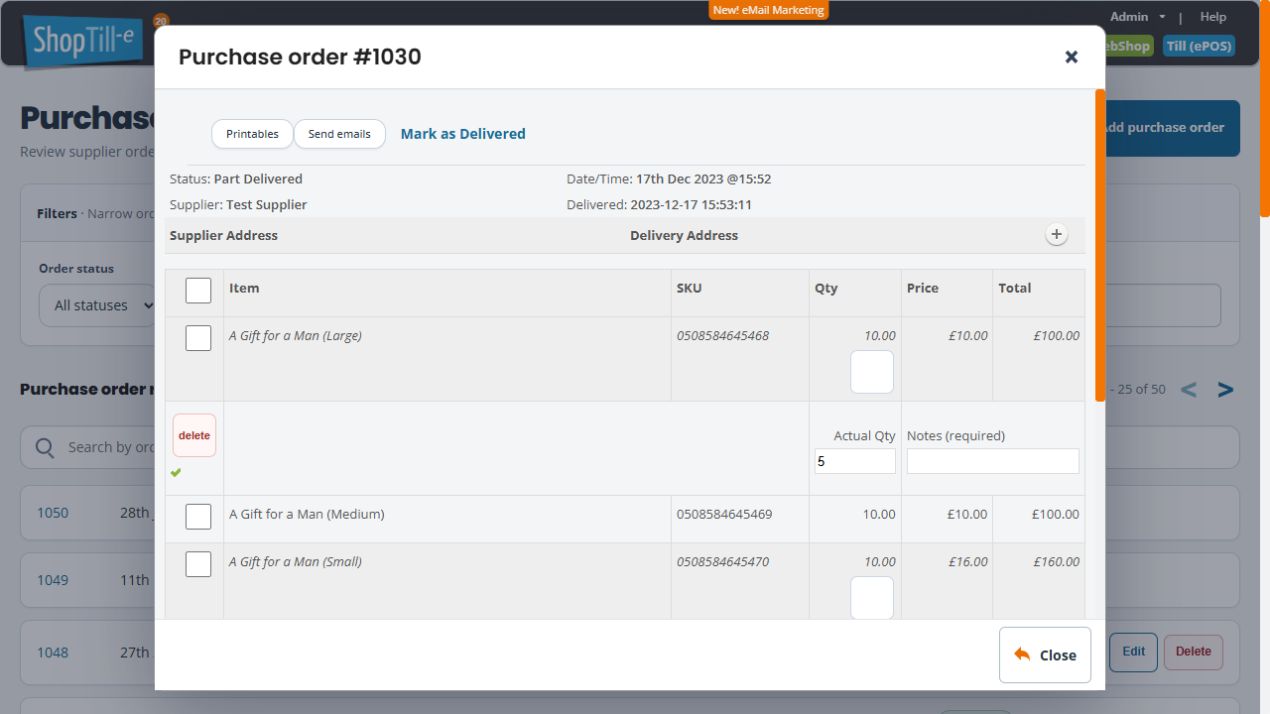
- Where a line needs an actual-quantity record, use the edit control beside its quantity. The expanded row shows Actual Qty and Notes (required). Check the product option and SKU before entering the quantity actually received.
- Record an accurate explanation for a difference. Save the intended row update and reopen the order to check it.
- Review which lines are active for receiving and which have already been delivered. The order view provides Mark active and Mark inactive controls for eligible lines.
- Before proceeding, check the full active-line selection, actual quantities and outlet.
Marking a delivery
Mark as Delivered opens Mark as delivered?, asking whether to mark this purchase order as delivered. Choose No to leave the receipt unconfirmed, then check the order’s displayed status again. Choose Yes only when you intend to receive the reviewed goods.
Treat receiving separately from saving order details or sending the purchase order to the supplier. After an intended receipt, check the order’s delivery state and the affected stock at the intended outlet.
Example: some lines arrive later
If one product line arrives and another has not, review their eligibility for the current receipt separately. Check the resulting Part Delivered status and remaining work after the receipt. Do not assume one lower actual quantity automatically creates a new outstanding line for the balance.
Inspect a discrepancy without changing it
An existing order can show an Actual quantity beneath its ordered Qty. For example, an ordered quantity of 10 and an existing Actual of 5 are different values: check the supplier paperwork and previous receipt history before deciding what remains to receive. The order’s Part Delivered status alone does not explain how a particular line was handled.
To inspect only, open the quantity editor without changing its fields, then use the purchase-order window’s Close button. Reopen the same order number to check the recorded values. The row’s save and delete controls are separate actions; do not use delete simply to dismiss the editor.
Short, zero or repeated deliveries
Check the supported procedure before recording a short delivery, a zero actual quantity or a second delivery against the same line. Keep the supplier paperwork and previous receipt state with the investigation. A repeated receiving action is not a substitute for confirming whether the first one completed.
Avoid duplicate stock receipts
If the goods are received through the purchase order, do not also receive the same physical units through Receive Stock without an intended, reconciled reason. Review the saved document and holdings before retrying an uncertain result.
Related help
Check outlet stock · Choose a stock workflow.