
Review purchase-order products, quantities and costs
Review each line against the intended purchase. A product’s catalogue selling price, the unit price on a purchase order and an actual received quantity are separate values.
Review the lines
- Open the intended new order editor or an editable existing purchase order.
- Confirm the supplier, destination and order number.
- For each row, check Item and SKU. Read the variant description when products share a base code.
- Review Ordered quantity and Unit price, then compare the line’s Total.
- Use Add item when another intended line is needed. Select the exact product and option from the product-selection workflow.
- Use a row’s delete control only for a line that should be removed; check any selected rows before a bulk action.
- Review the order total and delivery details, then use Save changes for the intended update.
- Reopen the order and compare the saved rows, quantities, prices and total.
Add a catalogue product manually
- Choose Add item to add a new editable row.
- In the row’s Product title field, type a distinctive part of the product name and wait for suggestions.
- Select the intended catalogue suggestion. When several products have similar names, check the resulting row’s identity carefully.
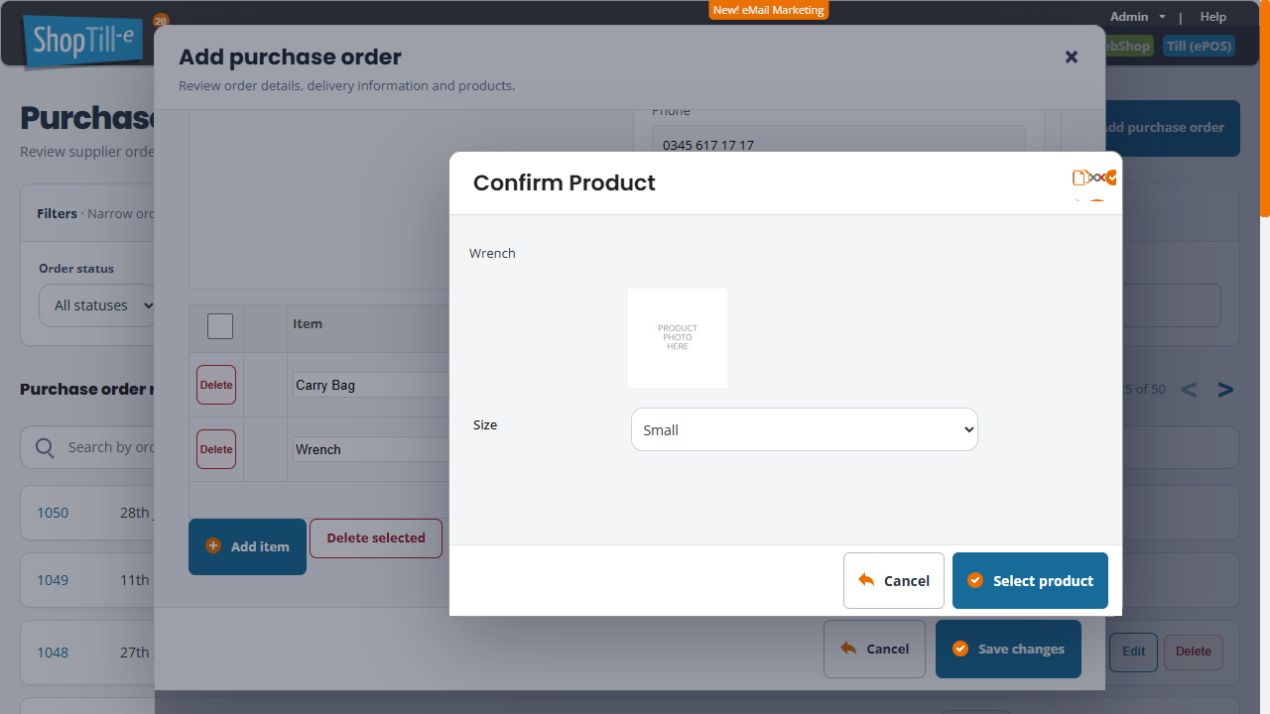
- If Confirm Product appears, review the options offered, such as Size, choose the intended option and select Select product.
- Check the populated product title, option description and Product SKU. When adding a catalogue item, finish choosing its suggestion if only typed SKU text is present and the title is still empty.
- Review the row’s Ordered quantity and Unit price, enter the intended values and check the displayed total. Selection can leave quantity zero, and the offered unit price still needs review against your intended purchase.
For example, a selected product with ordered quantity 3 and unit price £1.50 contributes £4.50 to the draft total. Review each additional product and option separately. Where a manually added row has no selection checkbox, use that row’s own Delete control for an intended removal.
Dismiss an unfinished product choice
If you do not want to complete the choice in Confirm Product, use that dialog’s Cancel or close button to return to the purchase-order draft. Check the row before continuing: the typed name can remain while the SKU is empty and the quantity is zero. Choose the intended catalogue product and option to finish the row, or remove an unwanted row using its own Delete control. The product-picker Cancel is separate from the purchase-order draft’s Cancel.
Check zero quantities in a new draft
A proposed product or variant row can start with Ordered quantity 0, leaving its line total and the order total at zero. Enter the quantity you intend to buy for each relevant row and check the resulting totals before Save changes. Review every option separately when a product appears on several variant rows.
Leave an unsaved new draft
Use Cancel if you are not ready to record the new order. Return to the purchase-order list and check for an existing saved record before creating another draft. Keep editing and saving an existing order as a separate task; check its status and saved contents before making changes.
Example: check two variant totals
| Variant | Ordered quantity | Unit price | Line total |
|---|---|---|---|
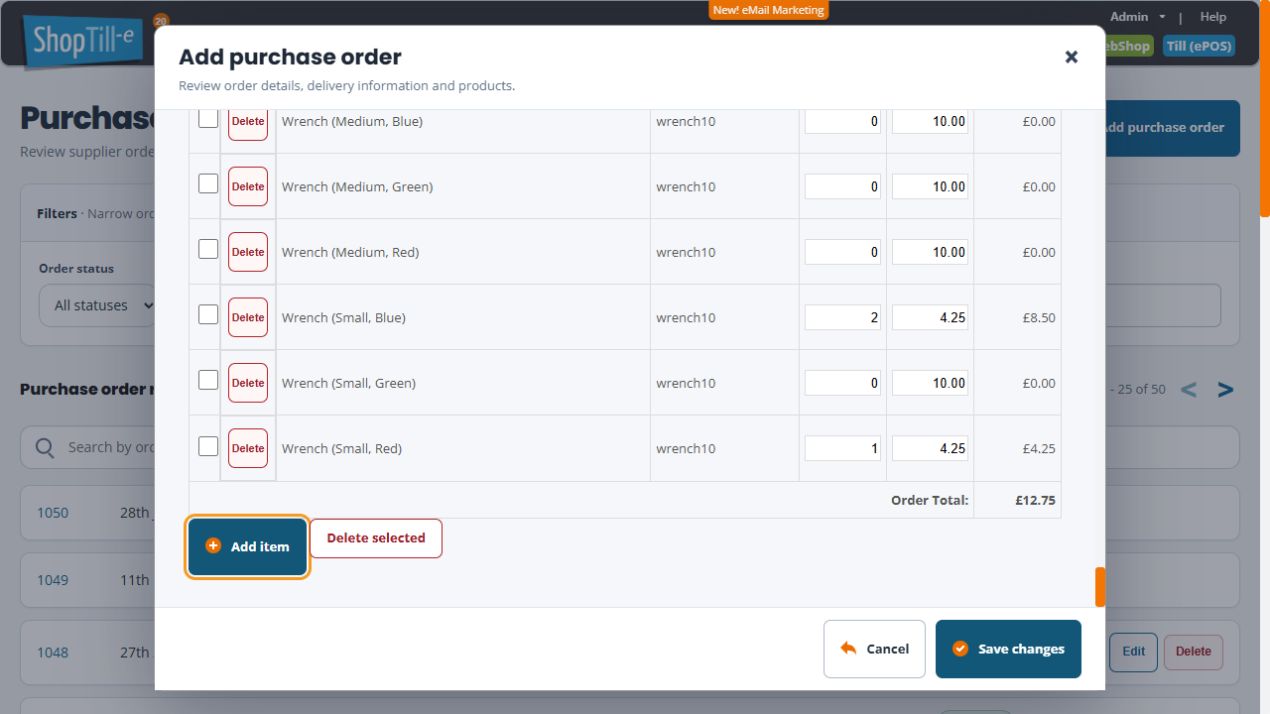
| Small / Blue | 2 | £4.25 | £8.50 |
| Small / Red | 1 | £4.25 | £4.25 |
These two rows contribute £12.75 to the displayed order total. Check that any other rows have the intended quantities too. A shared base SKU does not replace checking each variant description.
Remove rows from a new draft
- For one row, choose its Delete control and read Delete row? before confirming.
- For several rows, tick only the intended row checkboxes, choose Delete selected and read Delete selected rows?.
- Use Yes to confirm the intended removal, or No if you do not intend to confirm it.
- Check the remaining rows and the recalculated total before saving the draft.
In the example above, removing the Blue row leaves the Red row contributing £4.25. Removing that Red row too leaves £0 when the remaining rows have zero quantities. Keep these draft edits separate from cancelling a saved purchase order or recording goods received.
Example: two colours from one range
Small/Blue and Small/Red may be separate order lines even if their base product code is shared. Match each quantity to the correct option and supplier requirement. A total quantity for the range does not establish the split between colours.
Ordered quantity versus actual receipt
The editor also has an Enter actual quantity route for eligible lines. Use the ordered quantity for what you intended to buy, and review the actual-delivery workflow for discrepancies. Do not overwrite one number merely to hide a difference between the order and the goods received.
If the figures differ
Check the exact saved order, line and option. Compare the supplier paperwork and the displayed unit price, quantity and total. Record the discrepancy before editing so there is an explanation for the intended change.
