
Prepare a purchase order
A purchase order records what you intend to buy from a supplier. Prepare the correct supplier, delivery destination, products, quantities and costs before saving or sending it.
Choose the starting details
- Open Catalogue & Stock → Purchase Orders and check for an existing order covering the same requirement.
- Select Add purchase order.
- In the Supplier area, search by company or contact name and select the intended supplier. Check the displayed Company Name and Contact Name.
- Where available, choose the intended Outlet.
- Under Add products, review the starting-list choices: All, Only low-level stock, Reorder threshold or Blank. For the low-level route, check Stock <=.
- Select Create Order to continue to the order editor.
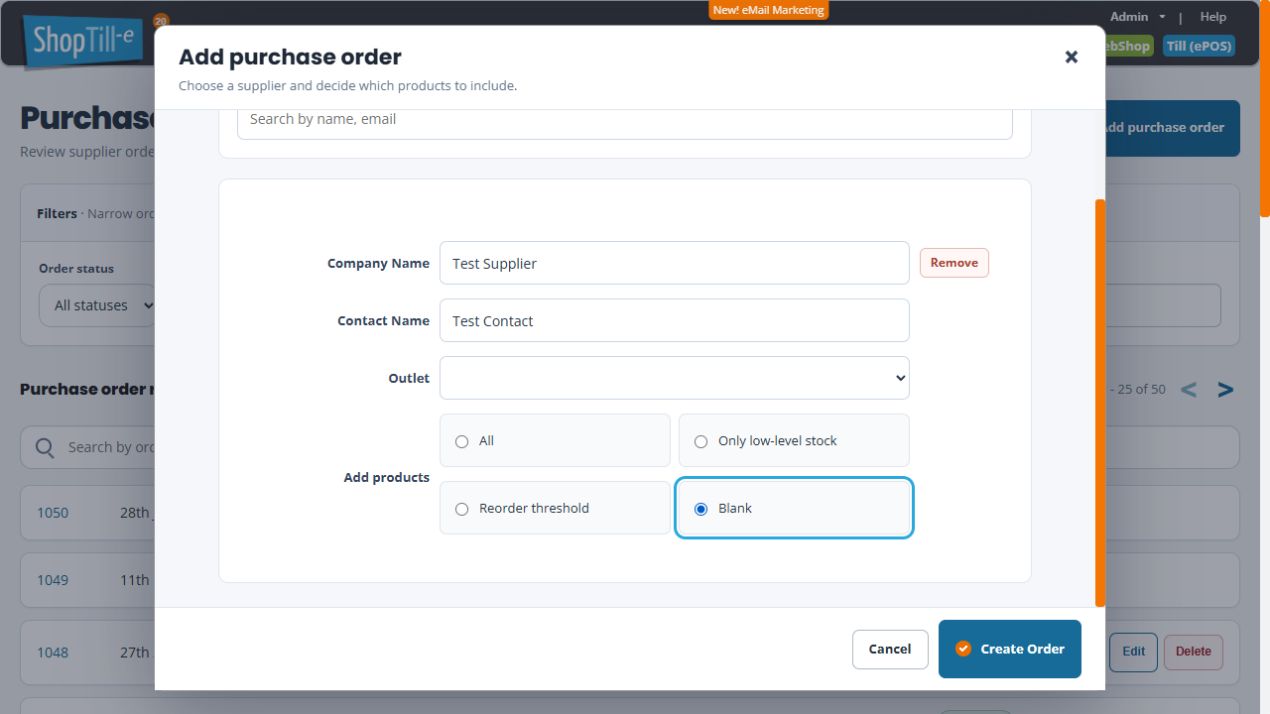
Choose a starting list, then set the quantities
| Choice | What to review |
|---|---|
| All | Review the proposed supplier-product rows, including any separate variant lines. A populated list still needs your order quantities. |
| Only low-level stock | Review the Stock <= value shown with this choice and check the proposed list against the intended outlet and replenishment need. |
| Reorder threshold | Review the proposed list against the products’ stock and reorder settings. Check the actual quantities you intend to buy. |
| Blank | Start with no product rows and use the editor’s Add item workflow for the items you intend to order. |
A populated list can still have Qty 0 and Order Total £0. Enter and check the intended ordered quantities and unit prices before saving; seeing product names does not establish the quantity you are ordering.
Review before saving
- Check the order header, supplier and outlet.
- Review the delivery contact, address, telephone and notes. Do not assume the supplier’s address is the delivery destination.
- Check every proposed product and variant, ordered quantity, unit price and line total. A prefilled list still needs review.
- Use the editor’s Add item and row controls for intended changes, following Review purchase-order lines.
- Use Save changes when the order is ready to record.
- Find and reopen the saved order to confirm its number, status, destination and contents.
Example: replenishment for one branch
Choose the supplier and receiving branch, then review the suggested products against that branch’s needs. Check variants separately and compare the unit prices with the supplier’s information before saving.
Saving and sending are separate stages
The setup’s Create Order step opens the line editor; the editor has its own Save changes action. A number displayed in an unsaved editor is not your confirmation that the order has been recorded. If you leave a new draft with Cancel, return to the list and check which saved records exist before starting again. Review the saved record before using Printables or Send emails. Creating a record does not by itself confirm that the supplier has received an order.
If the supplier search returns nothing
Try a distinctive part of the company or contact name and select an actual matching result. Check the displayed Company Name and Contact Name before continuing. If you only have an email address, find the supplier in the supplier directory first and use its company or contact name when preparing the order.
Related help
Supplier details · Find an order · Review receipt quantities.
If “Supplier not selected” appears
Choose the intended supplier from the search results and check its displayed company/contact details. Typing a name alone does not select the supplier. Review the outlet and starting-list choice before using Create Order again.
