Edit a supplier’s contact details
Keep supplier records clear enough for staff to find the right purchasing contact. Confirm that you are editing the existing supplier before creating another record for the same company.
Find and open the supplier
- Open Catalogue & Stock → Suppliers.
- Enter the supplier in Supplier search and select Search suppliers.
- Check the company and reference shown in the list, then select Edit for the intended supplier.
Update its details
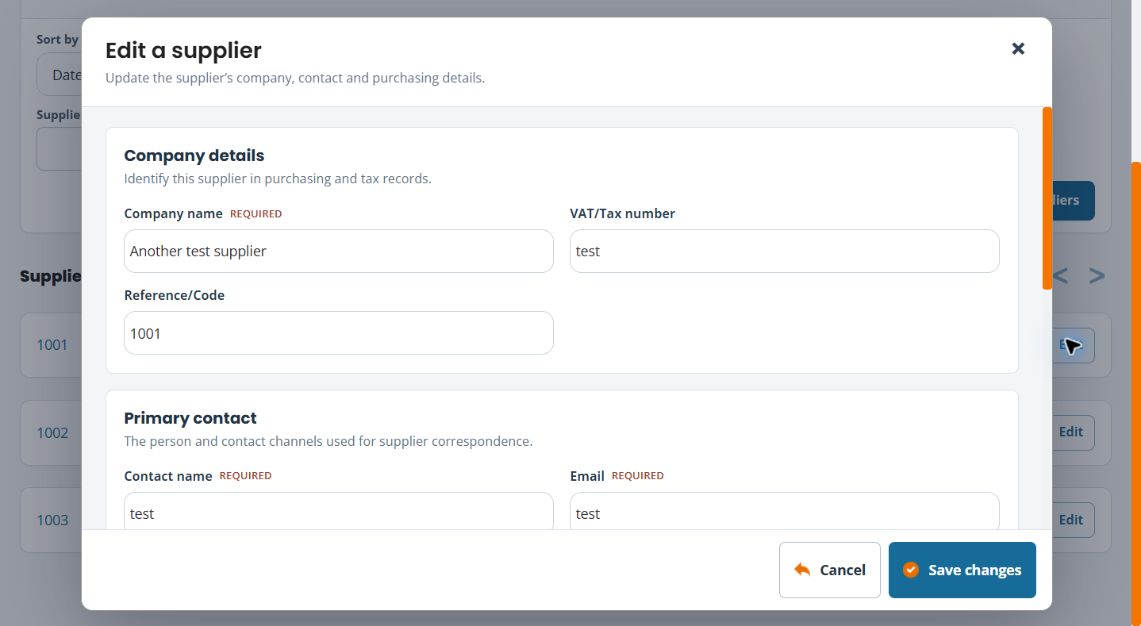
- Under Company details, review Company name, VAT/Tax number and Reference/Code.
- Under Primary contact, review Contact name, Email, Telephone and Telephone 2.
- Under Postal address, check the address lines, town, county/state/province, post/ZIP code and country.
- Complete the fields marked Required, then select Save changes.
- Reopen the supplier and check the updated details. If you were only inspecting the record, use Cancel.
Example: a new purchasing contact
If a supplier has assigned a new account manager, update the contact name, email and telephone on the existing company record. Keep its identifying reference unless that reference also needs an intentional change.
If you cannot find a supplier
Check alternative spellings and the result pages before adding a new record. The directory offers sorting and results-per-page controls. Verify whether the company already exists under a trading name.
Check before sending an order
Supplier details and product-to-supplier assignments are separate checks. Review the relevant product’s supplier selection in its Advanced tab when preparing purchasing information. Saving a contact correction should not be treated as confirmation that a purchase order has been sent.
Find a purchase order · Find product supplier and stock settings
Add a new supplier
- Search the directory first using the company name or email.
- Select Add supplier only when the company needs a new record.
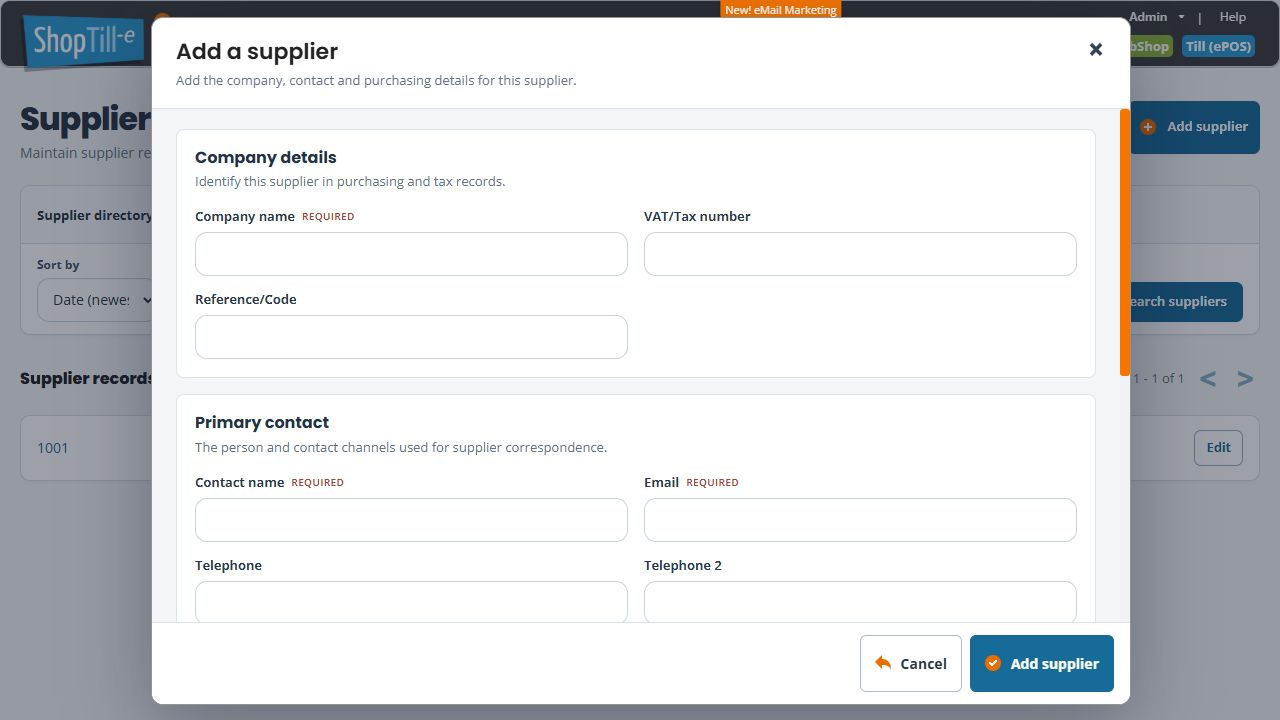
- Complete Company name, Contact name and Email, which are marked Required.
- Review Reference/Code and VAT/Tax number separately from the contact fields.
- Complete the intended telephone numbers and postal address, including country. The new form starts with - Select - in Country; choose the intended country rather than assuming one is already selected.
- Select Add supplier, find the new record and reopen it to check the details.
Cancel or Close leaves without another save. If saving is interrupted, search before creating another record. Saving contact details does not send a purchase order.
When a search returns no suppliers
- Check the text in Supplier search. The directory can show You don’t have any suppliers yet. when the current search has no matches.
- Clear the search field and choose Search suppliers to review the wider directory.
- Try the company name or supplier email and compare the returned company and contact before adding a duplicate record.