Print or email a purchase order
Check the saved purchase order before generating output or sending it to a supplier. Printing, sending and receiving goods are separate actions.
Review the saved record
- Open the intended order from Purchase Orders.
- Check its number, supplier, delivery destination, products, quantities and prices.
- Confirm that the supplier’s saved email details are appropriate for the intended communication.
Open printable output
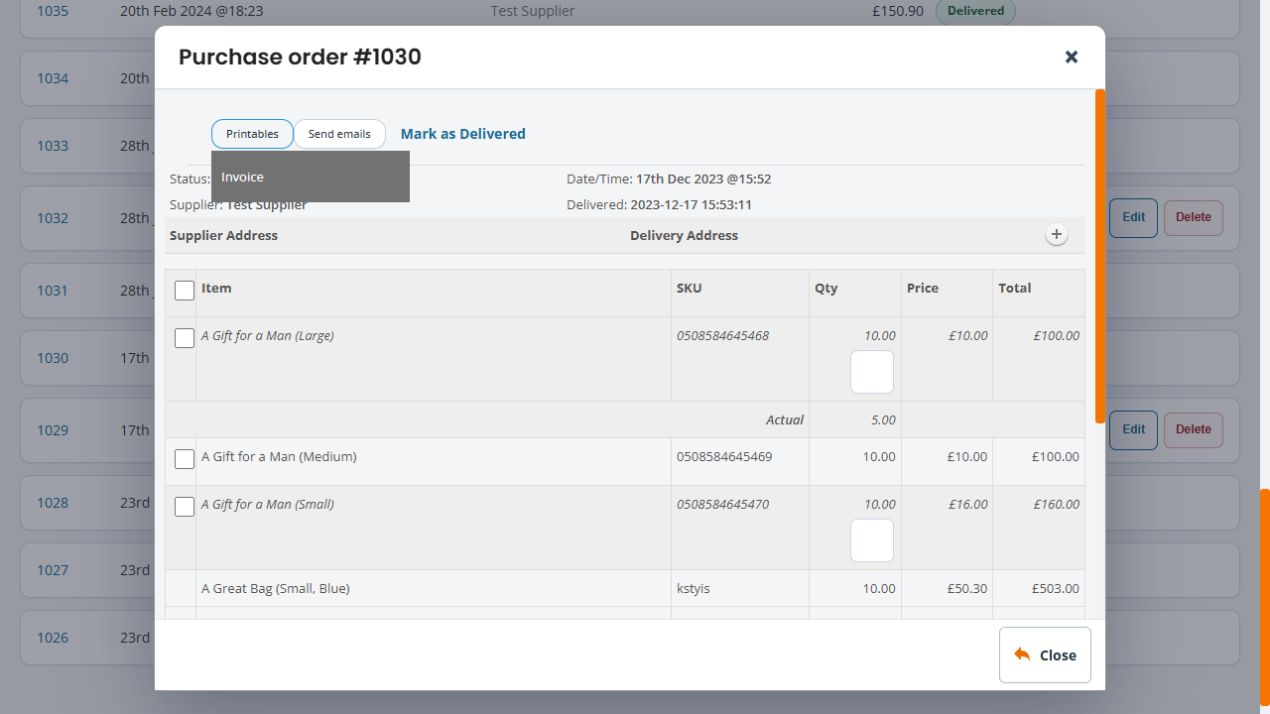
- Open Printables in the order view.
- Choose Invoice. The printable page is headed Purchase order; check its order number and date to confirm you opened the intended record.
- Review the supplier and delivery sections, product option descriptions, codes, unit prices, quantities and totals before printing or sharing it.
- Check the quantity for your purpose. The purchase-order document is separate from the actual-receipt record; do not treat its ordered quantities as proof of what arrived.
Email the purchase order
- Review the intended supplier recipient and saved order again.
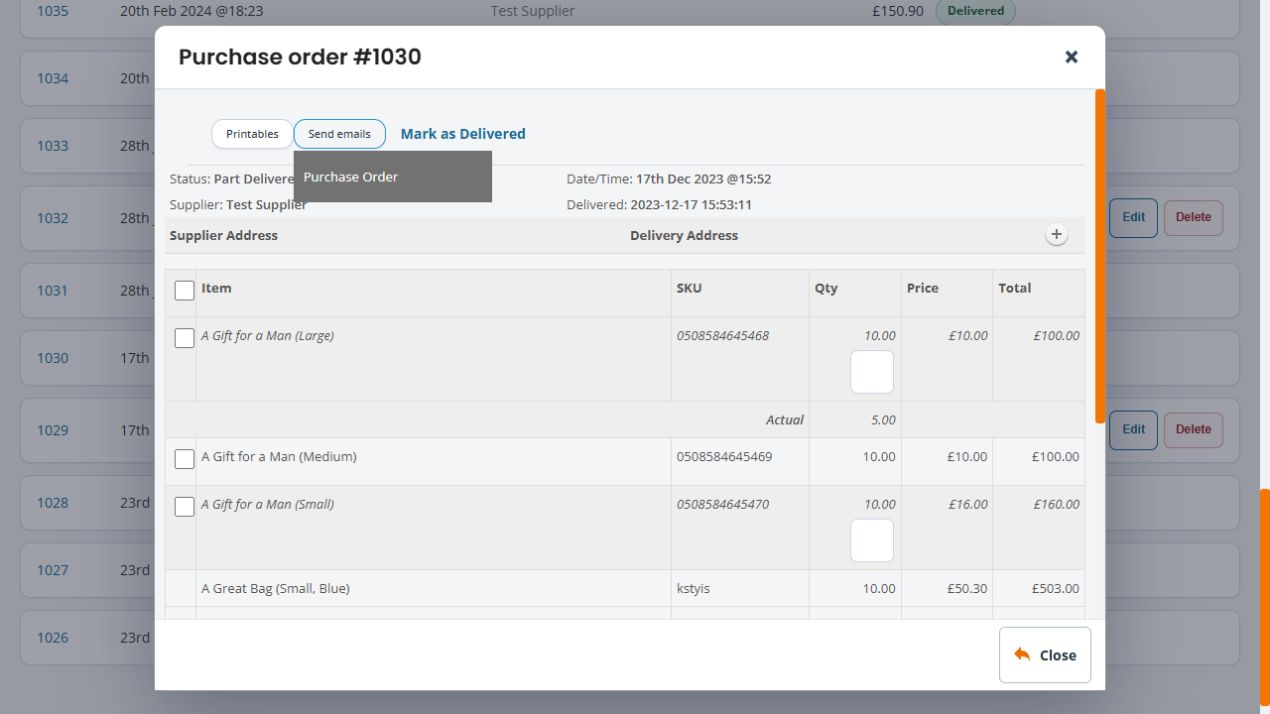
- Open Send emails.
- Choose Purchase Order only when you intend to send the order.
- Review the reported result. If it is uncertain, establish what happened before sending another copy.
Choose barcode rows from a purchase order
- In the saved order view, use its Print barcodes action to open a separate chooser.
- Compare each Item, SKU and Qty with the goods you intend to label. Option descriptions matter: Large and Medium can have different codes.
- Tick the intended individual rows. Check the ticks on the rows themselves; a tick in the heading checkbox alone does not confirm that every product row is selected.
- Review the desired selection before using the chooser’s Print action. Check the resulting labels, quantity and printer setup before a full run.
- Use the chooser’s Close button to return without producing barcode output. The purchase-order window has its own separate Close button.
For example, this order’s Large option has an ordered Qty of 10 and an existing Actual of 5. Its printable purchase-order document shows 10, while its barcode chooser shows Qty 5 for that row. Compare the displayed value with the goods in front of you rather than assuming every output uses the same quantity.
Example: a corrected order
If an order has changed since a supplier received it, check the new version and your communication process before sending another copy. Include the order number when discussing the change so the supplier can distinguish it from a separate order.
If output is unexpected
Check the saved record and supplier details before assuming the template is wrong. Record which output action you used and the actual message or document produced. An on-screen send result and confirmed supplier receipt are separate pieces of evidence.
If the barcode heading and row ticks disagree
Review and select the required individual rows. If the heading checkbox changes but the row ticks do not, keep a screenshot of the selection and order number for support. Close the chooser if you cannot establish which items will be included; do not print a whole batch based only on the heading tick.
Related help
Supplier contact details · Review order lines · Receive the goods.