
Receive stock using a barcode or SKU
Use Receive Stock for a delivery: enter the quantity that arrived at the selected outlet. Receiving adds those units to the recorded holding. A physical stock count or correction is a different task.
Count the delivery first
- Identify the branch that physically received it.
- Count what arrived, including the correct size, colour or other variant.
- Check whether someone already recorded the delivery manually or through a purchase order. Do not enter it through both routes.
- Keep the supplier delivery reference with your receiving records.
Find the item and enter the delivered quantity
- Open Catalogue & Stock → Receive Stock.
- Check Receiving outlet before entering any rows. If you need another outlet, choose it before preparing the batch.
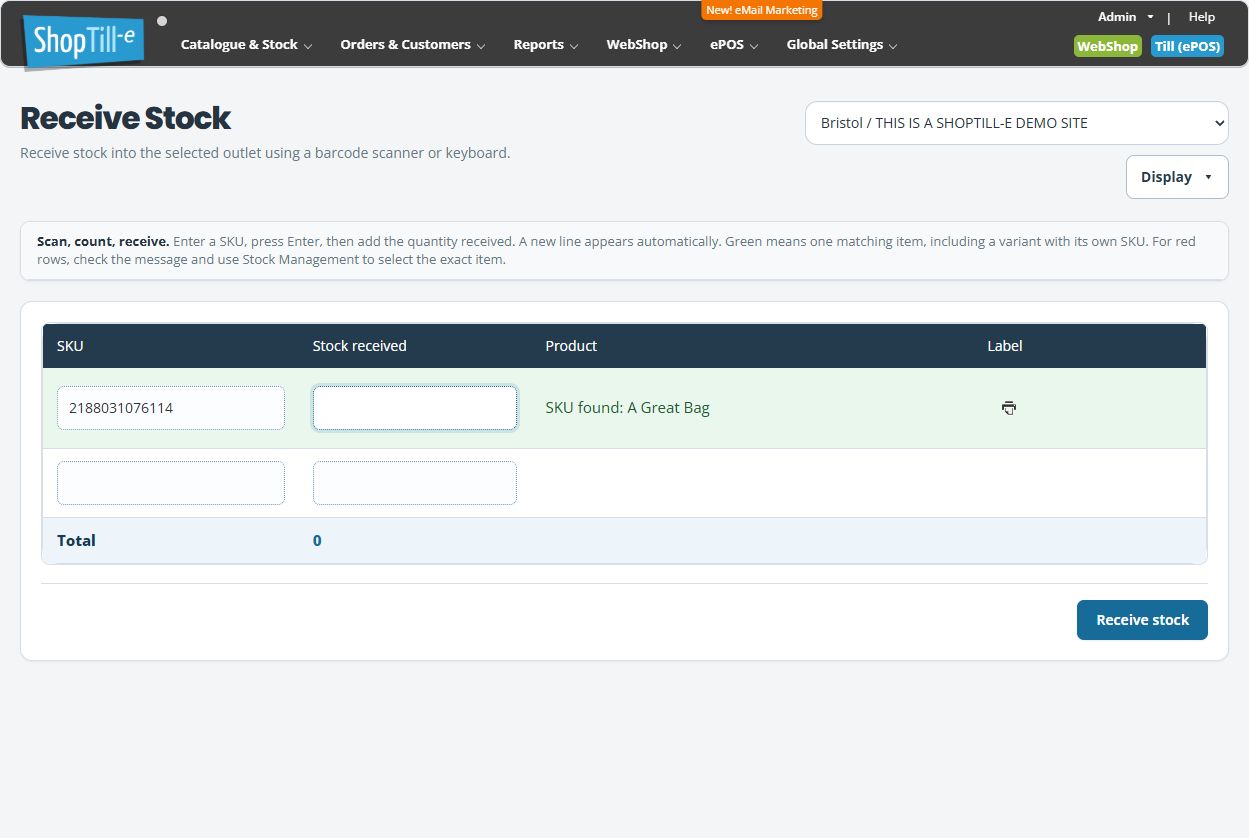
- Scan or type into Product SKU, then press Enter. Compare the identifier shown with the actual catalogue SKU.
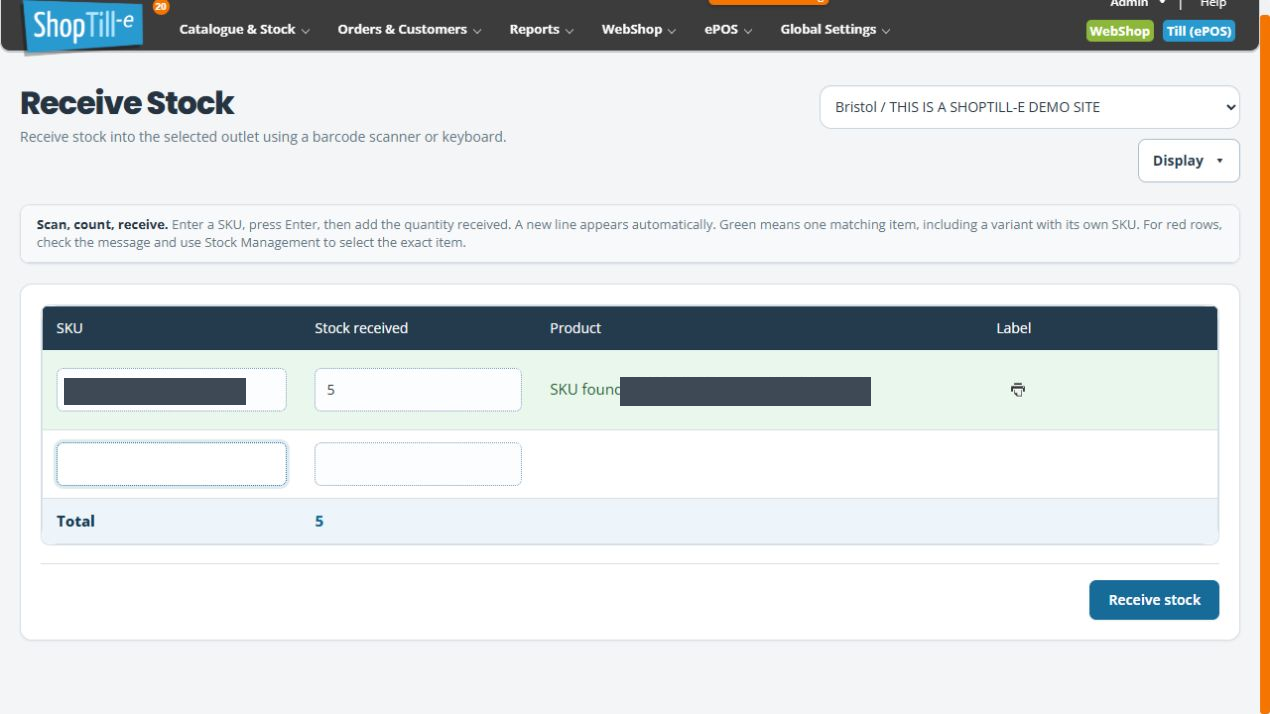
- Read the feedback. A green SKU found: row identifies one match. Check its product and option description; green does not mean stock has been received.
- Enter the number delivered in Quantity received, then press Enter. Check that the Total updates and focus moves to the next SKU. This is an additional quantity, not the intended resulting total.
- A blank row is added for the next SKU after a lookup. Repeat the lookup and quantity checks for each item.
- Review all entered identifiers, descriptions and quantities. Look for the same item entered twice. Check the total and outlet again; the total does not establish that every row matched or has the correct quantity.
- Choose Receive stock only when the delivery is ready to be recorded. This submits the batch; do not expect a separate review confirmation.
- Read every result, then check the saved quantity for the exact product/variant and outlet before closing your receiving records.
Check the option before entering a quantity
- For a delivery of a particular size or colour, find that option’s own SKU in the catalogue or Stock Management.
- Enter that SKU and press Enter. Read the whole SKU found: description, including any size or colour in brackets.
- If the description names only the parent product, stop and check the intended stock item before entering a quantity. A successful parent-product lookup is not confirmation that you selected the required option.
- Continue with the delivered quantity only after the description identifies the intended item. Check the submitted result and its exact outlet holding afterwards.
For example, a product called “Cotton shirt” may have a separate SKU for size B. Look for a description such as Cotton shirt (Size: B) when receiving that size. The green match confirms the lookup; it does not confirm that a receipt has been submitted or that stock has changed.
Check the submitted result and saved holding
The receiving result page is headed Results of stock import. Compare each SKU, Stock received and Result; a successful example shows Stock added. Use Back to stock management to review the exact item and receiving outlet.
| SKU | Stock received | Result |
|---|---|---|
| Your submitted SKU | 5 | Stock added |
This example table explains the result fields; it is not a screenshot or confirmation of your delivery. Check each submitted row and independently inspect the saved holding for the receiving outlet.
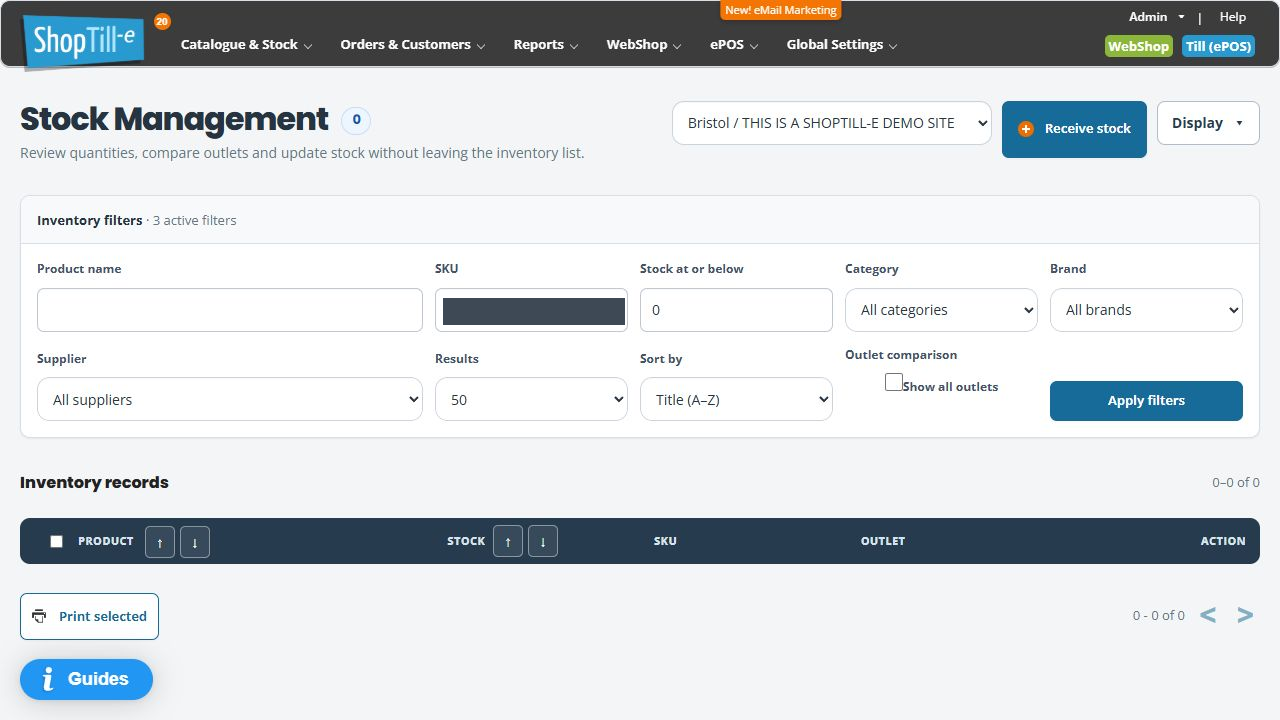
If the row is missing after receiving, inspect Stock at or below before submitting the delivery again. A threshold of 0 can exclude the product once its holding becomes positive. Use an appropriate threshold for your check and compare the saved quantity with the starting holding plus the delivery.
Examples: delivery, partial delivery and stock count
- Five units arrive when twelve are held: the receipt quantity is 5, with an expected resulting holding of 17 if no other movements occur.
- Twelve were ordered but ten arrived: record the ten received. Keep the supplier discrepancy separate and check whether the purchase-order receiving route is the appropriate record for this delivery.
- A physical count finds nine when twelve are recorded: do not enter 9 in Receive Stock. Use a holding correction or Stock Audit to record the intended total.
Resolve lookup feedback before submitting
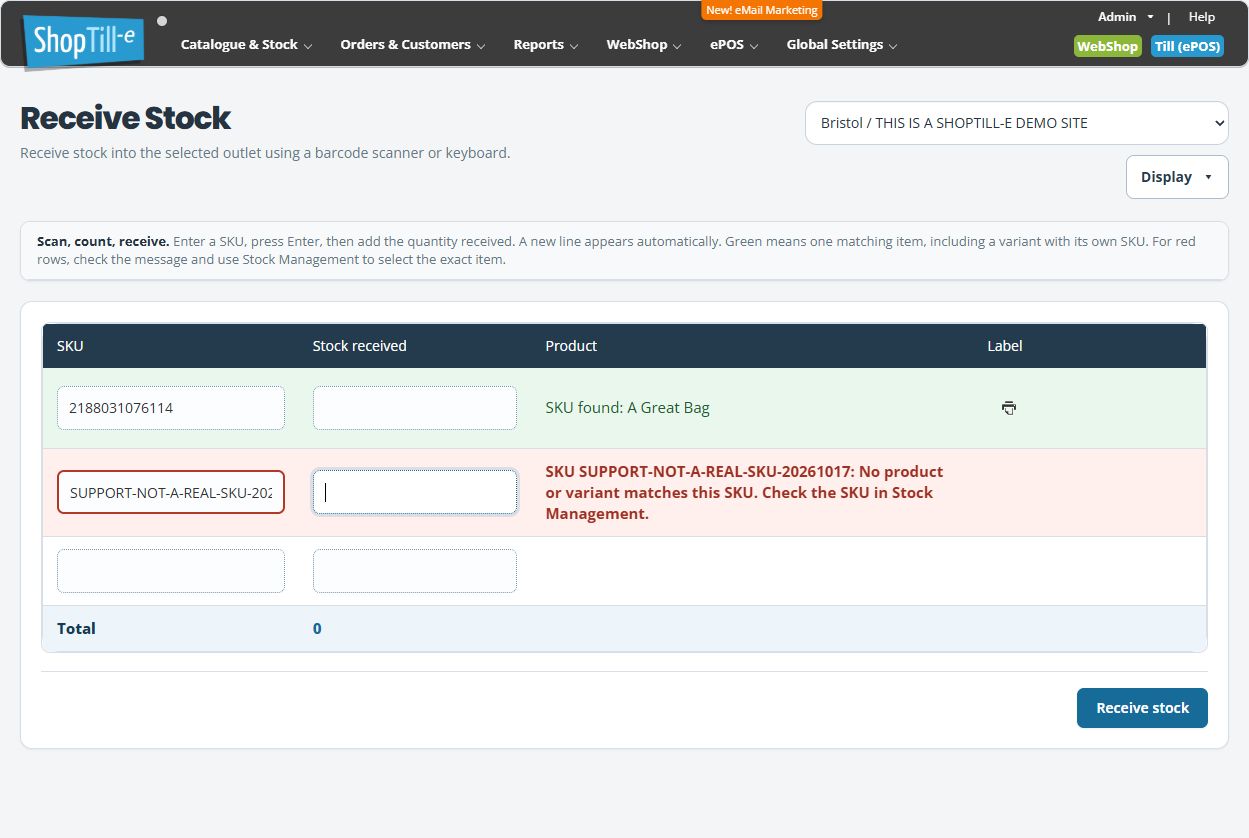
- No product or variant matches this SKU: check the entered characters and the identifier in Stock Management. Preserve leading zeros and check whether you intended the base product or a particular variant.
- Multiple products or variants match: read the listed descriptions and use Stock Management to identify the exact item. Do not guess from similar names or assume the first match is correct.
- Enter a SKU of at least 3 characters: check that the complete identifier was entered. For shorter catalogue codes, use Stock Management to select the exact item.
- Could not check SKU: review the connection and current identifier before pressing Enter to retry the lookup. Retrying a lookup is different from resubmitting the delivery.
- You edited the identifier after checking it: press Enter again and review the new feedback. A previous green match no longer validates the changed text.
If a scanned barcode shows a match but the receipt result rejects it, inspect the product's actual SKU and use Stock Management to select the exact item. Do not repeatedly submit a code solely because its lookup row was green.
Read the receiving result and avoid duplicate receipts
The results list identifies submitted SKUs, quantities and row messages such as Stock added or Stock not added. Check every row and inspect the corresponding holding. A batch can contain different outcomes; do not treat one successful row as confirmation of all entries.
If the result is missing, interrupted or unexpected, check current item/outlet stock and available receiving evidence before trying again. Repeating a receipt can add units again. Keep the items, quantities, outlet, delivery reference and exact message for support. Do not use a negative receipt to guess at a reversal.
Find a supplier purchase order · Choose the right stock workflow · Review variants.
