
Edit a blog post and review publishing settings
The blog editor separates writing from publication settings. Review both tabs before saving a post, particularly when updating an older article with an existing publication date.
Edit the article
- Open WebShop → Articles / News / Blog and the Blog Posts section.
- Check Storefront, then find the article using the date sorting and Display controls.
- Select Edit beside the intended post.
- On Content, review the required Title and the Blog Content editor.
- Use paragraphs, headings, lists and links to make the article useful. Check factual claims and remove outdated information.
Review Publishing & settings
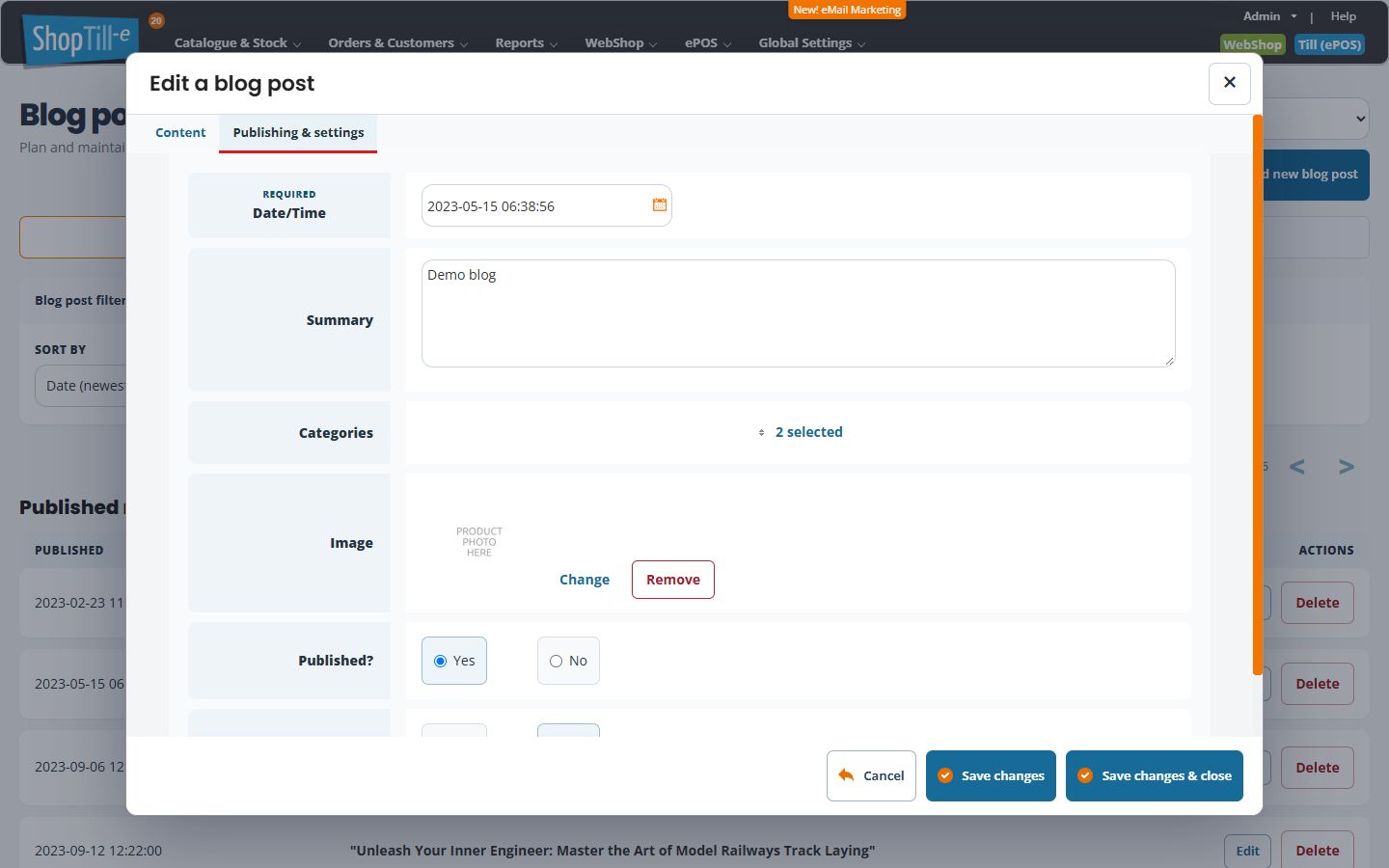
- Choose Publishing & settings.
- Review Date/Time and Summary.
- Check Categories and the selected image. Change or remove an image only when that is part of the intended update.
- Review Published? and Comments open? separately from the wording changes.
- Select Save changes & close, then reopen the post and check the intended storefront output.
Example: update a seasonal article
Check whether the article still describes the range you sell, update its summary and links, and review the date deliberately. Do not assume that changing Date/Time is a scheduling action without checking how your storefront uses it.
Using AI writing tools
The Content tab offers Improve with AI for the title and Generate Your Blog Content with AI. Review generated wording before publication, including product availability, business details and any suggested claims.
Categories and comments
The Blog sections navigation also links to Blog Categories and Blog Comments. These manage separate records from the post body. If a category or comment needs attention, open the appropriate section rather than deleting the article.
AI writing guidance
Keep title, address and date changes deliberate
A post's title is used to form its address. After a title change, review the saved post link and existing menu/content links rather than assuming the old address remains valid or redirects. Keep the previous address when updating an established article.
Date/Time, Published? and Comments open? are separate settings. Choose the intended Published state explicitly. A future date is not a substitute for a verified scheduling workflow, and closing comments is different from hiding an existing comment.
Featured image versus an image in the article
The Publishing & settings Image area chooses a featured image. Change opens the shared content-image library; Remove clears this post's selected image when the post is saved. It is different from deleting the library file. Insert Image in Blog Content inserts a photograph within the article text. Check both the article page and any list/card presentation.
Review categories and summary on every save
Check the complete Categories selection before saving, including an intentional empty selection. Keep the Summary useful for the intended article and inspect the storefront result; not every theme uses the same summary presentation. If category selection or images look incomplete, investigate before saving an unrelated wording change.
Create an article · Manage article categories · Moderate blog comments · Format article text · Edit text links.
Take an outdated article out of publication
- Open the correct article and keep a copy of its wording, images and current address if you may need them again.
- In Publishing & settings, review Published?. Choose No when you intend to take the article out of publication while keeping the record.
- Check the other settings before choosing Save changes & close. Reopen the same article to check the stored choice.
- Check the actual article address and any article lists or menu links on the intended storefront. Update links that should no longer direct customers to the article.
Closing comments is a separate choice. It does not replace reviewing the article's Published setting.
If you intend to delete the article
- Return to Blog Posts, check the storefront and identify the exact article. Keep any copy and previous address you need before continuing.
- Choose that article's Delete action. Read the Delete Post? confirmation before deciding.
- Choose No to cancel. Choose Yes only when you intend to delete that article; do not use deletion simply to correct its wording or close comments.
- After an intended deletion, check the returned list and the old storefront address, and review links that previously led to the article. If the outcome is unclear, keep the article title, address and displayed message for support before repeating the action.
Do not assume a deleted article can be recovered through a recycle bin. Keep a copy before deleting when the content may be useful later.
