
Create and manage blog categories
Blog categories group articles for browsing. They are separate from catalogue Categories / Departments and are maintained in the blog section.
Create a category
- Open WebShop → Articles / News / Blog, then Blog Categories.
- Review the existing groups before choosing Add blog category.
- Enter the required Title, such as “Care guides”.
- Choose Save changes & close for the intended category, or Cancel to leave without saving.
- Reopen it to check the saved title and URL slug.
- Open the intended blog post and select the group under Categories in Publishing & settings. Save that post and check the actual category and article presentation.
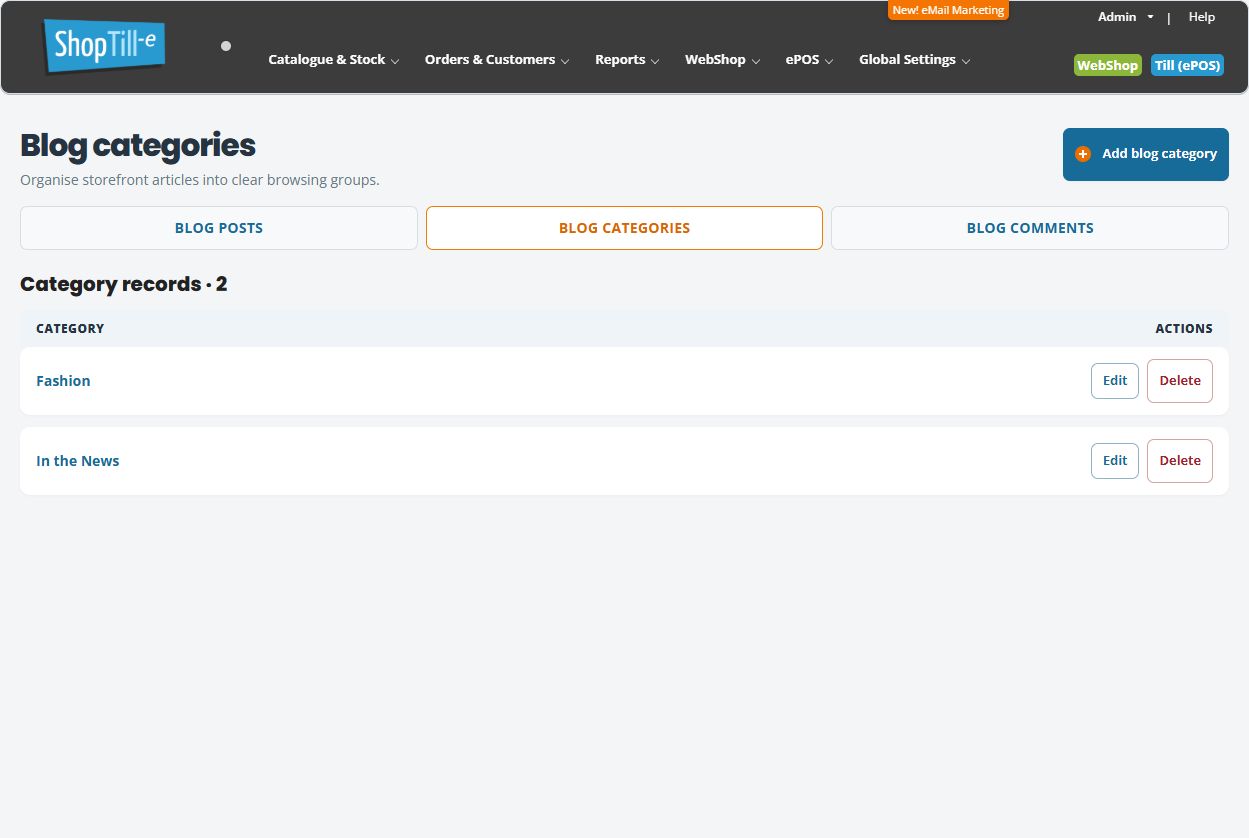
Rename a category deliberately
Choose Edit on the intended group, change its Title and save only when that rename is intended. The category title is used to form its URL slug, so check the saved slug and existing links after a rename. Do not assume a title change preserves the previous address or creates a redirect.
Remove an assignment or delete a group?
To take one article out of a group, review that post's Categories selection and save the post. Delete on Blog Categories removes the category record after its confirmation; it is a different action. Check affected articles, browsing links and the intended replacement group before confirming deletion. Do not assume every relationship/link is repaired or that an automatic Undo restores it.
Example: use a clear browsing structure
Use groups such as “Care guides” and “Shop news” for distinct article purposes. Check that each article's selected groups match its subject. Renaming a group for one article can affect other articles using it, so review the wider browsing structure first.
Assign article categories · Create a blog article · Product departments.
If an article appears in the wrong group
- Confirm that you are reviewing Blog Categories rather than product Categories / Departments.
- Open the exact article and review Categories under Publishing & settings. Compare its selections with the intended group title.
- After an intended assignment change, save the article and reopen it to check the selections, then inspect the actual browsing page.
- If the group was renamed, compare its saved URL slug with the link you are following. Do not assume the former address redirects.
- For one misplaced article, review that article’s assignment before renaming or deleting a group used by other articles. Keep the article and group addresses for support.
