
Review, approve or hide blog comments
Blog Comments manages reader responses to articles. A comment's Live state, an article's Published state and its Comments open setting are different controls.
Find and inspect a response
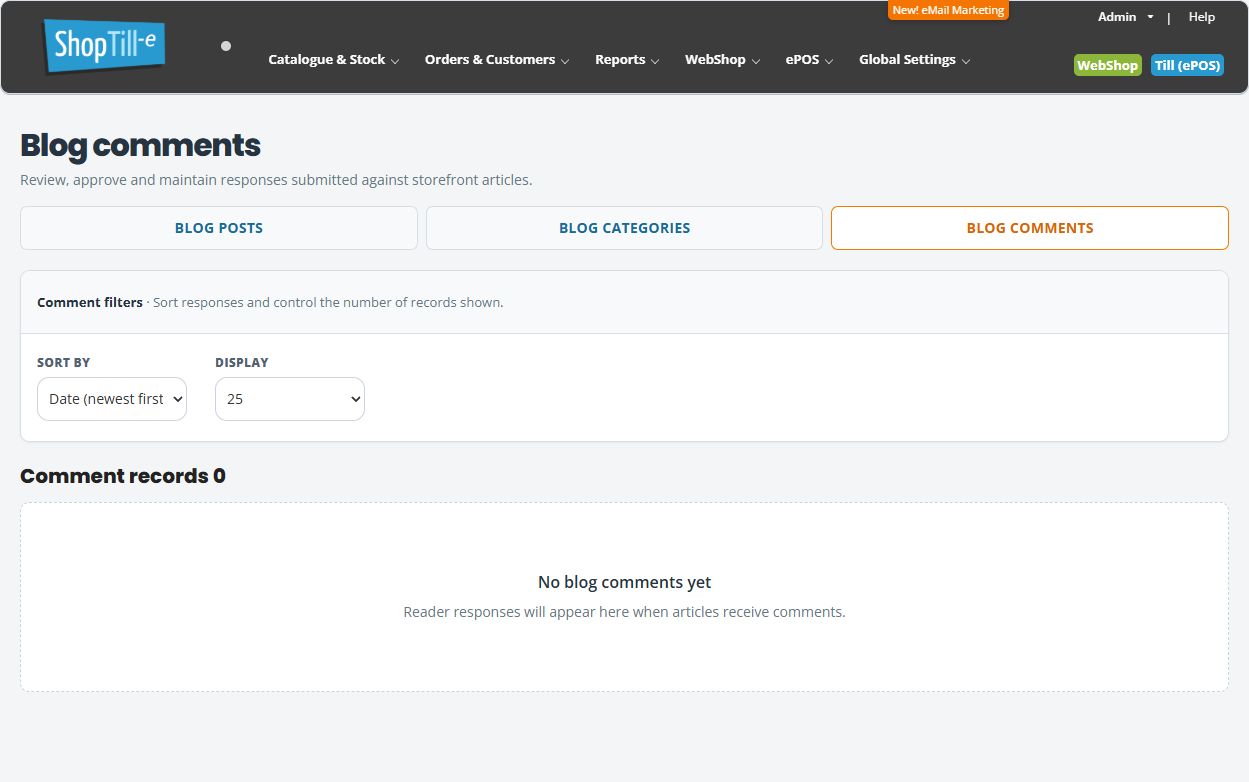
- Open WebShop → Articles / News / Blog → Blog Comments.
- Use Sort by and Display to find the intended records and check other result pages where needed.
- Check the date, commenter and Live/Not live state. Open the comment's date/title entry to inspect its editor.
- Review Date/Time, Name, Email, Live? and Comment before deciding what should change. Keep contact details out of the public comment wording.
- Use Cancel when inspecting without a save. For an intended edit, use Save changes or Save changes & close, then reopen the record and check the relevant article.
Approve or hide a comment deliberately
A comment row offers Approve when not live or Hide when live. Choosing that action submits the visibility change; do not expect a separate Apply step. Read the result and inspect the saved Live state and article output afterwards. If the result is unclear, check the current record before repeating the action.
Hide retains the comment record while changing its Live state. It is separate from closing the article to new comments and separate from deleting the comment.
Delete is a separate removal action
Use Delete only for the intended comment and review its confirmation before proceeding. Cancel if the record is wrong. Do not assume automatic recovery or use deletion merely to stop accepting new responses.
Example: stop new responses without removing existing ones
Review Comments open? on the article when you intend to stop new submissions. Review existing comment Live states separately. Do not assume one setting hides every existing response or that approving a comment opens the article to new comments.
If no response appears
Check the correct article, its Published and Comments open choices, the comment's saved Live state and the active theme's display. If the list is empty, that is not proof that every storefront form is disabled or that a customer's submission succeeded. Keep the article address, time and actual message for support before changing unrelated settings.
Review article publishing and comments settings · Product reviews are managed separately.
