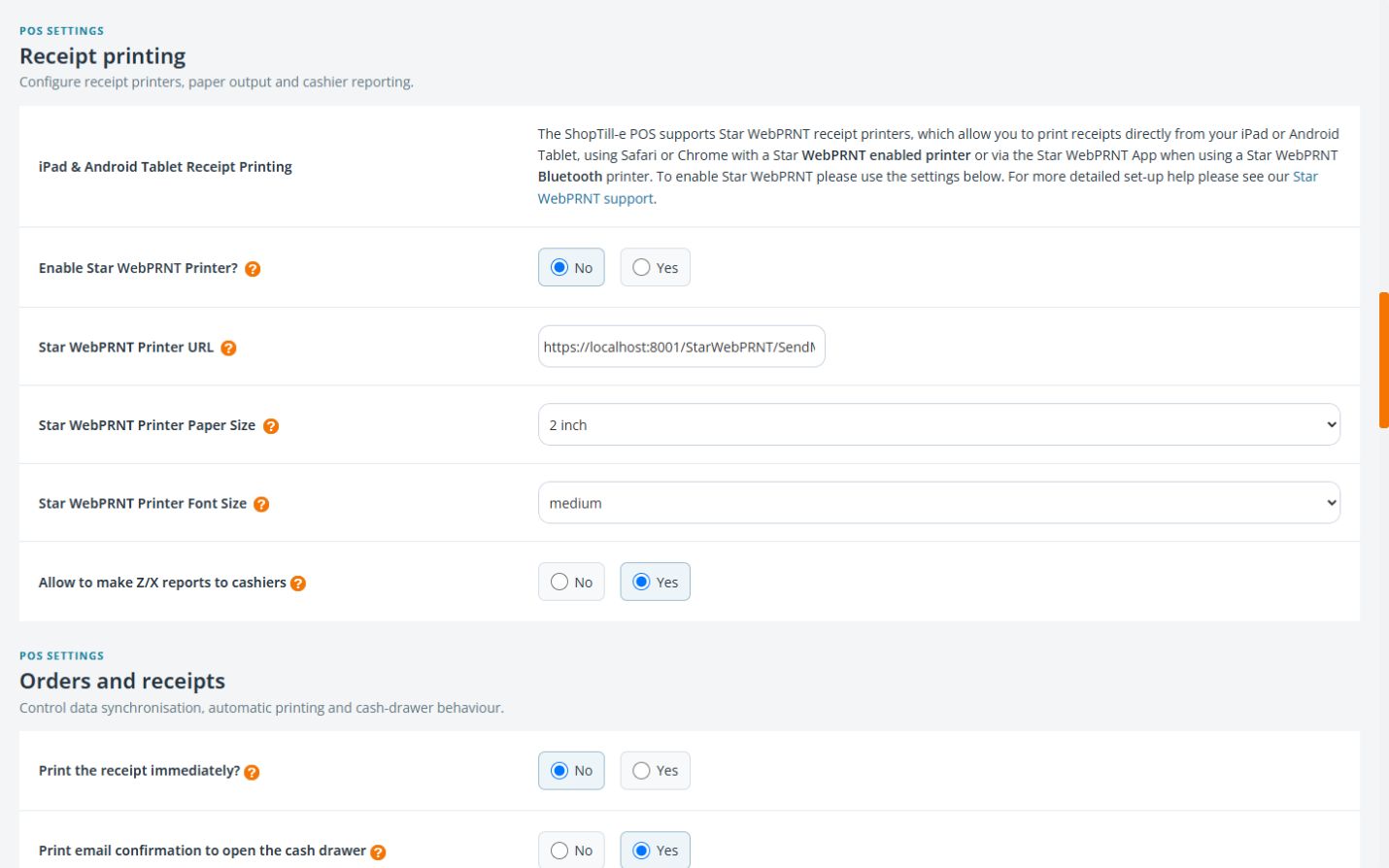
Review receipt output and cash-drawer settings
Receipt output depends on the till’s printing route, the printer and the workflow used after payment. Identify those parts before changing several settings together.
Review the configured printer route
- Open Global Settings → ePOS/Till Setup and choose Receipt printing.
- Review Enable Star WebPRNT Printer?.
- If your setup uses this route, review Star WebPRNT Printer URL, Star WebPRNT Printer Paper Size and Star WebPRNT Printer Font Size.
- Record the actual printer and connection method with the current settings before planning a change. Do not copy another shop’s example address.
Review the receipt workflow
- Choose Orders and receipts in the section navigation.
- Find Print the receipt immediately? and Print email confirmation to open the cash drawer.
- Compare the selected choices with the workflow staff intend to use: printing a receipt, emailing one, or both.
- For an intended update, use Save Settings, then check the receipt and drawer behaviour on the actual till device and printer.
Example: emailed receipt and drawer opening
If a customer receives an emailed receipt but the cash drawer behaves unexpectedly, record the payment method, printer route and email-confirmation setting. A successful email alone does not establish that the printer received a drawer command.
Gather useful diagnostic details
Note the device, browser or app, printer model, connection method, paper size and the exact step where output differs. Distinguish no output, incorrect layout and drawer behaviour. A browser-printing route, Star WebPRNT and a native app integration can require different checks.