
Review Star WebPRNT printer setup
Star’s documentation distinguishes a printer with network WebPRNT from a Bluetooth printer used through Star WebPRNT Browser. Confirm the exact supported device, printer interface and firmware before enabling the ShopTill-e route.
Prepare the correct route
- Identify the exact printer model, interface and current manufacturer instructions.
- For a network route, confirm the device can reach the intended printer and have support confirm the secure WebPRNT printer address.
- For a Bluetooth app route, confirm the supported app/device combination, pair the intended printer and review the app’s printer selection and shop start address using its current instructions.
- Keep the working configuration before an intended change. Do not copy a sample IP or localhost address from another setup.
Review Builder controls
- Open Global Settings → ePOS/Till Setup → Receipt printing.
- Review Enable Star WebPRNT Printer?.
- Review Star WebPRNT Printer URL against the printer address confirmed for this route.
- Review Star WebPRNT Printer Paper Size and Star WebPRNT Printer Font Size against the intended output.
- For an intended change, review the rest of the settings and use Save Settings, then reopen the saved values.
- Print one test receipt and inspect its reference, layout and physical output before relying on the setup.
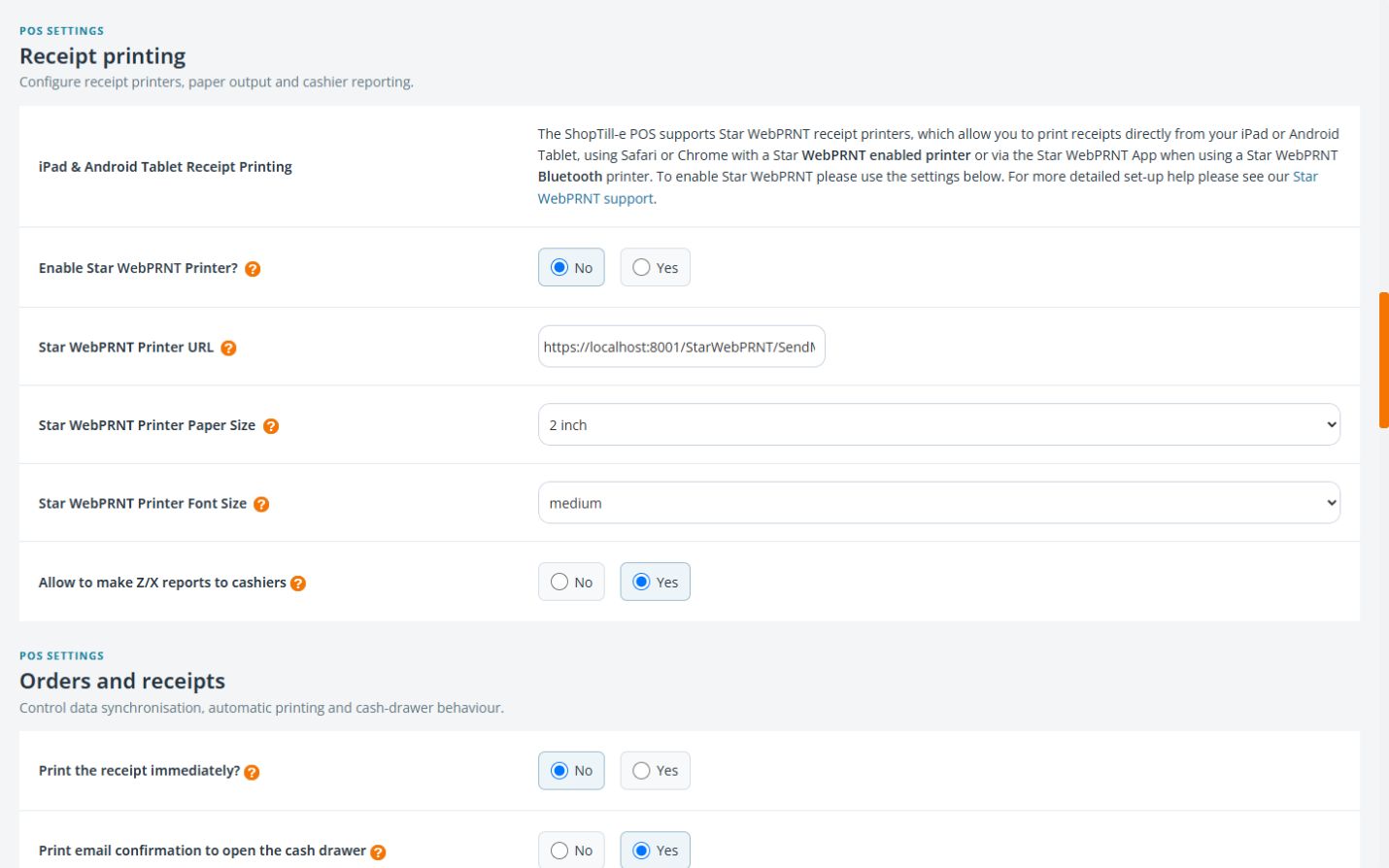
Example: a network address is not an app address
A physical network printer’s address and an app’s local printer bridge serve different routes. Confirm which one your setup uses before entering the address.
If the connection fails
Keep the exact error and device/printer details for support. Secure website and printer communication need compatible configuration; do not switch the shop to an insecure address just to make printing work. Consult Star’s current WebPRNT manual for the exact supported route.
Choose the printing route · Troubleshooting.
Find the official app and the correct instructions
Use Star’s iPhone/iPad App Store listing or Android Google Play listing. Check the developer is Star Micronics and review compatibility on the intended device before installation or an update. Follow the instructions for that app and printer combination.
Bluetooth app setup: iPhone or iPad
Follow Star’s iOS instructions for the intended model:
- Pair the intended Bluetooth printer with the device.
- Open Settings → Star webPRNT.
- Set HOME URL to your shop’s till page.
- Choose the appropriate model under PRINTER. Match the printer’s actual mode, including StarPRNT where applicable.
- Review PORT NAME using the model-specific guidance; some models require an explicit port instead of the default.
- Open the till in the intended app and check one receipt.
Bluetooth app setup: Android
Follow Star’s Android instructions for the intended model:
- Pair the intended Bluetooth printer with the device.
- Open Star webPRNT Browser, then its menu and Settings.
- Set HOME PAGE to your shop’s till page.
- Review MODEL against the printer’s actual mode, including StarPRNT where applicable.
- Choose the intended paired device under SELECTED PRINTER.
- Return to the till and check one receipt.
If the installed app differs, compare its help and the exact model before following an older illustrated menu.
Check the full model and interface
Use Star’s interface compatibility table to compare the exact model with the LAN, Bluetooth and USB columns and their platform remarks. A shared product-family name does not establish the same connection route.
Do not swap the two addresses
The app’s Home setting opens your ShopTill-e till page, for example https://your-shop-name.shoptill-e.com/builder/pos.php. Builder’s Star WebPRNT Printer URL identifies the printing destination for the chosen route. Keep the shop address and printer address distinct, and confirm the correct printing destination with support.
Leave full screen in the Android app
For the app layout described in Star’s Android manual, use this route when full screen was enabled through Settings → PREFERENCE → Full Screen:
- Swipe down from the top to find the app’s Full Screen mode notification, then tap it.
- Open the app’s Settings and clear PREFERENCE → Full Screen.
- Check that the normal app controls are available and that you are still viewing the intended till.
If that notification or setting is absent, check the installed app’s help and record the device and app details for support. This is separate from desktop browser F11 or a managed kiosk. Keep any unfinished basket and local orders intact; do not clear app data or reinstall to recover a missing menu.
