
Find X and Z report controls
X and Z report controls are available from Builder reporting and from the till header. Confirm the report, till identity and trading period before carrying out an end-of-day operation.
Use Z for the end-of-day report
Use Z Report for end-of-day reporting. Before requesting it, check the intended till point, date and outstanding sales/payment or sync issues. Follow the report-request steps below and keep the actual output with the day’s supporting records.
An opening float, where used, is an optional fixed amount set for each till point, such as £100. Review the intended till’s configured value rather than assuming all tills use the same amount. This setting is separate from counting the cash physically present and recording any difference.
For example, a Main checkout configured with a £100 float has that fixed opening-float setting. It is not a closing cash count entered by the cashier, and it should not be changed merely to make an end-of-day figure match. Keep the report, physical count and your shop’s reconciliation record distinct.
Find the reporting form
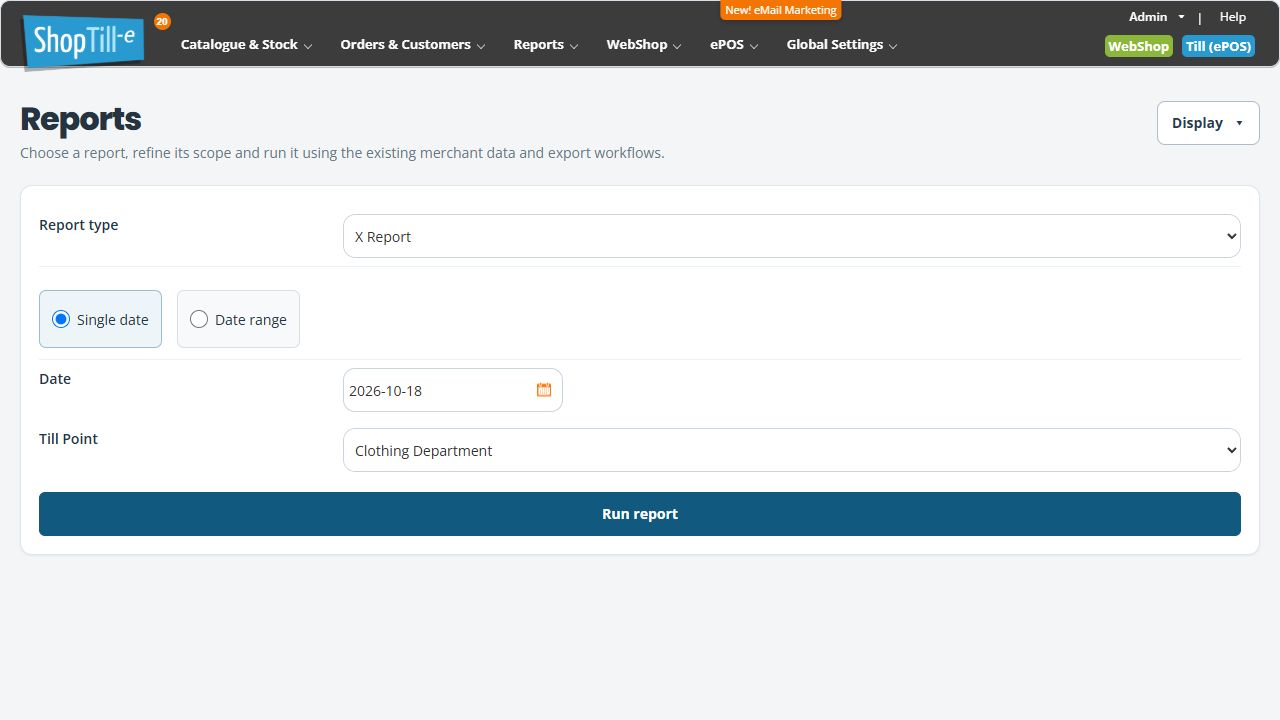
- Open Reports → X Report or Reports → Z Report.
- Check the selected Report type.
- Review the displayed Single date or Date range choice and the Date field.
- Check Till Point. Match the actual till name rather than selecting an unknown identifier by guesswork.
- Use the checked workflow for reviewing or generating the intended report before choosing Run report.
Find the till controls
The till header includes X Report and Z Report. It also shows the till identity; the expanded information header gives additional context. Check that identity before treating a report as belonging to a particular device or outlet.
Printing and access
POS Settings includes Allow to make Z/X reports to cashiers. Access, report generation and printer output are separate checks. A report appearing on-screen does not prove that it printed successfully.
Example: investigate a missing end-of-day print
Note the till, report type, period and whether a report already exists or was generated. Investigate those facts before repeating a potentially state-changing end-of-day action just to obtain another print.
Use the report-generation and output checks below for end-of-day Z reporting. Complete your shop’s cash-count, difference and next-opening procedure separately; do not assume generating Z records those actions or carries a balance forward.
Related setup and device checks
- Review a till point’s name, outlet and opening float
- Add or edit a product tax class
- Check the till before closing or refreshing
Review a selected period in Builder
- Choose the intended X or Z report in Reports.
- Select Single date or Date range and enter the intended date values.
- Confirm Till Point and the report type.
- Select Run report for that review, then check the resulting report heading, till and period.
- Compare the figures with the supporting transactions and your cash-handling records.
Reviewing a historical report does not prove a till closing operation was completed. Keep the till’s operational close, reconciliation and reprint procedure separate from this reporting lookup, and investigate an uncertain prior close before repeating it.
Request a report from the till
- Finish the intended sale and check pending payments and locally saved orders before starting the reporting task.
- Confirm the till name, outlet, current date and signed-in user. Expand the information header if necessary.
- Choose X Report for the intended interim review, or Z Report only at the appropriate point in your shop's end-of-day procedure.
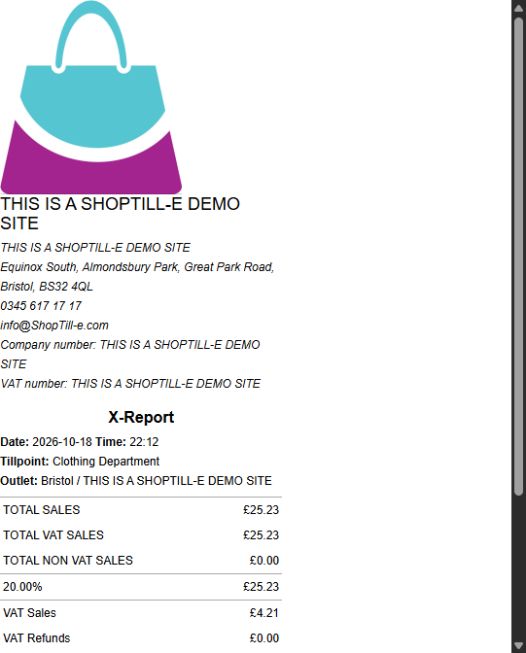
- Allow the report to load and follow the configured print route. A browser print dialog, report window or device print route may be used.
- Check the report heading, date and till, then inspect the actual output. Keep it with the shift's supporting records.
- Compare the payment breakdown, refunds, opening and closing totals with the relevant transaction records and recorded cash count.
Retain the cash-count and difference record required by your shop. A report total, card-terminal settlement and physical cash count answer different questions; investigate differences using the original transactions.
If X or Z is missing
Ask an administrator to review the user's report access and Allow to make Z/X reports to cashiers in ePOS/Till Setup. A cashier's missing control should be investigated through the intended access setup. Do not use another person's credentials as a workaround.
If printing is interrupted
Finish or inspect the existing report request before starting another. Check the printer, connection and actual paper output. If the screen says the report request was already opened or has expired, keep the till, date, report type and message with the investigation.
If a new report request is appropriate, return to the till control. Do not repeatedly reload an old report address or assume a second request is a reprint of an unchanged closing record. Ask support when the prior closing state is uncertain. For a historical review, use the Builder date/till lookup above and retain the original end-of-day evidence.
Keep the report and closing records
Retain the generated output with the till, date, shift and supporting transaction records. Complete your shop's cash-count and reconciliation procedure separately. A report appearing or printing is reporting evidence; confirm the required closing and next-opening records through the agreed shop procedure before treating the shift as reconciled.
Saved-report controls on an existing iOS print integration
If your supported app presents the Report printing panel with Reprint this saved report, that control retries the document already generated. Check the actual paper output first and use it only when another copy is needed.
Download report copy keeps a text copy for investigation. The saved in-page document is temporary; retain the copy you need before reloading or leaving the page. Check iOS Device Settings when that panel reports a printer configuration or availability problem. These controls depend on the app's printing integration and need not appear in an ordinary browser.
Historical report regeneration
Builder's date/till report lookup recalculates the selected report. Keep an original end-of-day output when an exact copy matters, and investigate differences against that original and the underlying transactions. A later calculation can reflect the data and configuration available when it is run.
Card-terminal end-of-day
Where a configured terminal offers its own EOD Report, handle that as the terminal/provider task. Keep its result and references with the card reconciliation. Review the provider outcome separately from ShopTill-e's X/Z reporting and the shop's physical cash count.
If Run report leaves you on the same form
- Keep the selected report type, dates and till point with your notes.
- Check whether the output opened in another browser tab or window, and note any blocked-window or error message actually shown.
- If no output is visible, record that result and ask support to check the reporting route before treating it as a completed report.
- Do not switch to a till closing action or repeatedly request Z reports merely to make a window appear. Keep any original report and unresolved closing evidence.
A form remaining visible does not establish whether a report was generated elsewhere, whether a browser blocked its window or whether the request failed. Keep the observed result separate from the cause.
